

Finding the content
1
Show plugin content
In the Content Browser, open the Settings menu and tick Show Plugin Content.
Plugin folders are hidden by default, which is the single most common reason people
think Inkwell shipped no examples.
2
Browse to the folders
In the source panel, go to Plugins → Inkwell Content. The demo lives in Maps
(the showroom), DemoProps (its documents, meshes, and materials), and Examples
(the journal, the input assets, and the prompt widget). Asset paths are written as
/Inkwell/Maps/..., /Inkwell/DemoProps/..., and /Inkwell/Examples/....The showroom: L_InkwellShowroom
/Inkwell/Maps/L_InkwellShowroom — one long gallery hall that demonstrates the whole
feature set in a single walk. Open it and press Play; it needs nothing from your
project.
It plays out of the box because the map’s GameMode Override is
AInkwellReaderGameMode, whose default pawn is AInkwellReaderCharacter — a first-person
reader pawn shipped in the plugin. The pawn’s move and look input is Enhanced Input built
at runtime in C++, so no project input assets are involved; its page interaction comes
from the bundled Ink Page Interactor’s demo keys and the reader’s flip key, which bind
themselves.
The walk, in the order you meet things:
The paper wall. Just inside the door: seven flat pages hung at eye height, each on the
zero-setup Ink Page actor — assign a document, done. One per paper treatment: generated
lined stock (with margin rule and punch holes), the same generator ruled as grid
and as dots, a scanned texture under the same ink, a page of brush drawings, a
layered page (a watermark under the ink, a stamp pressed over it), and a child’s
crayon drawing. The documents are
PD_PaperLined, PD_PaperGrid, PD_PaperDotted,
PD_PaperTexture, PD_Drawn, PD_Layers, and PD_Crayon in
/Inkwell/DemoProps/Documents/ — and each opens in the Page Editor exactly as it hangs.
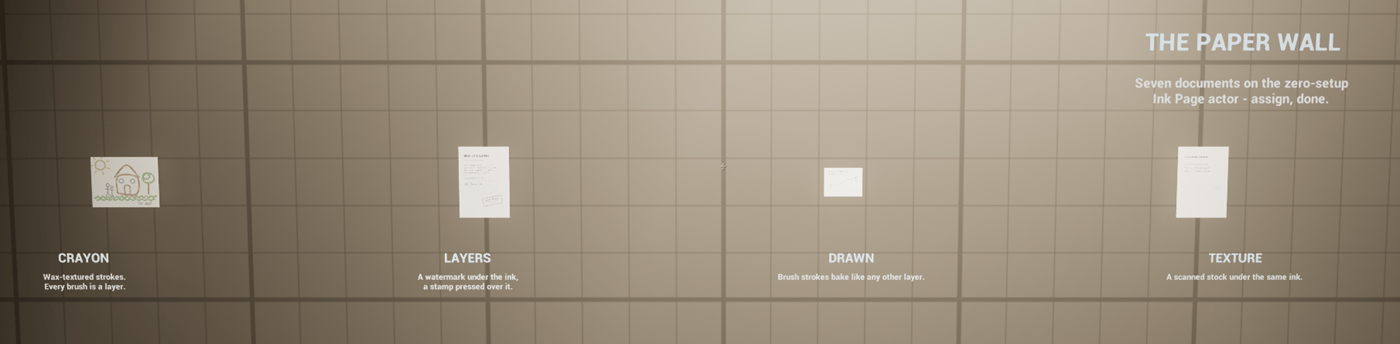
Four of the seven pages on the paper wall, each an Ink Page actor with a document assigned and nothing else set.
The poster, on the far wall:
PD_Poster on a poster-board mesh, drawn into material
slot 1 through a quarter-turned Page Face mapping, wearing its own Custom
Material — and its display component’s Can Be Picked Up is off, so it is scenery. A
poster glued to a wall that leaps into the player’s hands would break the fiction; this is
the flag that prevents it.
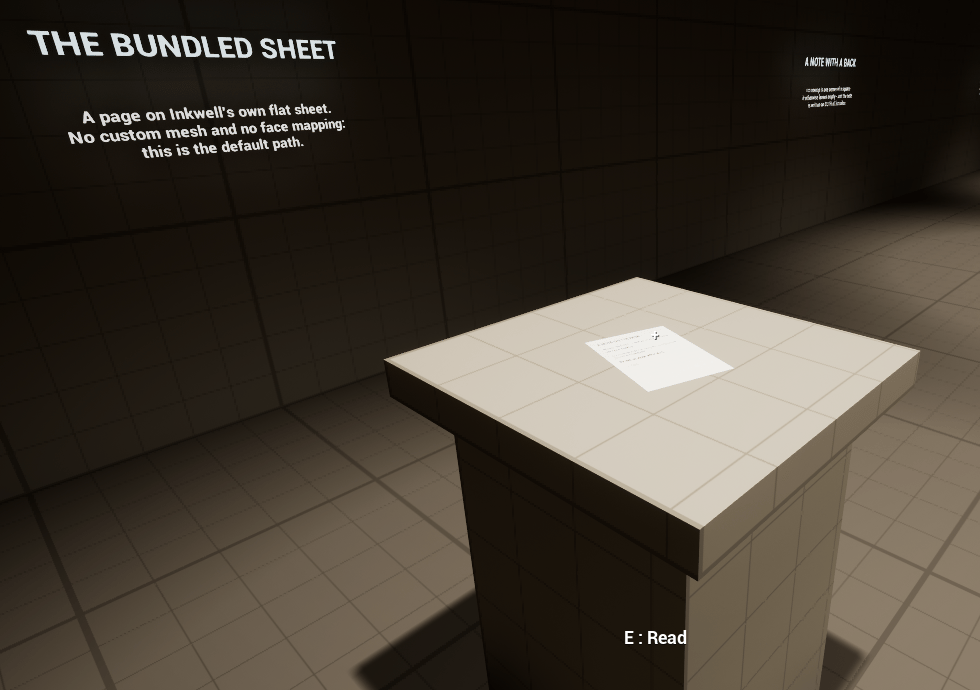
The sample note on its podium in the showroom.
The showroom’s per-exhibit tuning — prompt lines and reading distances — lives on the
demo-only Inkwell Exhibit component, described below.
Select any exhibit actor in the map and its knobs are in the Details panel, live during
PIE.
The demo documents
All bundled documents share thePD_ prefix. The showroom’s live in
/Inkwell/DemoProps/Documents/; the journal lives at
/Inkwell/Examples/PD_InkwellJournal. Every one is an ordinary
Ink Page Document — double-click any of them to open it in the
Page Editor and see exactly how it was authored: which paper mode, which layers, which
styled runs.
The best single reference is PD_InkwellJournal, the five-page journal the stack displays:
each page deliberately uses a different hand, so it shows all five bundled font families
and every text style — bold, italic, underline, strikethrough, colored ink — in one
document. Open it and click into any run: the toolbar shows the exact font, typeface,
size, and color that run carries, which is the quickest way to learn how the
markup is put together.
BP_InkwellJournalStack
/Inkwell/Examples/Blueprints/BP_InkwellJournalStack — an Actor Blueprint with exactly two
things in it: a default scene root, and an Ink Page Stack component named PageStack
with its Document set to PD_InkwellJournal. There is no Event Graph logic at all.
That is the point: a readable multi-page prop is a component and a document reference.
To place it: drag the Blueprint from the Content Browser into any level. The journal
appears as a physical pile of sheets, one mesh per page, the current page on top and the
rest squared up underneath — no Play needed.
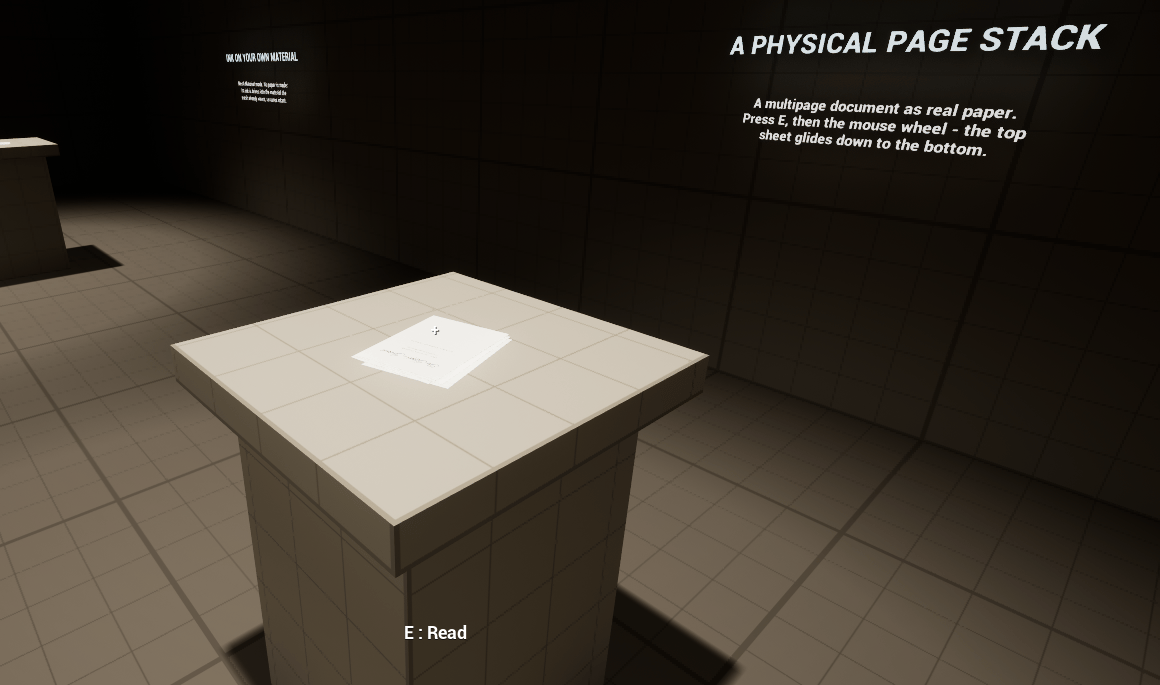
The journal page stack on its podium in the showroom.
The Enhanced Input assets
/Inkwell/Examples/Input/ holds four Input Action assets — IA_Interact, IA_NextPage,
IA_PreviousPage, IA_PutBack, the plainest possible button actions, with no logic in
them — and IMC_InkwellDefault, an Input Mapping Context binding them to E,
Right, Left, and Q, plus mouse wheel variants of the two page turns.
These are for your own pawn: the demo character does not use them (its input is built
in code). Add IMC_InkwellDefault to your pawn with Add Mapping Context — or add the
four actions to your own IMC under your own keys — and bind the action events to the
reader’s functions. The wiring is spelled out in
Integration.
The Inkwell Exhibit component
Inkwell Exhibit (UInkwellExhibitComponent) is per-exhibit interaction tuning for the
demo room — and only the demo room. Deliberately, nothing in the plugin knows the class
exists: it listens to the reader’s public delegates and writes the reader’s public
properties, which is exactly what your own game-side tuning component would do. That makes
it a worked example of driving the reader from game code, as well as the showroom’s
convenience.
It sits on an exhibit actor and, while the player is reading that exhibit, pushes its
overrides into the pawn’s reader — restoring everything the moment the page goes down:
The static Find For Page function returns the exhibit component on the actor a page
belongs to — the one call a prompt widget needs to know whose prompt lines to show.
WBP_InkwellReadPrompt
/Inkwell/Examples/UI/WBP_InkwellReadPrompt — the demo’s crosshair-and-prompt widget,
created on screen by the demo character. It is a Widget Blueprint reparented onto the C++
base UInkwellReadPromptBase, which composes the prompt line from what the page actually
is: a multipage document gets “Turn page” and a page counter, a single sheet with an
authored back gets “Flip over” (then “Flip back” once it is showing its back), and a plain
single sheet gets no turning prompt at all. An Inkwell Exhibit component on the page’s
actor overrides the whole line whenever its prompt fields are non-empty.
It finds the pawn’s Ink Page Interactor and Ink Page Reader itself and works with no other
setup, provided the pawn carries both components.
What to copy, and what to leave
Next
Quickstart
Enable, play the showroom, author a document, wire it into your own game.
Integration
Replace the demo interactor with your own interaction system, step by step.
Ink Page Stack
Everything the journal prop is doing, property by property.