The Ink Page Document asset: page geometry, paper and ink, two-sided sheets, default text style, and the page-per-layer-stack model everything else reads.
An Ink Page Document (UInkPageDocument) is the asset that holds everything you author:
the pages, the layers on them (front and back), the paper look, and the default text style.
It is a Data Asset — no world, no components — so one document can be shown by any number of
displays, stacks,
widgets, and actors at once, and
editing it updates all of them.At runtime each page’s layers are baked into an ink render target which the page material
multiplies over the paper, so the content reads as ink or print rather than a decal. See
Rendering for that pipeline.
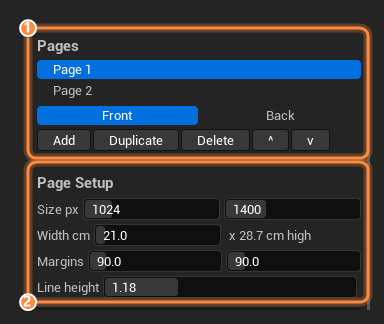
The Page Editor's left panel is the whole document asset: Pages, Page Setup, Paper & Ink, Custom Mesh, Default Text Style.
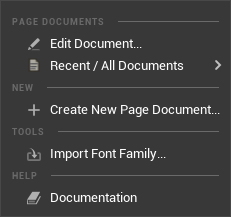
Click the Page Editor button on the level editor toolbar and choose
Create New Page Document…. You pick a name and folder, and the new asset opens
straight into the Page Editor.
Inkwell's Page Editor button (1), at the right end of the Level Editor toolbar.
The menu the button opens. Create New Page Document... is the entry that makes a new one.
Add (or right-click in the folder) → Inkwell → Page Document, like any other
asset type. Double-click the result to open it.
A new document is seeded from project settings so it renders something immediately: the
New Document Page Size Pixels setting becomes its Page Size Pixels, the
Default Paper Texture becomes its Paper Texture, and the Default Page Font becomes
its Default Font with Default Typeface set to Regular. It always starts with exactly one
page, and that page always has a Text layer to write in.
Author documents in the Page Editor. The text is stored as
machine-generated markup and is not meant to be typed into a details panel by hand.
A page (FInkPageSpec) is not a block of text with pictures bolted on. It is an ordered
back-to-front stack of layers (FInkPageLayer): index 0 is the back of the page, the
last entry is the front. A layer is one of three types — Text, Image, or
Drawing — and carries a Name, bVisible, bLocked and Opacity of its own.Text is a layer payload, so one page can hold a heading, a body and a signature as three
independent text boxes, with images or freehand drawings stacked between them. A watermark
is an Image layer before the text; a stamp is one after it.Layers covers the stack in full — the panel, reordering, locking, and
what each payload does.
Property
Type
Default
What it does
Layers
Array of Ink Page Layer
one Text layer
Everything drawn on the front of this sheet, back to front. Edit it in the Page Editor’s Layers panel rather than by hand.
Back Layers
Array of Ink Page Layer
empty
Everything drawn on the back of this sheet, same rules. Empty means the back was never authored: the sheet shows bare paper there and costs no bake and no render target.
Paper Override
Texture 2D
None
Paper for this page’s front only. Set, it beats both the document texture and generated paper; cleared, the page falls back to the document’s.
Back Paper Override
Texture 2D
None
Paper for this page’s back only — the back-side twin of Paper Override.
Every page Inkwell creates or loads is guaranteed a Text layer on its front, so a
page’s writing always has somewhere to draw. The back deliberately gets no such guarantee —
an empty back is the free, unauthored state. Documents authored before layers existed are
converted on load — see Layers.
Every page is one face of a physical sheet, and the sheet has two (EInkPageSide:
Front, Back). The back is authored independently: its own layer stack (BackLayers),
optionally its own paper. A sheet whose back was never authored renders bare paper there
and pays nothing for the feature — Has Back (HasBack) is false, no back bake runs,
no render target is allocated. Every document saved before backs existed loads exactly
that way.Flip the sheet in the Page Editor with the Front / Back toggle under the Pages
list; at runtime the Ink Page Reader turns sheets over with
Flip Page, and on a multipage document Next Page reads in book order:
front → back → next page.
The document-wide choice is Back Paper (FInkPaperFace), whose Mode is an
EInkBackPaperMode:
Mode
The back’s paper is
Same As Front
The front’s paper, whatever that resolves to page by page. The default, and free.
Texture
Its own texture (the face’s Texture).
Procedural
Its own generated sheet (the face’s Procedural settings) — so a lined front can carry a plain back.
Custom Material
Its own material entirely (the face’s Material), carrying MF_InkwellPageInk. Slab-only: a flat single-slot mesh has one material for both faces, so its back keeps the front’s and this is ignored there.
When the Mode is anything but Same As Front, the face’s Tint is multiplied over the
back’s paper the way Paper Tint is over the front’s. On top of all of that, any single
page can set Back Paper Override to give just its own back a texture.
Bake resolution of a page in pixels — and the page’s shape, because the aspect ratio comes from here. Blueprint-read-only.
Page Width Cm
Float
21.0
How wide a page is in the world, in centimeters (21.0 is A4 width). Clamped to a minimum of 0.1; the editor spinner runs 1–200. The only physical dimension you set.
Margins Px
Margin
90 on all four sides
Text margins, in page pixels. A page-filling text layer wraps inside these. Blueprint-read-only.
Line Height Percentage
Float
1.18
Line spacing for the whole document, as a multiple of the font’s own line height; clamped 0.5–3. Every text layer follows it until that layer is given a Line Height Percentage of its own — see Layers. Blueprint-read-only.
This is the part worth reading twice, because it is what stops authored pages from looking
wrong in the world.A page has exactly one shape and one physical size, derived from two numbers that
do different jobs:
Page Size Pixels is resolution and proportion. 1024 × 1400 is a portrait page;
800 × 500 is a landscape one.
Page Width Cm is how big that page is in the level — and it is the only physical
dimension in the whole plugin. There is no height field anywhere.
The height is computed, not authored. Get Page Size Cm (GetPageSizeCm) returns
(PageWidthCm, PageWidthCm × PageSizePixels.Y / PageSizePixels.X):
Page Size Pixels
Page Width Cm
Get Page Size Cm
1024 × 1400
21.0
21.0 × 28.7 cm (portrait, near A4)
800 × 500
21.0
21.0 × 13.1 cm (landscape)
1024 × 1024
12.0
12.0 × 12.0 cm (square)
The reason is mechanical: the baked ink texture is mapped across the whole sheet, so a
sheet shaped differently from the page would stretch every letter on it. By deriving the
height there is no second number to get wrong, and authored text can never come out
stretched. Author a landscape page and you get landscape paper, automatically, everywhere
the document is shown.Every Inkwell surface measures its paper from this: the sheet an
Ink Page Display spawns, every sheet in an
Ink Page Stack, and the Ink Page actor.
In the Page Editor, the Width cm row shows the derived height beside it as
x 28.7 cm high, and committing either row re-sizes every page already placed in the level.
To make one placed sheet bigger without touching the document, use Page Scale on that
page’s Ink Page Display component. It multiplies the document’s
size for that instance only — Get Effective Page Size Cm (GetEffectivePageSizeCm)
returns the result. Because it scales both axes together, the no-stretch guarantee survives
every value.
Bake resolution is safety-clamped by Max Page Bake Dimension in
Project Settings → Plugins → Inkwell (default 4096 per axis). A
document asking for more is scaled down proportionally rather than allocating an enormous
render target — the aspect ratio, and so the page shape, is preserved.
The sheet itself and the tint of everything written on it.
Property
Type
Default
What it does
Paper Mode
Ink Paper Mode
Texture
Where the paper comes from — the four modes below.
Procedural Paper
Ink Procedural Paper
Lined, cream stock
Settings for generated paper — ruling, colors, spacing, margin rule, punched holes, grain. Used only while Paper Mode is Procedural.
Paper Material
Material Interface
None
The page’s whole material, while Paper Mode is Custom Material — your own graph with the MF_InkwellPageInk material function dropped in to receive the writing.
Paper Texture
Texture 2D
None
Paper albedo. Used only while Paper Mode is Texture; unset, the page material falls back to its plain-paper color.
Paper Tint
Linear Color
White
Multiplied over the finished paper, generated or supplied. This is how you age one document without touching the stock.
EInkPaperMode decides where the sheet under the ink comes from:
Mode
Editor label
What happens
Texture
Texture asset
The Paper Texture you supply (or the project default when unset).
Procedural
Generated
Inkwell draws the sheet from the Procedural Paper settings — plain, lined, grid or dotted stock with no assets at all. Paper covers every setting.
Custom Material
Custom material
The document’s Paper Materialreplaces the target slot: your own graph — wood, vellum, an animated hologram — with the MF_InkwellPageInk material function wired in to receive the ink. Every Inkwell runtime control (ink, tints, strengths, face mapping) keeps working, because the function carries the named parameters Inkwell drives.
Mesh Material
Mesh’s Own Material
No paper from Inkwell at all: the ink is laid onto whatever material the mesh already wears, via a dynamic instance per mesh instance, so per-instance textures and parameter overrides survive. Unlike Custom Material, this mode never replaces anything.
In Mesh’s Own Material mode the target material must contain the MF_InkwellPageInk
material function, with your final color wired through it. A material without the function
shows no ink and raises no error — that is the contract, not a failure. See
Rendering for wiring it up.
Any page can replace the document’s paper with its own. Paper Override on the page wins
over everything: it beats the document’s Paper Texture and the generated sheet, so
switching a document to Procedural never silently discards a page that had been given its
own stock. Cleared, the page falls straight back to the document’s paper.Get Paper For Page (GetPaperForPage) is the one function that resolves all of this.
For the front (and for a back whose mode is Same As Front, which falls through to the
front’s chain — per-page override included):
1
The page's own Paper Override
Returned as-is when set.
2
No texture in the material modes
When Paper Mode is Custom Material or Mesh’s Own Material the material brings its own
paper, so there is no texture to hand out — the function returns nothing.
3
Generated paper
When Paper Mode is Procedural, the sheet is rasterized on first use and cached on the
document, so twenty pages sharing a document share one generated sheet.
4
The document's Paper Texture
Otherwise. If that is unset too, the page material uses its own plain-paper color.
Asked for the back (Side = Back), the back’s own chain runs first: the page’s
Back Paper Override, then the document’s Back Paper mode. A back Procedural sheet
with settings identical to the front’s reuses the front’s cached paper rather than
rasterizing a second identical texture.Use overrides for the aged first page of an otherwise clean journal, a bloodstained note in
a sequence of ordinary ones, or a title page on different stock.
The style of unstyled text — anything typed without applying toolbar styling. Styled
runs carry their own font, size, color and typeface in the markup and ignore these.
Property
Type
Default
What it does
Default Font
Font
None
Font for unstyled text (a composite UFont asset). Unset = the project’s Inkwell default font.
Default Typeface
Name
None
Typeface entry inside the composite font: Regular, Bold, Italic, and so on.
Default Font Size
Float
28.0
Size of unstyled text, in page pixels at 96 DPI. Clamped 6–400.
Default Color
Linear Color
(0.02, 0.017, 0.025, 1.0)
Slightly warm near-black — it reads as ink better than pure black does.
Get Effective Default Font (GetEffectiveDefaultFont) resolves a three-step chain: the
document’s Default Font when set, otherwise the project-wide Default Page Font
(Project Settings → Plugins → Inkwell), and as a last resort the
engine’s own Roboto — so text is never invisible in a project that has configured nothing.
See Fonts for the full picture.
Three editor-only properties under Preview let the Page Editor show the document on the
prop that will carry it in game: Preview Mesh (unset, the preview uses the plugin’s
flat page sheet, sized from the document — exactly what a mesh-less actor gets in game),
Preview Material Slot, and Preview Face Mapping (FInkPageFaceMapping), which maps
the page onto a UV region of that slot with quarter-turn rotation.These are authoring intent: they travel with the asset but do not survive cooking, and a
document never imposes a mesh on its consumers. At runtime the mesh and the face mapping
belong to the component that displays the page — copy the preview’s settings onto the
Ink Page Display component’s Page Face when the real prop
uses the same mesh. Edit all three in the Page Editor’s
Custom Mesh section.
The document’s content. Blueprint-read-only on purpose — mutate it through the functions below.
Font References
Array of Object
empty
Advanced. Hard references to every font used anywhere in the markup, so the cooker can see them. Maintained for you on Save Document.
Do not clear Font References by hand. Markup stores fonts as string paths, which the
cooker cannot follow; without these hard references a packaged build renders fallback
glyphs wherever a styled run’s font failed to cook. Pressing Save Document in the
Page Editor rebuilds the list from every text layer on both sides
of every page.
Untagged text renders in the document’s Default Text Style; Font and Face are omitted
from a run entirely when unset, so the document default wins. The same rich-text marshaller
drives the in-game bake and the Page Editor’s edit box, which is what keeps the two
pixel-identical.Every attribute, what it inherits, and the rules for generating markup safely are in
the markup format. Author through the
Page Editor or the Blueprint API rather than by hand — the markup
writer does not escape attribute values.
ContentRevision is a transient (never saved) counter bumped on every content change. The
runtime bake cache keys on it, so stale render targets regenerate whenever a document
changes. This is why Page Editor edits show up live on pages already placed in the level,
even during PIE.If you mutate a document any other way at runtime, call Bump Revision (BumpRevision)
afterwards. Every Blueprint function below already does.
In the editor, Bump Revision also marks the package dirty so authoring changes stay
saveable — but not during a play session. Data assets are not duplicated for PIE, so
gameplay mutations deliberately leave the source asset untouched rather than offering to
save play-time changes into the .uasset on exit.
Pages is deliberately read-only from Blueprint: every mutation must invalidate the bake
cache, which a directly writable array could not guarantee. Build and edit documents through
these instead — see Runtime documents for worked examples.Every layer function takes a Side input (EInkPageSide, default Front), so the same
nodes author both faces of a sheet.
Copy of one page’s data (a default page if the index is out of range).
Get Page Size Cm
Pure
Physical page size: Page Width Cm, with the height derived from the pixel aspect ratio.
Get Paper For Page
Pure
Paper texture for one side of a page, after the override / generated / document chain. Nothing in the two material modes — the material brings its own paper.
Get Paper Tint
Pure
The tint over a side’s paper: the front’s Paper Tint, or the back’s own when its mode differs from Same As Front.
Get Page Layers
Pure
One side’s layers, back to front. Empty for an out-of-range page — and for an unauthored back.
Find Text Layer Index
Pure
Index of a side’s Text layer, or -1 when it has none.
Has Back
Pure
Whether this sheet has an authored back (any layer in Back Layers).
Has Distinct Back Paper
Pure
Whether this page’s back declares its own paper — a document back mode other than Same As Front, or a per-page back override.
Get Effective Default Font
Pure
The font unstyled text renders in, after the fallback chain.
Removes a page. False if the index was out of range.
Set Page
Callable
Replaces one page wholesale. False on a bad index.
Set Page Markup
Callable
Replaces the text in a page’s first text box. False on a bad index.
Set Layer Markup
Callable
Replaces the text of one specific Text layer on one side. False on bad indices or a non-text layer.
Set Page Layers
Callable
Replaces one side’s whole layer stack. False if the page index was out of range.
Add Page Layer
Callable
Appends a layer to the front of one side’s stack and returns its index (-1 if out of range).
Remove Page Layer
Callable
Removes one layer. False if either index was out of range.
Move Page Layer
Callable
Moves a layer through the stack; Delta is positive towards the front. Returns the new index, or -1 when nothing moved.
Bump Revision
Callable
Invalidates every cached bake of this document.
All of these mutators invalidate cached bakes for you. Everything here is equally available
from C++ on UInkPageDocument.
The “a page always has a Text layer” repair is a front rule. Set Page Layers with
Side = Back accepts an empty array — that returns the back to its unauthored, zero-cost
state, which is exactly how you blank a back from Blueprint.
A page I built in Blueprint renders nothing
A page with no Text layer has nowhere to draw its writing — the bake walks the layer stack,
not a markup string. If you construct an FInkPageSpec yourself, add it with Add Page
(which guarantees the page a Text layer) rather than pushing it into Pages, and set its
words with Set Page Markup or Set Layer Markup. If a page still looks blank, check
the layer’s Visible flag and its Opacity.
Building and editing documents from Blueprint at runtime.
{"docsConfig":{"theme":"mint","$schema":"https://mintlify.com/docs.json","name":"Teriyaki Gaming","colors":{"primary":"#3E7C59","light":"#9DC08B","dark":"#2E5C42"},"logo":{"light":"https://mintcdn.com/teriyaki-gaming/Re9zDOvKF1471rVG/logo/light.svg?fit=max\u0026auto=format\u0026n=Re9zDOvKF1471rVG\u0026q=85\u0026s=9a862161962dd66d099129095f3c5f3a","dark":"https://mintcdn.com/teriyaki-gaming/Re9zDOvKF1471rVG/logo/dark.svg?fit=max\u0026auto=format\u0026n=Re9zDOvKF1471rVG\u0026q=85\u0026s=f4855dde947be30313d5c3441a026eea"},"favicon":"https://mintcdn.com/teriyaki-gaming/lWew69cnc3CohWUG/favicon.svg?fit=max\u0026auto=format\u0026n=lWew69cnc3CohWUG\u0026q=85\u0026s=898db809dce8aa888bcceb5be4cda06b","footer":{"socials":{"github":"https://github.com/tyguymedia"}},"contextual":{"options":["copy","view"],"display":"header"},"styling":{"latex":false},"navigation":{"pages":[]}},"deployment":{"deploymentMetadataValue":{"subdomain":"teriyaki-gaming","hasAudioNarration":false,"actualSubdomain":"teriyaki-gaming","customDomains":["docs.teriyakigaming.com"],"gitSource":{"type":"github","owner":"tyguymedia","repo":"teriyakigaming-site","deployBranch":"main","contentDirectory":"docs","isPrivate":true,"mountPath":"","label":""},"chroma":{"latestBuiltDeploymentHistoryId":"6a8db7a9f751bf22e13d95af","collectionId":"6f0199bb-c8ed-4bdf-ab20-c7697fa048dd","liveDeploymentHistoryId":"6a8db7a9f751bf22e13d95af","schemaVersion":"v3"},"entitlements":{"AI_CHAT":{"status":"DISABLED"}},"buildId":"6a8db7a9f751bf22e13d95af","clientVersion":"0.0.3939","searchFilterCounts":[{"language":"default","tag":"Inkwell","count":23},{"language":"default","tag":"Authoring","count":6},{"language":"default","tag":"Components","count":6},{"language":"default","tag":"Guides","count":4},{"language":"default","tag":"Reference","count":4},{"language":"default","tag":"Get Started","count":3},{"language":"default","tag":"Overview","count":1},{"language":"default","tag":"Getting started","count":1}]},"assistantConfig":{"enableAskAiButton":false,"enableStarterQuestions":false,"enableContextualStarterQuestions":false,"enableAskAiSearchBar":true},"hasChatPermissions":false,"hasWebMcpPermissions":false,"toggles":[{"name":"kill-isr","enabled":true,"variant":{"name":"disabled","enabled":false,"feature_enabled":true},"impressionData":false},{"name":"agent-mintlify-slack","enabled":true,"variant":{"name":"disabled","enabled":false,"feature_enabled":true},"impressionData":false},{"name":"editor-v7-file-tree","enabled":true,"variant":{"name":"disabled","enabled":false,"feature_enabled":true},"impressionData":false},{"name":"agent-integrations-settings","enabled":true,"variant":{"name":"disabled","enabled":false,"feature_enabled":true},"impressionData":false},{"name":"automations-pr-grouping","enabled":true,"variant":{"name":"disabled","enabled":false,"feature_enabled":true},"impressionData":false},{"name":"custom-prefix","enabled":true,"variant":{"name":"disabled","enabled":false,"feature_enabled":true},"impressionData":false},{"name":"analytics-v7","enabled":true,"variant":{"name":"disabled","enabled":false,"feature_enabled":true},"impressionData":false},{"name":"user-flows-analytics","enabled":true,"variant":{"name":"disabled","enabled":false,"feature_enabled":true},"impressionData":false},{"name":"no-publish-flow","enabled":true,"variant":{"name":"disabled","enabled":false,"feature_enabled":true},"impressionData":false},{"name":"workos-onboarding","enabled":true,"variant":{"name":"disabled","enabled":false,"feature_enabled":true},"impressionData":false},{"name":"llms-txt-v2","enabled":true,"variant":{"name":"disabled","enabled":false,"feature_enabled":true},"impressionData":false},{"name":"pause-universal-search-reconcile","enabled":true,"variant":{"name":"disabled","enabled":false,"feature_enabled":true},"impressionData":false},{"name":"snapshot-serving-live","enabled":true,"variant":{"name":"disabled","enabled":false,"feature_enabled":true},"impressionData":false},{"name":"stripTemperatureMiddleware","enabled":true,"variant":{"name":"disabled","enabled":false,"feature_enabled":true},"impressionData":false},{"name":"per-site-search-delta","enabled":true,"variant":{"name":"disabled","enabled":false,"feature_enabled":true},"impressionData":false},{"name":"support-platform-pylon-zendesk","enabled":true,"variant":{"name":"disabled","enabled":false,"feature_enabled":true},"impressionData":false},{"name":"snapshot-serving","enabled":true,"variant":{"name":"disabled","enabled":false,"feature_enabled":true},"impressionData":false},{"name":"instant-rollback","enabled":true,"variant":{"name":"disabled","enabled":false,"feature_enabled":true},"impressionData":false},{"name":"granular-notifications-server","enabled":true,"variant":{"name":"disabled","enabled":false,"feature_enabled":true},"impressionData":false},{"name":"granular-notifications","enabled":true,"variant":{"name":"disabled","enabled":false,"feature_enabled":true},"impressionData":false},{"name":"editor-private-page-search","enabled":true,"variant":{"name":"disabled","enabled":false,"feature_enabled":true},"impressionData":false},{"name":"automations-fable","enabled":true,"variant":{"name":"disabled","enabled":false,"feature_enabled":true},"impressionData":false},{"name":"fixed-ai-action-pricing","enabled":true,"variant":{"name":"disabled","enabled":false,"feature_enabled":true},"impressionData":false},{"name":"automation-resolve-merge-conflict","enabled":true,"variant":{"name":"disabled","enabled":false,"feature_enabled":true},"impressionData":false},{"name":"scoped-publishing","enabled":true,"variant":{"name":"disabled","enabled":false,"feature_enabled":true},"impressionData":false},{"name":"mintql","enabled":true,"variant":{"name":"disabled","enabled":false,"feature_enabled":true},"impressionData":false},{"name":"page-level-analytics","enabled":true,"variant":{"name":"disabled","enabled":false,"feature_enabled":true},"impressionData":false},{"name":"editor-version-history-v2","enabled":true,"variant":{"name":"disabled","enabled":false,"feature_enabled":true},"impressionData":false},{"name":"editor-nav-generations","enabled":true,"variant":{"name":"disabled","enabled":false,"feature_enabled":true},"impressionData":false},{"name":"billing-page-v2","enabled":true,"variant":{"name":"disabled","enabled":false,"feature_enabled":true},"impressionData":false},{"name":"workspace-projects","enabled":true,"variant":{"name":"disabled","enabled":false,"feature_enabled":true},"impressionData":false},{"name":"assistant-v5","enabled":true,"variant":{"name":"disabled","enabled":false,"feature_enabled":true},"impressionData":false},{"name":"byok-sep-25","enabled":true,"variant":{"name":"disabled","enabled":false,"feature_enabled":true},"impressionData":false},{"name":"fork-pr-previews","enabled":true,"variant":{"name":"disabled","enabled":false,"feature_enabled":true},"impressionData":false},{"name":"revalidation-jwt","enabled":true,"variant":{"name":"disabled","enabled":false,"feature_enabled":true},"impressionData":false},{"name":"vite-origin","enabled":true,"variant":{"name":"disabled","enabled":false,"feature_enabled":true},"impressionData":false},{"name":"editor-agent-model-picker","enabled":true,"variant":{"name":"disabled","enabled":false,"feature_enabled":true},"impressionData":false},{"name":"billing-updated-9-15","enabled":true,"variant":{"name":"disabled","enabled":false,"feature_enabled":true},"impressionData":false},{"name":"hobby-abuse-scan","enabled":true,"variant":{"name":"disabled","enabled":false,"feature_enabled":true},"impressionData":false},{"name":"dashboard-inbox","enabled":true,"variant":{"name":"disabled","enabled":false,"feature_enabled":true},"impressionData":false}],"isAtlas":false,"googleFontsInlined":false},"customCss":[],"page":{"pagePath":"plugins/inkwell/authoring/documents","slug":"/plugins/inkwell/authoring/documents","pageMetadata":{"title":"Page Documents","description":"The Ink Page Document asset: page geometry, paper and ink, two-sided sheets, default text style, and the page-per-layer-stack model everything else reads.","icon":"file-lines","href":"/plugins/inkwell/authoring/documents"},"description":{"compiledSource":"\"use strict\";\nconst {jsx: _jsx} = arguments[0];\nconst {useMDXComponents: _provideComponents} = arguments[0];\nfunction _createMdxContent(props) {\n const _components = {\n p: \"p\",\n ..._provideComponents(),\n ...props.components\n };\n return _jsx(_components.p, {\n children: \"The Ink Page Document asset: page geometry, paper and ink, two-sided sheets, default text style, and the page-per-layer-stack model everything else reads.\"\n });\n}\nfunction MDXContent(props = {}) {\n const {wrapper: MDXLayout} = {\n ..._provideComponents(),\n ...props.components\n };\n return MDXLayout ? _jsx(MDXLayout, {\n ...props,\n children: _jsx(_createMdxContent, {\n ...props\n })\n }) : _createMdxContent(props);\n}\nreturn {\n default: MDXContent\n};\n","frontmatter":{},"scope":{}},"pageType":"default","mdx":{"mdxSource":{"compiledSource":"\"use strict\";const{Fragment:_Fragment,jsx:_jsx,jsxs:_jsxs}=arguments[0];const{useMDXComponents:_provideComponents}=arguments[0];function _createMdxContent(props){const _components={a:`a`,code:`code`,em:`em`,li:`li`,p:`p`,pre:`pre`,span:`span`,strong:`strong`,tbody:`tbody`,td:`td`,th:`th`,thead:`thead`,tr:`tr`,ul:`ul`,..._provideComponents(),...props.components},{Accordion,Card,CardGroup,CodeBlock,Frame,Heading,Info,Note,OptimizedImage,Step,Steps,Table,Tip,Warning}=_components;if(!Accordion)_missingMdxReference(`Accordion`,true);if(!Card)_missingMdxReference(`Card`,true);if(!CardGroup)_missingMdxReference(`CardGroup`,true);if(!CodeBlock)_missingMdxReference(`CodeBlock`,true);if(!Frame)_missingMdxReference(`Frame`,true);if(!Heading)_missingMdxReference(`Heading`,true);if(!Info)_missingMdxReference(`Info`,true);if(!Note)_missingMdxReference(`Note`,true);if(!OptimizedImage)_missingMdxReference(`OptimizedImage`,true);if(!Step)_missingMdxReference(`Step`,true);if(!Steps)_missingMdxReference(`Steps`,true);if(!Table)_missingMdxReference(`Table`,true);if(!Tip)_missingMdxReference(`Tip`,true);if(!Warning)_missingMdxReference(`Warning`,true);return _jsxs(_Fragment,{children:[_jsxs(_components.p,{children:[`An `,_jsx(_components.strong,{children:`Ink Page Document`}),` (`,_jsx(_components.code,{children:`UInkPageDocument`}),`) is the asset that holds everything you author:\nthe pages, the layers on them (front and back), the paper look, and the default text style.\nIt is a Data Asset — no world, no components — so one document can be shown by any number of\n`,_jsx(_components.a,{href:`/plugins/inkwell/components/page-display`,children:`displays`}),`, `,_jsx(_components.a,{href:`/plugins/inkwell/components/page-stack`,children:`stacks`}),`,\n`,_jsx(_components.a,{href:`/plugins/inkwell/components/page-widget`,children:`widgets`}),`, and `,_jsx(_components.a,{href:`/plugins/inkwell/components/page-actor`,children:`actors`}),` at once, and\nediting it updates all of them.`]}),`\n`,_jsxs(_components.p,{children:[`At runtime each page’s layers are baked into an ink render target which the page material\nmultiplies over the paper, so the content reads as ink or print rather than a decal. See\n`,_jsx(_components.a,{href:`/plugins/inkwell/reference/rendering`,children:`Rendering`}),` for that pipeline.`]}),`\n`,_jsx(Frame,{caption:`The Page Editor's left panel is the whole document asset: Pages, Page Setup, Paper \u0026 Ink, Custom Mesh, Default Text Style.`,children:_jsx(OptimizedImage,{src:`https://mintcdn.com/teriyaki-gaming/rfYUFiwAdsWmGZKv/images/inkwell/page-editor-left-panel.png?fit=max\u0026auto=format\u0026n=rfYUFiwAdsWmGZKv\u0026q=85\u0026s=23171109634b49a52e265415cf587d21`,alt:`The Page Editor left panel showing the Pages list and Page Setup section`,\"data-og-width\":`384`,width:`384`,\"data-og-height\":`324`,height:`324`,\"data-path\":`images/inkwell/page-editor-left-panel.png`,\"data-optimize\":`true`,\"data-opv\":`3`,srcset:`https://mintcdn.com/teriyaki-gaming/rfYUFiwAdsWmGZKv/images/inkwell/page-editor-left-panel.png?w=280\u0026fit=max\u0026auto=format\u0026n=rfYUFiwAdsWmGZKv\u0026q=85\u0026s=2b4c77ac0bc8cc0b383a2cd93d13651d 280w, https://mintcdn.com/teriyaki-gaming/rfYUFiwAdsWmGZKv/images/inkwell/page-editor-left-panel.png?w=560\u0026fit=max\u0026auto=format\u0026n=rfYUFiwAdsWmGZKv\u0026q=85\u0026s=ecce00a0b3bf9ccf6ca648315900a58b 560w, https://mintcdn.com/teriyaki-gaming/rfYUFiwAdsWmGZKv/images/inkwell/page-editor-left-panel.png?w=840\u0026fit=max\u0026auto=format\u0026n=rfYUFiwAdsWmGZKv\u0026q=85\u0026s=bd9ea8423eb7d92aa656d24bfa3b19db 840w, https://mintcdn.com/teriyaki-gaming/rfYUFiwAdsWmGZKv/images/inkwell/page-editor-left-panel.png?w=1100\u0026fit=max\u0026auto=format\u0026n=rfYUFiwAdsWmGZKv\u0026q=85\u0026s=45ab2f49f8ce498ad1feb24943b326e1 1100w, https://mintcdn.com/teriyaki-gaming/rfYUFiwAdsWmGZKv/images/inkwell/page-editor-left-panel.png?w=1650\u0026fit=max\u0026auto=format\u0026n=rfYUFiwAdsWmGZKv\u0026q=85\u0026s=0327f94b1a9e33a9d88da9fa8e3f358e 1650w, https://mintcdn.com/teriyaki-gaming/rfYUFiwAdsWmGZKv/images/inkwell/page-editor-left-panel.png?w=2500\u0026fit=max\u0026auto=format\u0026n=rfYUFiwAdsWmGZKv\u0026q=85\u0026s=6e0fd56ae764d38ec633a039e0e8f914 2500w`})}),`\n`,_jsx(Heading,{level:`2`,id:`creating-a-document`,children:`Creating a document`}),`\n`,_jsxs(Steps,{children:[_jsxs(Step,{title:`From the level editor toolbar`,children:[_jsxs(_components.p,{children:[`Click the `,_jsx(_components.strong,{children:`Page Editor`}),` button on the level editor toolbar and choose\n`,_jsx(_components.strong,{children:`Create New Page Document…`}),`. You pick a name and folder, and the new asset opens\nstraight into the `,_jsx(_components.a,{href:`/plugins/inkwell/authoring/page-editor`,children:`Page Editor`}),`.`]}),_jsx(Frame,{caption:`Inkwell's Page Editor button (1), at the right end of the Level Editor toolbar.`,children:_jsx(OptimizedImage,{src:`https://mintcdn.com/teriyaki-gaming/rfYUFiwAdsWmGZKv/images/inkwell/toolbar-icon.png?fit=max\u0026auto=format\u0026n=rfYUFiwAdsWmGZKv\u0026q=85\u0026s=5d0dc18233acaeffa70e3e93b1b3f06c`,alt:`The Level Editor toolbar with the Inkwell Page Editor dropdown button highlighted`,\"data-og-width\":`764`,width:`764`,\"data-og-height\":`102`,height:`102`,\"data-path\":`images/inkwell/toolbar-icon.png`,\"data-optimize\":`true`,\"data-opv\":`3`,srcset:`https://mintcdn.com/teriyaki-gaming/rfYUFiwAdsWmGZKv/images/inkwell/toolbar-icon.png?w=280\u0026fit=max\u0026auto=format\u0026n=rfYUFiwAdsWmGZKv\u0026q=85\u0026s=2270e7572ad07bfca109f53692b755f5 280w, https://mintcdn.com/teriyaki-gaming/rfYUFiwAdsWmGZKv/images/inkwell/toolbar-icon.png?w=560\u0026fit=max\u0026auto=format\u0026n=rfYUFiwAdsWmGZKv\u0026q=85\u0026s=cc1dcce9c2d9784972abeb6554c2a573 560w, https://mintcdn.com/teriyaki-gaming/rfYUFiwAdsWmGZKv/images/inkwell/toolbar-icon.png?w=840\u0026fit=max\u0026auto=format\u0026n=rfYUFiwAdsWmGZKv\u0026q=85\u0026s=cb899f9cc42a231d6d71af9aae243632 840w, https://mintcdn.com/teriyaki-gaming/rfYUFiwAdsWmGZKv/images/inkwell/toolbar-icon.png?w=1100\u0026fit=max\u0026auto=format\u0026n=rfYUFiwAdsWmGZKv\u0026q=85\u0026s=28cb030da88ae16d6c846be929e84ba9 1100w, https://mintcdn.com/teriyaki-gaming/rfYUFiwAdsWmGZKv/images/inkwell/toolbar-icon.png?w=1650\u0026fit=max\u0026auto=format\u0026n=rfYUFiwAdsWmGZKv\u0026q=85\u0026s=517a352185e96c68d5aedc18a4fbb58f 1650w, https://mintcdn.com/teriyaki-gaming/rfYUFiwAdsWmGZKv/images/inkwell/toolbar-icon.png?w=2500\u0026fit=max\u0026auto=format\u0026n=rfYUFiwAdsWmGZKv\u0026q=85\u0026s=70f671f786af34294b091fc5db4463b4 2500w`})}),_jsx(Frame,{caption:`The menu the button opens. Create New Page Document... is the entry that makes a new one.`,children:_jsx(OptimizedImage,{src:`https://mintcdn.com/teriyaki-gaming/rfYUFiwAdsWmGZKv/images/inkwell/toolbar-dropdown.png?fit=max\u0026auto=format\u0026n=rfYUFiwAdsWmGZKv\u0026q=85\u0026s=c0828c272105f1d37ef06e601ace956f`,alt:`The Inkwell menu: Edit Document, Recent / All Documents, Create New Page Document, Import Font Family, Documentation`,\"data-og-width\":`231`,width:`231`,\"data-og-height\":`217`,height:`217`,\"data-path\":`images/inkwell/toolbar-dropdown.png`,\"data-optimize\":`true`,\"data-opv\":`3`,srcset:`https://mintcdn.com/teriyaki-gaming/rfYUFiwAdsWmGZKv/images/inkwell/toolbar-dropdown.png?w=280\u0026fit=max\u0026auto=format\u0026n=rfYUFiwAdsWmGZKv\u0026q=85\u0026s=a41e616447fe3c09db27733e0c461262 280w, https://mintcdn.com/teriyaki-gaming/rfYUFiwAdsWmGZKv/images/inkwell/toolbar-dropdown.png?w=560\u0026fit=max\u0026auto=format\u0026n=rfYUFiwAdsWmGZKv\u0026q=85\u0026s=ceab2475da712a790494a0b1ec688bfb 560w, https://mintcdn.com/teriyaki-gaming/rfYUFiwAdsWmGZKv/images/inkwell/toolbar-dropdown.png?w=840\u0026fit=max\u0026auto=format\u0026n=rfYUFiwAdsWmGZKv\u0026q=85\u0026s=07ebe6a7921f08797cc4e235d19e5142 840w, https://mintcdn.com/teriyaki-gaming/rfYUFiwAdsWmGZKv/images/inkwell/toolbar-dropdown.png?w=1100\u0026fit=max\u0026auto=format\u0026n=rfYUFiwAdsWmGZKv\u0026q=85\u0026s=903c1a3a71a221b0781f428aa52fc2e1 1100w, https://mintcdn.com/teriyaki-gaming/rfYUFiwAdsWmGZKv/images/inkwell/toolbar-dropdown.png?w=1650\u0026fit=max\u0026auto=format\u0026n=rfYUFiwAdsWmGZKv\u0026q=85\u0026s=64d5fa2afd9c5078786bcc7f33e9bcf7 1650w, https://mintcdn.com/teriyaki-gaming/rfYUFiwAdsWmGZKv/images/inkwell/toolbar-dropdown.png?w=2500\u0026fit=max\u0026auto=format\u0026n=rfYUFiwAdsWmGZKv\u0026q=85\u0026s=55f892a325b1dc724d169ba2e6bef41b 2500w`})})]}),_jsx(Step,{title:`Or from the Tools menu`,children:_jsxs(_components.p,{children:[_jsx(_components.strong,{children:`Tools → Inkwell`}),` carries the same menu, for projects that hide the toolbar button\n(`,_jsx(_components.strong,{children:`Show Toolbar Button`}),` in `,_jsx(_components.a,{href:`/plugins/inkwell/reference/settings`,children:`Project Settings → Plugins → Inkwell`}),`).`]})}),_jsx(Step,{title:`Or from the Content Browser`,children:_jsxs(_components.p,{children:[_jsx(_components.strong,{children:`Add`}),` (or right-click in the folder) `,_jsx(_components.strong,{children:`→ Inkwell → Page Document`}),`, like any other\nasset type. Double-click the result to open it.`]})})]}),`\n`,_jsxs(_components.p,{children:[`A new document is seeded from project settings so it renders something immediately: the\n`,_jsx(_components.strong,{children:`New Document Page Size Pixels`}),` setting becomes its Page Size Pixels, the\n`,_jsx(_components.strong,{children:`Default Paper Texture`}),` becomes its Paper Texture, and the `,_jsx(_components.strong,{children:`Default Page Font`}),` becomes\nits Default Font with Default Typeface set to `,_jsx(_components.code,{children:`Regular`}),`. It always starts with exactly one\npage, and that page always has a Text layer to write in.`]}),`\n`,_jsx(Tip,{children:_jsxs(_components.p,{children:[`Author documents in the `,_jsx(_components.a,{href:`/plugins/inkwell/authoring/page-editor`,children:`Page Editor`}),`. The text is stored as\nmachine-generated markup and is not meant to be typed into a details panel by hand.`]})}),`\n`,_jsx(Heading,{level:`2`,id:`a-page-is-a-stack-of-layers`,children:`A page is a stack of layers`}),`\n`,_jsxs(_components.p,{children:[`A page (`,_jsx(_components.code,{children:`FInkPageSpec`}),`) is not a block of text with pictures bolted on. It is an ordered\n`,_jsx(_components.strong,{children:`back-to-front stack of layers`}),` (`,_jsx(_components.code,{children:`FInkPageLayer`}),`): index 0 is the back of the page, the\nlast entry is the front. A layer is one of three types — `,_jsx(_components.strong,{children:`Text`}),`, `,_jsx(_components.strong,{children:`Image`}),`, or\n`,_jsx(_components.strong,{children:`Drawing`}),` — and carries a `,_jsx(_components.code,{children:`Name`}),`, `,_jsx(_components.code,{children:`bVisible`}),`, `,_jsx(_components.code,{children:`bLocked`}),` and `,_jsx(_components.code,{children:`Opacity`}),` of its own.`]}),`\n`,_jsxs(_components.p,{children:[`Text is a layer payload, so one page can hold a heading, a body and a signature as three\nindependent text boxes, with images or freehand drawings stacked between them. A watermark\nis an Image layer `,_jsx(_components.em,{children:`before`}),` the text; a stamp is one `,_jsx(_components.em,{children:`after`}),` it.`]}),`\n`,_jsxs(_components.p,{children:[_jsx(_components.a,{href:`/plugins/inkwell/authoring/layers`,children:`Layers`}),` covers the stack in full — the panel, reordering, locking, and\nwhat each payload does.`]}),`\n`,_jsxs(Table,{children:[_jsx(_components.thead,{children:_jsxs(_components.tr,{children:[_jsx(_components.th,{children:`Property`}),_jsx(_components.th,{children:`Type`}),_jsx(_components.th,{children:`Default`}),_jsx(_components.th,{children:`What it does`})]})}),_jsxs(_components.tbody,{children:[_jsxs(_components.tr,{children:[_jsx(_components.td,{children:`Layers`}),_jsx(_components.td,{children:`Array of Ink Page Layer`}),_jsx(_components.td,{children:`one Text layer`}),_jsx(_components.td,{children:`Everything drawn on the front of this sheet, back to front. Edit it in the Page Editor’s Layers panel rather than by hand.`})]}),_jsxs(_components.tr,{children:[_jsx(_components.td,{children:`Back Layers`}),_jsx(_components.td,{children:`Array of Ink Page Layer`}),_jsx(_components.td,{children:`empty`}),_jsxs(_components.td,{children:[`Everything drawn on the `,_jsx(_components.strong,{children:`back`}),` of this sheet, same rules. Empty means the back was never authored: the sheet shows bare paper there and costs no bake and no render target.`]})]}),_jsxs(_components.tr,{children:[_jsx(_components.td,{children:`Paper Override`}),_jsx(_components.td,{children:`Texture 2D`}),_jsx(_components.td,{children:`None`}),_jsx(_components.td,{children:`Paper for this page’s front only. Set, it beats both the document texture and generated paper; cleared, the page falls back to the document’s.`})]}),_jsxs(_components.tr,{children:[_jsx(_components.td,{children:`Back Paper Override`}),_jsx(_components.td,{children:`Texture 2D`}),_jsx(_components.td,{children:`None`}),_jsx(_components.td,{children:`Paper for this page’s back only — the back-side twin of Paper Override.`})]})]})]}),`\n`,_jsx(Note,{children:_jsxs(_components.p,{children:[`Every page Inkwell creates or loads is guaranteed a Text layer on its `,_jsx(_components.strong,{children:`front`}),`, so a\npage’s writing always has somewhere to draw. The back deliberately gets no such guarantee —\nan empty back is the free, unauthored state. Documents authored before layers existed are\nconverted on load — see `,_jsx(_components.a,{href:`/plugins/inkwell/authoring/layers`,children:`Layers`}),`.`]})}),`\n`,_jsx(Heading,{level:`2`,id:`the-back-of-the-sheet`,children:`The back of the sheet`}),`\n`,_jsxs(_components.p,{children:[`Every page is one face of a physical sheet, and the sheet has two (`,_jsx(_components.code,{children:`EInkPageSide`}),`:\n`,_jsx(_components.code,{children:`Front`}),`, `,_jsx(_components.code,{children:`Back`}),`). The back is authored independently: its own layer stack (`,_jsx(_components.code,{children:`BackLayers`}),`),\noptionally its own paper. A sheet whose back was never authored renders bare paper there\nand pays nothing for the feature — `,_jsx(_components.strong,{children:`Has Back`}),` (`,_jsx(_components.code,{children:`HasBack`}),`) is false, no back bake runs,\nno render target is allocated. Every document saved before backs existed loads exactly\nthat way.`]}),`\n`,_jsxs(_components.p,{children:[`Flip the sheet in the Page Editor with the `,_jsx(_components.strong,{children:`Front`}),` / `,_jsx(_components.strong,{children:`Back`}),` toggle under the Pages\nlist; at runtime the `,_jsx(_components.a,{href:`/plugins/inkwell/components/reader`,children:`Ink Page Reader`}),` turns sheets over with\n`,_jsx(_components.strong,{children:`Flip Page`}),`, and on a multipage document `,_jsx(_components.strong,{children:`Next Page`}),` reads in book order:\nfront → back → next page.`]}),`\n`,_jsx(Heading,{level:`3`,id:`where-the-back-gets-its-paper`,children:`Where the back gets its paper`}),`\n`,_jsxs(_components.p,{children:[`The document-wide choice is `,_jsx(_components.strong,{children:`Back Paper`}),` (`,_jsx(_components.code,{children:`FInkPaperFace`}),`), whose Mode is an\n`,_jsx(_components.code,{children:`EInkBackPaperMode`}),`:`]}),`\n`,_jsxs(Table,{children:[_jsx(_components.thead,{children:_jsxs(_components.tr,{children:[_jsx(_components.th,{children:`Mode`}),_jsx(_components.th,{children:`The back’s paper is`})]})}),_jsxs(_components.tbody,{children:[_jsxs(_components.tr,{children:[_jsx(_components.td,{children:`Same As Front`}),_jsx(_components.td,{children:`The front’s paper, whatever that resolves to page by page. The default, and free.`})]}),_jsxs(_components.tr,{children:[_jsx(_components.td,{children:`Texture`}),_jsxs(_components.td,{children:[`Its own texture (the face’s `,_jsx(_components.code,{children:`Texture`}),`).`]})]}),_jsxs(_components.tr,{children:[_jsx(_components.td,{children:`Procedural`}),_jsxs(_components.td,{children:[`Its own generated sheet (the face’s `,_jsx(_components.code,{children:`Procedural`}),` settings) — so a lined front can carry a plain back.`]})]}),_jsxs(_components.tr,{children:[_jsx(_components.td,{children:`Custom Material`}),_jsxs(_components.td,{children:[`Its own material entirely (the face’s `,_jsx(_components.code,{children:`Material`}),`), carrying `,_jsx(_components.code,{children:`MF_InkwellPageInk`}),`. Slab-only: a flat single-slot mesh has one material for both faces, so its back keeps the front’s and this is ignored there.`]})]})]})]}),`\n`,_jsxs(_components.p,{children:[`When the Mode is anything but Same As Front, the face’s `,_jsx(_components.code,{children:`Tint`}),` is multiplied over the\nback’s paper the way `,_jsx(_components.strong,{children:`Paper Tint`}),` is over the front’s. On top of all of that, any single\npage can set `,_jsx(_components.strong,{children:`Back Paper Override`}),` to give just its own back a texture.`]}),`\n`,_jsx(Heading,{level:`2`,id:`page-setup`,children:`Page Setup`}),`\n`,_jsx(_components.p,{children:`Geometry shared by every page in the document.`}),`\n`,_jsxs(Table,{children:[_jsx(_components.thead,{children:_jsxs(_components.tr,{children:[_jsx(_components.th,{children:`Property`}),_jsx(_components.th,{children:`Type`}),_jsx(_components.th,{children:`Default`}),_jsx(_components.th,{children:`What it does`})]})}),_jsxs(_components.tbody,{children:[_jsxs(_components.tr,{children:[_jsx(_components.td,{children:`Page Size Pixels`}),_jsx(_components.td,{children:`Int Point`}),_jsx(_components.td,{\"data-numeric\":`true`,children:`(1024, 1400)`}),_jsxs(_components.td,{children:[`Bake resolution of a page in pixels — `,_jsx(_components.strong,{children:`and`}),` the page’s shape, because the aspect ratio comes from here. Blueprint-read-only.`]})]}),_jsxs(_components.tr,{children:[_jsx(_components.td,{children:`Page Width Cm`}),_jsx(_components.td,{children:`Float`}),_jsx(_components.td,{\"data-numeric\":`true`,children:`21.0`}),_jsx(_components.td,{children:`How wide a page is in the world, in centimeters (21.0 is A4 width). Clamped to a minimum of 0.1; the editor spinner runs 1–200. The only physical dimension you set.`})]}),_jsxs(_components.tr,{children:[_jsx(_components.td,{children:`Margins Px`}),_jsx(_components.td,{children:`Margin`}),_jsx(_components.td,{children:`90 on all four sides`}),_jsx(_components.td,{children:`Text margins, in page pixels. A page-filling text layer wraps inside these. Blueprint-read-only.`})]}),_jsxs(_components.tr,{children:[_jsx(_components.td,{children:`Line Height Percentage`}),_jsx(_components.td,{children:`Float`}),_jsx(_components.td,{\"data-numeric\":`true`,children:`1.18`}),_jsxs(_components.td,{children:[`Line spacing for the whole document, as a multiple of the font’s own line height; clamped 0.5–3. Every text layer follows it until that layer is given a Line Height Percentage of its own — see `,_jsx(_components.a,{href:`/plugins/inkwell/authoring/layers`,children:`Layers`}),`. Blueprint-read-only.`]})]})]})]}),`\n`,_jsx(Heading,{level:`3`,id:`the-page-sizing-model`,children:`The page-sizing model`}),`\n`,_jsx(_components.p,{children:`This is the part worth reading twice, because it is what stops authored pages from looking\nwrong in the world.`}),`\n`,_jsxs(_components.p,{children:[`A page has exactly `,_jsx(_components.strong,{children:`one`}),` shape and `,_jsx(_components.strong,{children:`one`}),` physical size, derived from two numbers that\ndo different jobs:`]}),`\n`,_jsxs(_components.ul,{children:[`\n`,_jsxs(_components.li,{children:[_jsx(_components.strong,{children:`Page Size Pixels`}),` is resolution `,_jsx(_components.em,{children:`and`}),` proportion. `,_jsx(_components.code,{children:`1024 × 1400`}),` is a portrait page;\n`,_jsx(_components.code,{children:`800 × 500`}),` is a landscape one.`]}),`\n`,_jsxs(_components.li,{children:[_jsx(_components.strong,{children:`Page Width Cm`}),` is how big that page is in the level — and it is the `,_jsx(_components.strong,{children:`only`}),` physical\ndimension in the whole plugin. There is no height field anywhere.`]}),`\n`]}),`\n`,_jsxs(_components.p,{children:[`The height is computed, not authored. `,_jsx(_components.strong,{children:`Get Page Size Cm`}),` (`,_jsx(_components.code,{children:`GetPageSizeCm`}),`) returns\n`,_jsx(_components.code,{children:`(PageWidthCm, PageWidthCm × PageSizePixels.Y / PageSizePixels.X)`}),`:`]}),`\n`,_jsxs(Table,{children:[_jsx(_components.thead,{children:_jsxs(_components.tr,{children:[_jsx(_components.th,{children:`Page Size Pixels`}),_jsx(_components.th,{children:`Page Width Cm`}),_jsx(_components.th,{children:`Get Page Size Cm`})]})}),_jsxs(_components.tbody,{children:[_jsxs(_components.tr,{children:[_jsx(_components.td,{\"data-numeric\":`true`,children:`1024 × 1400`}),_jsx(_components.td,{\"data-numeric\":`true`,children:`21.0`}),_jsx(_components.td,{children:`21.0 × 28.7 cm (portrait, near A4)`})]}),_jsxs(_components.tr,{children:[_jsx(_components.td,{\"data-numeric\":`true`,children:`800 × 500`}),_jsx(_components.td,{\"data-numeric\":`true`,children:`21.0`}),_jsx(_components.td,{children:`21.0 × 13.1 cm (landscape)`})]}),_jsxs(_components.tr,{children:[_jsx(_components.td,{\"data-numeric\":`true`,children:`1024 × 1024`}),_jsx(_components.td,{\"data-numeric\":`true`,children:`12.0`}),_jsx(_components.td,{children:`12.0 × 12.0 cm (square)`})]})]})]}),`\n`,_jsxs(_components.p,{children:[`The reason is mechanical: the baked ink texture is mapped across the whole sheet, so a\nsheet shaped differently from the page would stretch every letter on it. By deriving the\nheight there is no second number to get wrong, and `,_jsx(_components.strong,{children:`authored text can never come out\nstretched`}),`. Author a landscape page and you get landscape paper, automatically, everywhere\nthe document is shown.`]}),`\n`,_jsxs(_components.p,{children:[`Every Inkwell surface measures its paper from this: the sheet an\n`,_jsx(_components.a,{href:`/plugins/inkwell/components/page-display`,children:`Ink Page Display`}),` spawns, every sheet in an\n`,_jsx(_components.a,{href:`/plugins/inkwell/components/page-stack`,children:`Ink Page Stack`}),`, and the `,_jsx(_components.a,{href:`/plugins/inkwell/components/page-actor`,children:`Ink Page actor`}),`.\nIn the Page Editor, the `,_jsx(_components.strong,{children:`Width cm`}),` row shows the derived height beside it as\n`,_jsx(_components.code,{children:`x 28.7 cm high`}),`, and committing either row re-sizes every page already placed in the level.`]}),`\n`,_jsx(Tip,{children:_jsxs(_components.p,{children:[`To make one placed sheet bigger without touching the document, use `,_jsx(_components.strong,{children:`Page Scale`}),` on that\npage’s `,_jsx(_components.a,{href:`/plugins/inkwell/components/page-display`,children:`Ink Page Display`}),` component. It multiplies the document’s\nsize for that instance only — `,_jsx(_components.strong,{children:`Get Effective Page Size Cm`}),` (`,_jsx(_components.code,{children:`GetEffectivePageSizeCm`}),`)\nreturns the result. Because it scales both axes together, the no-stretch guarantee survives\nevery value.`]})}),`\n`,_jsx(Note,{children:_jsxs(_components.p,{children:[`Bake resolution is safety-clamped by `,_jsx(_components.strong,{children:`Max Page Bake Dimension`}),` in\n`,_jsx(_components.a,{href:`/plugins/inkwell/reference/settings`,children:`Project Settings → Plugins → Inkwell`}),` (default 4096 per axis). A\ndocument asking for more is scaled down proportionally rather than allocating an enormous\nrender target — the aspect ratio, and so the page shape, is preserved.`]})}),`\n`,_jsx(Heading,{level:`2`,id:`paper-ink`,children:`Paper \u0026 Ink`}),`\n`,_jsx(_components.p,{children:`The sheet itself and the tint of everything written on it.`}),`\n`,_jsxs(Table,{children:[_jsx(_components.thead,{children:_jsxs(_components.tr,{children:[_jsx(_components.th,{children:`Property`}),_jsx(_components.th,{children:`Type`}),_jsx(_components.th,{children:`Default`}),_jsx(_components.th,{children:`What it does`})]})}),_jsxs(_components.tbody,{children:[_jsxs(_components.tr,{children:[_jsx(_components.td,{children:`Paper Mode`}),_jsx(_components.td,{children:`Ink Paper Mode`}),_jsx(_components.td,{children:`Texture`}),_jsx(_components.td,{children:`Where the paper comes from — the four modes below.`})]}),_jsxs(_components.tr,{children:[_jsx(_components.td,{children:`Procedural Paper`}),_jsx(_components.td,{children:`Ink Procedural Paper`}),_jsx(_components.td,{children:`Lined, cream stock`}),_jsx(_components.td,{children:`Settings for generated paper — ruling, colors, spacing, margin rule, punched holes, grain. Used only while Paper Mode is Procedural.`})]}),_jsxs(_components.tr,{children:[_jsx(_components.td,{children:`Paper Material`}),_jsx(_components.td,{children:`Material Interface`}),_jsx(_components.td,{children:`None`}),_jsxs(_components.td,{children:[`The page’s whole material, while Paper Mode is Custom Material — your own graph with the `,_jsx(_components.code,{children:`MF_InkwellPageInk`}),` material function dropped in to receive the writing.`]})]}),_jsxs(_components.tr,{children:[_jsx(_components.td,{children:`Paper Texture`}),_jsx(_components.td,{children:`Texture 2D`}),_jsx(_components.td,{children:`None`}),_jsx(_components.td,{children:`Paper albedo. Used only while Paper Mode is Texture; unset, the page material falls back to its plain-paper color.`})]}),_jsxs(_components.tr,{children:[_jsx(_components.td,{children:`Paper Tint`}),_jsx(_components.td,{children:`Linear Color`}),_jsx(_components.td,{children:`White`}),_jsx(_components.td,{children:`Multiplied over the finished paper, generated or supplied. This is how you age one document without touching the stock.`})]}),_jsxs(_components.tr,{children:[_jsx(_components.td,{children:`Back Paper`}),_jsx(_components.td,{children:`Ink Paper Face`}),_jsx(_components.td,{children:`Same As Front`}),_jsxs(_components.td,{children:[`Where the back of every sheet gets its paper — see `,_jsx(_components.a,{href:`#the-back-of-the-sheet`,children:`The back of the sheet`}),`.`]})]}),_jsxs(_components.tr,{children:[_jsx(_components.td,{children:`Ink Tint`}),_jsx(_components.td,{children:`Linear Color`}),_jsx(_components.td,{children:`White`}),_jsx(_components.td,{children:`Multiplied over everything the page draws: text, images and brush strokes alike.`})]}),_jsxs(_components.tr,{children:[_jsx(_components.td,{children:`Ink Strength`}),_jsx(_components.td,{children:`Float`}),_jsx(_components.td,{\"data-numeric\":`true`,children:`1.0`}),_jsx(_components.td,{children:`1 is fully opaque ink; lower (0–1) lets more paper grain through every stroke.`})]})]})]}),`\n`,_jsx(Heading,{level:`3`,id:`the-four-paper-modes`,children:`The four paper modes`}),`\n`,_jsxs(_components.p,{children:[_jsx(_components.code,{children:`EInkPaperMode`}),` decides where the sheet under the ink comes from:`]}),`\n`,_jsxs(Table,{children:[_jsx(_components.thead,{children:_jsxs(_components.tr,{children:[_jsx(_components.th,{children:`Mode`}),_jsx(_components.th,{children:`Editor label`}),_jsx(_components.th,{children:`What happens`})]})}),_jsxs(_components.tbody,{children:[_jsxs(_components.tr,{children:[_jsx(_components.td,{children:`Texture`}),_jsx(_components.td,{children:`Texture asset`}),_jsxs(_components.td,{children:[`The `,_jsx(_components.strong,{children:`Paper Texture`}),` you supply (or the project default when unset).`]})]}),_jsxs(_components.tr,{children:[_jsx(_components.td,{children:`Procedural`}),_jsx(_components.td,{children:`Generated`}),_jsxs(_components.td,{children:[`Inkwell draws the sheet from the `,_jsx(_components.strong,{children:`Procedural Paper`}),` settings — plain, lined, grid or dotted stock with no assets at all. `,_jsx(_components.a,{href:`/plugins/inkwell/authoring/paper`,children:`Paper`}),` covers every setting.`]})]}),_jsxs(_components.tr,{children:[_jsx(_components.td,{children:`Custom Material`}),_jsx(_components.td,{children:`Custom material`}),_jsxs(_components.td,{children:[`The document’s `,_jsx(_components.strong,{children:`Paper Material`}),` `,_jsx(_components.em,{children:`replaces`}),` the target slot: your own graph — wood, vellum, an animated hologram — with the `,_jsx(_components.code,{children:`MF_InkwellPageInk`}),` material function wired in to receive the ink. Every Inkwell runtime control (ink, tints, strengths, face mapping) keeps working, because the function carries the named parameters Inkwell drives.`]})]}),_jsxs(_components.tr,{children:[_jsx(_components.td,{children:`Mesh Material`}),_jsx(_components.td,{children:`Mesh’s Own Material`}),_jsxs(_components.td,{children:[_jsx(_components.strong,{children:`No paper from Inkwell at all`}),`: the ink is laid onto whatever material the mesh already wears, via a dynamic instance per mesh instance, so per-instance textures and parameter overrides survive. Unlike Custom Material, this mode never replaces anything.`]})]})]})]}),`\n`,_jsx(Warning,{children:_jsxs(_components.p,{children:[`In `,_jsx(_components.strong,{children:`Mesh’s Own Material`}),` mode the target material must contain the `,_jsx(_components.code,{children:`MF_InkwellPageInk`}),`\nmaterial function, with your final color wired through it. A material without the function\nshows no ink and raises no error — that is the contract, not a failure. See\n`,_jsx(_components.a,{href:`/plugins/inkwell/reference/rendering`,children:`Rendering`}),` for wiring it up.`]})}),`\n`,_jsx(Heading,{level:`3`,id:`per-page-paper-override`,children:`Per-page paper override`}),`\n`,_jsxs(_components.p,{children:[`Any page can replace the document’s paper with its own. `,_jsx(_components.strong,{children:`Paper Override`}),` on the page wins\nover everything: it beats the document’s Paper Texture `,_jsx(_components.em,{children:`and`}),` the generated sheet, so\nswitching a document to Procedural never silently discards a page that had been given its\nown stock. Cleared, the page falls straight back to the document’s paper.`]}),`\n`,_jsxs(_components.p,{children:[_jsx(_components.strong,{children:`Get Paper For Page`}),` (`,_jsx(_components.code,{children:`GetPaperForPage`}),`) is the one function that resolves all of this.\nFor the front (and for a back whose mode is Same As Front, which falls through to the\nfront’s chain — per-page override included):`]}),`\n`,_jsxs(Steps,{children:[_jsx(Step,{title:`The page's own Paper Override`,children:_jsx(_components.p,{children:`Returned as-is when set.`})}),_jsx(Step,{title:`No texture in the material modes`,children:_jsx(_components.p,{children:`When Paper Mode is Custom Material or Mesh’s Own Material the material brings its own\npaper, so there is no texture to hand out — the function returns nothing.`})}),_jsx(Step,{title:`Generated paper`,children:_jsx(_components.p,{children:`When Paper Mode is Procedural, the sheet is rasterized on first use and cached on the\ndocument, so twenty pages sharing a document share one generated sheet.`})}),_jsx(Step,{title:`The document's Paper Texture`,children:_jsx(_components.p,{children:`Otherwise. If that is unset too, the page material uses its own plain-paper color.`})})]}),`\n`,_jsxs(_components.p,{children:[`Asked for the back (`,_jsx(_components.code,{children:`Side`}),` = Back), the back’s own chain runs first: the page’s\n`,_jsx(_components.strong,{children:`Back Paper Override`}),`, then the document’s `,_jsx(_components.strong,{children:`Back Paper`}),` mode. A back Procedural sheet\nwith settings identical to the front’s reuses the front’s cached paper rather than\nrasterizing a second identical texture.`]}),`\n`,_jsx(_components.p,{children:`Use overrides for the aged first page of an otherwise clean journal, a bloodstained note in\na sequence of ordinary ones, or a title page on different stock.`}),`\n`,_jsx(Heading,{level:`2`,id:`default-text-style`,children:`Default Text Style`}),`\n`,_jsxs(_components.p,{children:[`The style of `,_jsx(_components.strong,{children:`unstyled`}),` text — anything typed without applying toolbar styling. Styled\nruns carry their own font, size, color and typeface in the markup and ignore these.`]}),`\n`,_jsxs(Table,{children:[_jsx(_components.thead,{children:_jsxs(_components.tr,{children:[_jsx(_components.th,{children:`Property`}),_jsx(_components.th,{children:`Type`}),_jsx(_components.th,{children:`Default`}),_jsx(_components.th,{children:`What it does`})]})}),_jsxs(_components.tbody,{children:[_jsxs(_components.tr,{children:[_jsx(_components.td,{children:`Default Font`}),_jsx(_components.td,{children:`Font`}),_jsx(_components.td,{children:`None`}),_jsxs(_components.td,{children:[`Font for unstyled text (a composite `,_jsx(_components.code,{children:`UFont`}),` asset). Unset = the project’s Inkwell default font.`]})]}),_jsxs(_components.tr,{children:[_jsx(_components.td,{children:`Default Typeface`}),_jsx(_components.td,{children:`Name`}),_jsx(_components.td,{children:`None`}),_jsxs(_components.td,{children:[`Typeface entry inside the composite font: `,_jsx(_components.code,{children:`Regular`}),`, `,_jsx(_components.code,{children:`Bold`}),`, `,_jsx(_components.code,{children:`Italic`}),`, and so on.`]})]}),_jsxs(_components.tr,{children:[_jsx(_components.td,{children:`Default Font Size`}),_jsx(_components.td,{children:`Float`}),_jsx(_components.td,{\"data-numeric\":`true`,children:`28.0`}),_jsx(_components.td,{children:`Size of unstyled text, in page pixels at 96 DPI. Clamped 6–400.`})]}),_jsxs(_components.tr,{children:[_jsx(_components.td,{children:`Default Color`}),_jsx(_components.td,{children:`Linear Color`}),_jsx(_components.td,{\"data-numeric\":`true`,children:`(0.02, 0.017, 0.025, 1.0)`}),_jsx(_components.td,{children:`Slightly warm near-black — it reads as ink better than pure black does.`})]})]})]}),`\n`,_jsxs(_components.p,{children:[_jsx(_components.strong,{children:`Get Effective Default Font`}),` (`,_jsx(_components.code,{children:`GetEffectiveDefaultFont`}),`) resolves a three-step chain: the\ndocument’s `,_jsx(_components.strong,{children:`Default Font`}),` when set, otherwise the project-wide `,_jsx(_components.strong,{children:`Default Page Font`}),`\n(`,_jsx(_components.a,{href:`/plugins/inkwell/reference/settings`,children:`Project Settings → Plugins → Inkwell`}),`), and as a last resort the\nengine’s own Roboto — so text is never invisible in a project that has configured nothing.\nSee `,_jsx(_components.a,{href:`/plugins/inkwell/authoring/fonts`,children:`Fonts`}),` for the full picture.`]}),`\n`,_jsx(Heading,{level:`2`,id:`custom-mesh-preview`,children:`Custom mesh preview`}),`\n`,_jsxs(_components.p,{children:[`Three editor-only properties under `,_jsx(_components.strong,{children:`Preview`}),` let the Page Editor show the document on the\nprop that will carry it in game: `,_jsx(_components.strong,{children:`Preview Mesh`}),` (unset, the preview uses the plugin’s\nflat page sheet, sized from the document — exactly what a mesh-less actor gets in game),\n`,_jsx(_components.strong,{children:`Preview Material Slot`}),`, and `,_jsx(_components.strong,{children:`Preview Face Mapping`}),` (`,_jsx(_components.code,{children:`FInkPageFaceMapping`}),`), which maps\nthe page onto a UV region of that slot with quarter-turn rotation.`]}),`\n`,_jsxs(_components.p,{children:[`These are authoring intent: they travel with the asset but do not survive cooking, and a\ndocument never imposes a mesh on its consumers. At runtime the mesh and the face mapping\nbelong to the component that displays the page — copy the preview’s settings onto the\n`,_jsx(_components.a,{href:`/plugins/inkwell/components/page-display`,children:`Ink Page Display`}),` component’s `,_jsx(_components.strong,{children:`Page Face`}),` when the real prop\nuses the same mesh. Edit all three in the Page Editor’s\n`,_jsx(_components.a,{href:`/plugins/inkwell/authoring/page-editor#custom-mesh`,children:`Custom Mesh section`}),`.`]}),`\n`,_jsx(Heading,{level:`2`,id:`pages`,children:`Pages`}),`\n`,_jsxs(Table,{children:[_jsx(_components.thead,{children:_jsxs(_components.tr,{children:[_jsx(_components.th,{children:`Property`}),_jsx(_components.th,{children:`Type`}),_jsx(_components.th,{children:`Default`}),_jsx(_components.th,{children:`What it does`})]})}),_jsxs(_components.tbody,{children:[_jsxs(_components.tr,{children:[_jsx(_components.td,{children:`Pages`}),_jsx(_components.td,{children:`Array of Ink Page Spec`}),_jsx(_components.td,{children:`one empty page`}),_jsx(_components.td,{children:`The document’s content. Blueprint-read-only on purpose — mutate it through the functions below.`})]}),_jsxs(_components.tr,{children:[_jsx(_components.td,{children:`Font References`}),_jsx(_components.td,{children:`Array of Object`}),_jsx(_components.td,{children:`empty`}),_jsxs(_components.td,{children:[`Advanced. Hard references to every font used anywhere in the markup, so the cooker can see them. Maintained for you on `,_jsx(_components.strong,{children:`Save Document`}),`.`]})]})]})]}),`\n`,_jsx(Warning,{children:_jsxs(_components.p,{children:[`Do not clear `,_jsx(_components.strong,{children:`Font References`}),` by hand. Markup stores fonts as string paths, which the\ncooker cannot follow; without these hard references a packaged build renders fallback\nglyphs wherever a styled run’s font failed to cook. Pressing `,_jsx(_components.strong,{children:`Save Document`}),` in the\n`,_jsx(_components.a,{href:`/plugins/inkwell/authoring/page-editor`,children:`Page Editor`}),` rebuilds the list from every text layer on both sides\nof every page.`]})}),`\n`,_jsx(Heading,{level:`3`,id:`text-markup`,children:`Text markup`}),`\n`,_jsxs(_components.p,{children:[`A Text layer’s `,_jsx(_components.code,{children:`Markup`}),` is UE rich-text markup. A styled run looks like this:`]}),`\n`,_jsx(CodeBlock,{filename:``,numberOfLines:`2`,language:`xml`,children:_jsx(_components.pre,{className:`shiki shiki-themes github-light-default dark-plus`,style:{backgroundColor:`#ffffff`,\"--shiki-dark-bg\":`#0B0C0E`,color:`#1f2328`,\"--shiki-dark\":`#D4D4D4`},language:`xml`,children:_jsxs(_components.code,{language:`xml`,numberOfLines:`2`,children:[_jsxs(_components.span,{className:`line`,children:[_jsx(_components.span,{style:{color:`#1F2328`,\"--shiki-dark\":`#808080`},children:`\u003c`}),_jsx(_components.span,{style:{color:`#116329`,\"--shiki-dark\":`#569CD6`},children:`TextStyle`}),_jsx(_components.span,{style:{color:`#0550AE`,\"--shiki-dark\":`#9CDCFE`},children:` Font`}),_jsx(_components.span,{style:{color:`#1F2328`,\"--shiki-dark\":`#D4D4D4`},children:`=`}),_jsx(_components.span,{style:{color:`#0A3069`,\"--shiki-dark\":`#CE9178`},children:`\"/Inkwell/Fonts/Font_CrimsonText.Font_CrimsonText\"`}),_jsx(_components.span,{style:{color:`#0550AE`,\"--shiki-dark\":`#9CDCFE`},children:` Face`}),_jsx(_components.span,{style:{color:`#1F2328`,\"--shiki-dark\":`#D4D4D4`},children:`=`}),_jsx(_components.span,{style:{color:`#0A3069`,\"--shiki-dark\":`#CE9178`},children:`\"Bold\"`}),_jsx(_components.span,{style:{color:`#0550AE`,\"--shiki-dark\":`#9CDCFE`},children:` Size`}),_jsx(_components.span,{style:{color:`#1F2328`,\"--shiki-dark\":`#D4D4D4`},children:`=`}),_jsx(_components.span,{style:{color:`#0A3069`,\"--shiki-dark\":`#CE9178`},children:`\"28\"`})]}),`\n`,_jsxs(_components.span,{className:`line`,children:[_jsx(_components.span,{style:{color:`#0550AE`,\"--shiki-dark\":`#9CDCFE`},children:` Color`}),_jsx(_components.span,{style:{color:`#1F2328`,\"--shiki-dark\":`#D4D4D4`},children:`=`}),_jsx(_components.span,{style:{color:`#0A3069`,\"--shiki-dark\":`#CE9178`},children:`\"(R=0.02,G=0.017,B=0.025,A=1.0)\"`}),_jsx(_components.span,{style:{color:`#0550AE`,\"--shiki-dark\":`#9CDCFE`},children:` U`}),_jsx(_components.span,{style:{color:`#1F2328`,\"--shiki-dark\":`#D4D4D4`},children:`=`}),_jsx(_components.span,{style:{color:`#0A3069`,\"--shiki-dark\":`#CE9178`},children:`\"1\"`}),_jsx(_components.span,{style:{color:`#0550AE`,\"--shiki-dark\":`#9CDCFE`},children:` S`}),_jsx(_components.span,{style:{color:`#1F2328`,\"--shiki-dark\":`#D4D4D4`},children:`=`}),_jsx(_components.span,{style:{color:`#0A3069`,\"--shiki-dark\":`#CE9178`},children:`\"1\"`}),_jsx(_components.span,{style:{color:`#1F2328`,\"--shiki-dark\":`#808080`},children:`>`}),_jsx(_components.span,{style:{color:`#1F2328`,\"--shiki-dark\":`#D4D4D4`},children:`text\u003c/>`})]}),`\n`]})})}),`\n`,_jsxs(_components.p,{children:[`Untagged text renders in the document’s Default Text Style; `,_jsx(_components.code,{children:`Font`}),` and `,_jsx(_components.code,{children:`Face`}),` are omitted\nfrom a run entirely when unset, so the document default wins. The same rich-text marshaller\ndrives the in-game bake and the Page Editor’s edit box, which is what keeps the two\npixel-identical.`]}),`\n`,_jsxs(_components.p,{children:[`Every attribute, what it inherits, and the rules for generating markup safely are in\n`,_jsx(_components.a,{href:`/plugins/inkwell/guides/runtime-documents#the-markup-format`,children:`the markup format`}),`. Author through the\n`,_jsx(_components.a,{href:`/plugins/inkwell/authoring/page-editor`,children:`Page Editor`}),` or the Blueprint API rather than by hand — the markup\nwriter does not escape attribute values.`]}),`\n`,_jsx(Heading,{level:`2`,id:`the-content-revision`,children:`The content revision`}),`\n`,_jsxs(_components.p,{children:[_jsx(_components.code,{children:`ContentRevision`}),` is a transient (never saved) counter bumped on every content change. The\nruntime bake cache keys on it, so stale render targets regenerate whenever a document\nchanges. This is why Page Editor edits show up live on pages already placed in the level,\neven during PIE.`]}),`\n`,_jsxs(_components.p,{children:[`If you mutate a document any other way at runtime, call `,_jsx(_components.strong,{children:`Bump Revision`}),` (`,_jsx(_components.code,{children:`BumpRevision`}),`)\nafterwards. Every Blueprint function below already does.`]}),`\n`,_jsx(Info,{children:_jsxs(_components.p,{children:[`In the editor, `,_jsx(_components.strong,{children:`Bump Revision`}),` also marks the package dirty so authoring changes stay\nsaveable — but not during a play session. Data assets are not duplicated for PIE, so\ngameplay mutations deliberately leave the source asset untouched rather than offering to\nsave play-time changes into the `,_jsx(_components.code,{children:`.uasset`}),` on exit.`]})}),`\n`,_jsx(Heading,{level:`2`,id:`blueprint-api`,children:`Blueprint API`}),`\n`,_jsxs(_components.p,{children:[_jsx(_components.strong,{children:`Pages`}),` is deliberately read-only from Blueprint: every mutation must invalidate the bake\ncache, which a directly writable array could not guarantee. Build and edit documents through\nthese instead — see `,_jsx(_components.a,{href:`/plugins/inkwell/guides/runtime-documents`,children:`Runtime documents`}),` for worked examples.`]}),`\n`,_jsxs(_components.p,{children:[`Every layer function takes a `,_jsx(_components.strong,{children:`Side`}),` input (`,_jsx(_components.code,{children:`EInkPageSide`}),`, default Front), so the same\nnodes author both faces of a sheet.`]}),`\n`,_jsx(Heading,{level:`3`,id:`reading`,children:`Reading`}),`\n`,_jsxs(Table,{children:[_jsx(_components.thead,{children:_jsxs(_components.tr,{children:[_jsx(_components.th,{children:`Node`}),_jsx(_components.th,{children:`Kind`}),_jsx(_components.th,{children:`Returns`})]})}),_jsxs(_components.tbody,{children:[_jsxs(_components.tr,{children:[_jsx(_components.td,{children:_jsx(_components.strong,{children:`Get Page Count`})}),_jsx(_components.td,{children:`Pure`}),_jsx(_components.td,{children:`Number of pages in the document.`})]}),_jsxs(_components.tr,{children:[_jsx(_components.td,{children:_jsx(_components.strong,{children:`Get Page`})}),_jsx(_components.td,{children:`Pure`}),_jsx(_components.td,{children:`Copy of one page’s data (a default page if the index is out of range).`})]}),_jsxs(_components.tr,{children:[_jsx(_components.td,{children:_jsx(_components.strong,{children:`Get Page Size Cm`})}),_jsx(_components.td,{children:`Pure`}),_jsx(_components.td,{children:`Physical page size: Page Width Cm, with the height derived from the pixel aspect ratio.`})]}),_jsxs(_components.tr,{children:[_jsx(_components.td,{children:_jsx(_components.strong,{children:`Get Paper For Page`})}),_jsx(_components.td,{children:`Pure`}),_jsx(_components.td,{children:`Paper texture for one side of a page, after the override / generated / document chain. Nothing in the two material modes — the material brings its own paper.`})]}),_jsxs(_components.tr,{children:[_jsx(_components.td,{children:_jsx(_components.strong,{children:`Get Paper Tint`})}),_jsx(_components.td,{children:`Pure`}),_jsx(_components.td,{children:`The tint over a side’s paper: the front’s Paper Tint, or the back’s own when its mode differs from Same As Front.`})]}),_jsxs(_components.tr,{children:[_jsx(_components.td,{children:_jsx(_components.strong,{children:`Get Page Layers`})}),_jsx(_components.td,{children:`Pure`}),_jsx(_components.td,{children:`One side’s layers, back to front. Empty for an out-of-range page — and for an unauthored back.`})]}),_jsxs(_components.tr,{children:[_jsx(_components.td,{children:_jsx(_components.strong,{children:`Find Text Layer Index`})}),_jsx(_components.td,{children:`Pure`}),_jsx(_components.td,{children:`Index of a side’s Text layer, or -1 when it has none.`})]}),_jsxs(_components.tr,{children:[_jsx(_components.td,{children:_jsx(_components.strong,{children:`Has Back`})}),_jsx(_components.td,{children:`Pure`}),_jsx(_components.td,{children:`Whether this sheet has an authored back (any layer in Back Layers).`})]}),_jsxs(_components.tr,{children:[_jsx(_components.td,{children:_jsx(_components.strong,{children:`Has Distinct Back Paper`})}),_jsx(_components.td,{children:`Pure`}),_jsxs(_components.td,{children:[`Whether this page’s back `,_jsx(_components.em,{children:`declares`}),` its own paper — a document back mode other than Same As Front, or a per-page back override.`]})]}),_jsxs(_components.tr,{children:[_jsx(_components.td,{children:_jsx(_components.strong,{children:`Get Effective Default Font`})}),_jsx(_components.td,{children:`Pure`}),_jsx(_components.td,{children:`The font unstyled text renders in, after the fallback chain.`})]})]})]}),`\n`,_jsx(Heading,{level:`3`,id:`writing`,children:`Writing`}),`\n`,_jsxs(Table,{children:[_jsx(_components.thead,{children:_jsxs(_components.tr,{children:[_jsx(_components.th,{children:`Node`}),_jsx(_components.th,{children:`Kind`}),_jsx(_components.th,{children:`What it does`})]})}),_jsxs(_components.tbody,{children:[_jsxs(_components.tr,{children:[_jsx(_components.td,{children:_jsx(_components.strong,{children:`Add Page`})}),_jsx(_components.td,{children:`Callable`}),_jsx(_components.td,{children:`Appends a page and returns its index.`})]}),_jsxs(_components.tr,{children:[_jsx(_components.td,{children:_jsx(_components.strong,{children:`Remove Page`})}),_jsx(_components.td,{children:`Callable`}),_jsx(_components.td,{children:`Removes a page. False if the index was out of range.`})]}),_jsxs(_components.tr,{children:[_jsx(_components.td,{children:_jsx(_components.strong,{children:`Set Page`})}),_jsx(_components.td,{children:`Callable`}),_jsx(_components.td,{children:`Replaces one page wholesale. False on a bad index.`})]}),_jsxs(_components.tr,{children:[_jsx(_components.td,{children:_jsx(_components.strong,{children:`Set Page Markup`})}),_jsx(_components.td,{children:`Callable`}),_jsxs(_components.td,{children:[`Replaces the text in a page’s `,_jsx(_components.strong,{children:`first`}),` text box. False on a bad index.`]})]}),_jsxs(_components.tr,{children:[_jsx(_components.td,{children:_jsx(_components.strong,{children:`Set Layer Markup`})}),_jsx(_components.td,{children:`Callable`}),_jsx(_components.td,{children:`Replaces the text of one specific Text layer on one side. False on bad indices or a non-text layer.`})]}),_jsxs(_components.tr,{children:[_jsx(_components.td,{children:_jsx(_components.strong,{children:`Set Page Layers`})}),_jsx(_components.td,{children:`Callable`}),_jsx(_components.td,{children:`Replaces one side’s whole layer stack. False if the page index was out of range.`})]}),_jsxs(_components.tr,{children:[_jsx(_components.td,{children:_jsx(_components.strong,{children:`Add Page Layer`})}),_jsx(_components.td,{children:`Callable`}),_jsxs(_components.td,{children:[`Appends a layer to the `,_jsx(_components.strong,{children:`front`}),` of one side’s stack and returns its index (-1 if out of range).`]})]}),_jsxs(_components.tr,{children:[_jsx(_components.td,{children:_jsx(_components.strong,{children:`Remove Page Layer`})}),_jsx(_components.td,{children:`Callable`}),_jsx(_components.td,{children:`Removes one layer. False if either index was out of range.`})]}),_jsxs(_components.tr,{children:[_jsx(_components.td,{children:_jsx(_components.strong,{children:`Move Page Layer`})}),_jsx(_components.td,{children:`Callable`}),_jsx(_components.td,{children:`Moves a layer through the stack; Delta is positive towards the front. Returns the new index, or -1 when nothing moved.`})]}),_jsxs(_components.tr,{children:[_jsx(_components.td,{children:_jsx(_components.strong,{children:`Bump Revision`})}),_jsx(_components.td,{children:`Callable`}),_jsx(_components.td,{children:`Invalidates every cached bake of this document.`})]})]})]}),`\n`,_jsxs(_components.p,{children:[`All of these mutators invalidate cached bakes for you. Everything here is equally available\nfrom C++ on `,_jsx(_components.code,{children:`UInkPageDocument`}),`.`]}),`\n`,_jsx(Note,{children:_jsxs(_components.p,{children:[`The “a page always has a Text layer” repair is a `,_jsx(_components.strong,{children:`front`}),` rule. `,_jsx(_components.strong,{children:`Set Page Layers`}),` with\nSide = Back accepts an empty array — that returns the back to its unauthored, zero-cost\nstate, which is exactly how you blank a back from Blueprint.`]})}),`\n`,_jsx(Accordion,{title:`A page I built in Blueprint renders nothing`,id:`a-page-i-built-in-blueprint-renders-nothing`,children:_jsxs(_components.p,{children:[`A page with no Text layer has nowhere to draw its writing — the bake walks the layer stack,\nnot a markup string. If you construct an `,_jsx(_components.code,{children:`FInkPageSpec`}),` yourself, add it with `,_jsx(_components.strong,{children:`Add Page`}),`\n(which guarantees the page a Text layer) rather than pushing it into `,_jsx(_components.code,{children:`Pages`}),`, and set its\nwords with `,_jsx(_components.strong,{children:`Set Page Markup`}),` or `,_jsx(_components.strong,{children:`Set Layer Markup`}),`. If a page still looks blank, check\nthe layer’s `,_jsx(_components.strong,{children:`Visible`}),` flag and its `,_jsx(_components.strong,{children:`Opacity`}),`.`]})}),`\n`,_jsx(Heading,{level:`2`,id:`next`,children:`Next`}),`\n`,_jsxs(CardGroup,{cols:2,children:[_jsx(Card,{title:`Page Editor`,icon:`pen-nib`,href:`/plugins/inkwell/authoring/page-editor`,children:_jsx(_components.p,{children:`The window where you actually author all of this.`})}),_jsx(Card,{title:`Layers`,icon:`clone`,href:`/plugins/inkwell/authoring/layers`,children:_jsx(_components.p,{children:`The stack model: text boxes, images, drawings, and their order.`})}),_jsx(Card,{title:`Paper`,icon:`newspaper`,href:`/plugins/inkwell/authoring/paper`,children:_jsx(_components.p,{children:`Generated paper: ruling, margin rule, punched holes, grain.`})}),_jsx(Card,{title:`Runtime documents`,icon:`file-pen`,href:`/plugins/inkwell/guides/runtime-documents`,children:_jsx(_components.p,{children:`Building and editing documents from Blueprint at runtime.`})})]})]})}function MDXContent(props={}){const{wrapper:MDXLayout}={..._provideComponents(),...props.components};return MDXLayout?_jsx(MDXLayout,{...props,children:_jsx(_createMdxContent,{...props})}):_createMdxContent(props)}return{default:MDXContent};function _missingMdxReference(id,component){throw new Error(`Expected `+(component?`component`:`object`)+\" `\"+id+\"` to be defined: you likely forgot to import, pass, or provide it.\")}","frontmatter":{},"scope":{"config":{},"pageMetadata":{"title":"Page Documents","description":"The Ink Page Document asset: page geometry, paper and ink, two-sided sheets, default text style, and the page-per-layer-stack model everything else reads.","icon":"file-lines","href":"/plugins/inkwell/authoring/documents"}}},"mdxSourceWithNoJs":null},"mdxExtracts":{"tableOfContents":[{"title":"Creating a document","slug":"creating-a-document","depth":2,"children":[]},{"title":"A page is a stack of layers","slug":"a-page-is-a-stack-of-layers","depth":2,"children":[]},{"title":"The back of the sheet","slug":"the-back-of-the-sheet","depth":2,"children":[{"title":"Where the back gets its paper","slug":"where-the-back-gets-its-paper","depth":3,"children":[]}]},{"title":"Page Setup","slug":"page-setup","depth":2,"children":[{"title":"The page-sizing model","slug":"the-page-sizing-model","depth":3,"children":[]}]},{"title":"Paper \u0026 Ink","slug":"paper-ink","depth":2,"children":[{"title":"The four paper modes","slug":"the-four-paper-modes","depth":3,"children":[]},{"title":"Per-page paper override","slug":"per-page-paper-override","depth":3,"children":[]}]},{"title":"Default Text Style","slug":"default-text-style","depth":2,"children":[]},{"title":"Custom mesh preview","slug":"custom-mesh-preview","depth":2,"children":[]},{"title":"Pages","slug":"pages","depth":2,"children":[{"title":"Text markup","slug":"text-markup","depth":3,"children":[]}]},{"title":"The content revision","slug":"the-content-revision","depth":2,"children":[]},{"title":"Blueprint API","slug":"blueprint-api","depth":2,"children":[{"title":"Reading","slug":"reading","depth":3,"children":[]},{"title":"Writing","slug":"writing","depth":3,"children":[]}]},{"title":"Next","slug":"next","depth":2,"children":[]}],"codeExamples":{}},"jsLinks":[],"subdomain":"teriyaki-gaming","siteName":"Teriyaki Gaming","title":"Page Documents - Teriyaki Gaming","navMaps":{"firstHrefInVersion":{},"firstHrefInLanguage":{}},"lastModified":"2026-08-25T14:45:07.695Z","originalFileLocation":"plugins/inkwell/authoring/documents.mdx"},"headHtml":"\u003cscript data-mint-head>(function(){var d=document.documentElement,p=null;if(!p){try{p=localStorage.getItem(\"isDarkMode\")}catch(e){}if(p==='true')p='dark';else if(p==='false')p='light';if(p!=='light'\u0026\u0026p!=='dark'\u0026\u0026p!=='system')p=\"system\"}var r=p==='system'?(matchMedia(\"(prefers-color-scheme: dark)\").matches?'dark':'light'):p;d.classList.remove(r==='dark'?'light':'dark');d.classList.add(r);d.setAttribute(\"data-theme-preference\",p)})();\u003c/script>\u003cmeta data-mint-head name=\"description\" content=\"The Ink Page Document asset: page geometry, paper and ink, two-sided sheets, default text style, and the page-per-layer-stack model everything else reads.\">\u003cmeta data-mint-head name=\"application-name\" content=\"Teriyaki Gaming\">\u003cmeta data-mint-head name=\"generator\" content=\"Mintlify\">\u003clink data-mint-head rel=\"icon\" type=\"image/png\" sizes=\"192x192\" href=\"/mintlify-assets/_mintlify/favicons/teriyaki-gaming/hZJNF1XmYF6dZ6g1/_generated/favicon/android-chrome-192x192.png\" media=\"(prefers-color-scheme: light)\">\u003clink data-mint-head rel=\"apple-touch-icon\" type=\"image/png\" sizes=\"180x180\" href=\"/mintlify-assets/_mintlify/favicons/teriyaki-gaming/hZJNF1XmYF6dZ6g1/_generated/favicon/apple-touch-icon.png\">\u003clink data-mint-head rel=\"icon\" type=\"image/png\" sizes=\"16x16\" href=\"/mintlify-assets/_mintlify/favicons/teriyaki-gaming/hZJNF1XmYF6dZ6g1/_generated/favicon/favicon-16x16.png\" media=\"(prefers-color-scheme: light)\">\u003clink data-mint-head rel=\"icon\" type=\"image/png\" sizes=\"32x32\" href=\"/mintlify-assets/_mintlify/favicons/teriyaki-gaming/hZJNF1XmYF6dZ6g1/_generated/favicon/favicon-32x32.png\" media=\"(prefers-color-scheme: light)\">\u003clink data-mint-head rel=\"shortcut icon\" type=\"image/x-icon\" href=\"/mintlify-assets/_mintlify/favicons/teriyaki-gaming/hZJNF1XmYF6dZ6g1/_generated/favicon/favicon.ico\" media=\"(prefers-color-scheme: light)\">\u003clink data-mint-head rel=\"icon\" type=\"image/png\" sizes=\"192x192\" href=\"/mintlify-assets/_mintlify/favicons/teriyaki-gaming/hZJNF1XmYF6dZ6g1/_generated/favicon-dark/android-chrome-192x192.png\" media=\"(prefers-color-scheme: dark)\">\u003clink data-mint-head rel=\"icon\" type=\"image/png\" sizes=\"16x16\" href=\"/mintlify-assets/_mintlify/favicons/teriyaki-gaming/hZJNF1XmYF6dZ6g1/_generated/favicon-dark/favicon-16x16.png\" media=\"(prefers-color-scheme: dark)\">\u003clink data-mint-head rel=\"icon\" type=\"image/png\" sizes=\"32x32\" href=\"/mintlify-assets/_mintlify/favicons/teriyaki-gaming/hZJNF1XmYF6dZ6g1/_generated/favicon-dark/favicon-32x32.png\" media=\"(prefers-color-scheme: dark)\">\u003clink data-mint-head rel=\"shortcut icon\" type=\"image/x-icon\" href=\"/mintlify-assets/_mintlify/favicons/teriyaki-gaming/hZJNF1XmYF6dZ6g1/_generated/favicon-dark/favicon.ico\" media=\"(prefers-color-scheme: dark)\">\u003cmeta data-mint-head property=\"og:title\" content=\"Page Documents - Teriyaki Gaming\">\u003cmeta data-mint-head property=\"og:description\" content=\"The Ink Page Document asset: page geometry, paper and ink, two-sided sheets, default text style, and the page-per-layer-stack model everything else reads.\">\u003cmeta data-mint-head property=\"og:site_name\" content=\"Teriyaki Gaming\">\u003cmeta data-mint-head property=\"og:url\" content=\"https://docs.teriyakigaming.com/plugins/inkwell/authoring/documents\">\u003cmeta data-mint-head property=\"og:type\" content=\"website\">\u003cmeta data-mint-head property=\"og:image\" content=\"https://teriyaki-gaming.mintlify.app/_mintlify/api/og/v2?division=Authoring\u0026amp;title=Page+Documents\u0026amp;description=The+Ink+Page+Document+asset%3A+page+geometry%2C+paper+and+ink%2C+two-sided+sheets%2C+default+text+style%2C+and+the+page-per-layer-stack+model+everything+else+reads.\u0026amp;theme=3d38aad9918873891112471e\u0026amp;signature=19de77ef1931ce93a9c1dee8a0178540beeef3a17753c12378dfed03a7021fc3\">\u003cmeta data-mint-head property=\"og:image:width\" content=\"1200\">\u003cmeta data-mint-head property=\"og:image:height\" content=\"630\">\u003cmeta data-mint-head name=\"twitter:card\" content=\"summary_large_image\">\u003cmeta data-mint-head name=\"twitter:title\" content=\"Page Documents - Teriyaki Gaming\">\u003cmeta data-mint-head name=\"twitter:description\" content=\"The Ink Page Document asset: page geometry, paper and ink, two-sided sheets, default text style, and the page-per-layer-stack model everything else reads.\">\u003cmeta data-mint-head name=\"twitter:image\" content=\"https://teriyaki-gaming.mintlify.app/_mintlify/api/og/v2?division=Authoring\u0026amp;title=Page+Documents\u0026amp;description=The+Ink+Page+Document+asset%3A+page+geometry%2C+paper+and+ink%2C+two-sided+sheets%2C+default+text+style%2C+and+the+page-per-layer-stack+model+everything+else+reads.\u0026amp;theme=3d38aad9918873891112471e\u0026amp;signature=19de77ef1931ce93a9c1dee8a0178540beeef3a17753c12378dfed03a7021fc3\">\u003cmeta data-mint-head name=\"twitter:image:width\" content=\"1200\">\u003cmeta data-mint-head name=\"twitter:image:height\" content=\"630\">\u003cmeta data-mint-head name=\"msapplication-config\" content=\"/mintlify-assets/_mintlify/favicons/teriyaki-gaming/hZJNF1XmYF6dZ6g1/_generated/favicon/browserconfig.xml\">\u003cmeta data-mint-head name=\"apple-mobile-web-app-title\" content=\"Teriyaki Gaming\">\u003cmeta data-mint-head name=\"msapplication-TileColor\" content=\"#3E7C59\">\u003clink data-mint-head rel=\"canonical\" href=\"https://docs.teriyakigaming.com/plugins/inkwell/authoring/documents\">\u003clink data-mint-head rel=\"alternate\" type=\"application/xml\" href=\"/sitemap.xml\">\u003clink data-mint-head rel=\"alternate\" type=\"text/markdown\" href=\"/plugins/inkwell/authoring/documents.md\">\u003cscript data-mint-head type=\"application/ld+json\">{\"@context\":\"https://schema.org\",\"@graph\":[{\"@type\":\"Organization\",\"@id\":\"https://docs.teriyakigaming.com/#organization\",\"name\":\"Teriyaki Gaming\",\"url\":\"https://docs.teriyakigaming.com\",\"logo\":{\"@type\":\"ImageObject\",\"url\":\"https://mintcdn.com/teriyaki-gaming/Re9zDOvKF1471rVG/logo/light.svg?fit=max\u0026auto=format\u0026n=Re9zDOvKF1471rVG\u0026q=85\u0026s=9a862161962dd66d099129095f3c5f3a\"}},{\"@type\":\"WebSite\",\"@id\":\"https://docs.teriyakigaming.com#website\",\"name\":\"Teriyaki Gaming\",\"url\":\"https://docs.teriyakigaming.com\",\"publisher\":{\"@id\":\"https://docs.teriyakigaming.com/#organization\"}},{\"@type\":\"WebPage\",\"@id\":\"https://docs.teriyakigaming.com/plugins/inkwell/authoring/documents#webpage\",\"url\":\"https://docs.teriyakigaming.com/plugins/inkwell/authoring/documents\",\"name\":\"Page Documents\",\"description\":\"The Ink Page Document asset: page geometry, paper and ink, two-sided sheets, default text style, and the page-per-layer-stack model everything else reads.\",\"dateModified\":\"2026-08-25T14:45:07.695Z\",\"isPartOf\":{\"@id\":\"https://docs.teriyakigaming.com#website\"},\"breadcrumb\":{\"@id\":\"https://docs.teriyakigaming.com/plugins/inkwell/authoring/documents#breadcrumb\"}},{\"@type\":\"BreadcrumbList\",\"@id\":\"https://docs.teriyakigaming.com/plugins/inkwell/authoring/documents#breadcrumb\",\"itemListElement\":[{\"@type\":\"ListItem\",\"position\":1,\"name\":\"Teriyaki Gaming\",\"item\":\"https://docs.teriyakigaming.com\"},{\"@type\":\"ListItem\",\"position\":2,\"name\":\"Page Documents\",\"item\":\"https://docs.teriyakigaming.com/plugins/inkwell/authoring/documents\"}]},{\"@type\":[\"Article\",\"TechArticle\"],\"@id\":\"https://docs.teriyakigaming.com/plugins/inkwell/authoring/documents#article\",\"headline\":\"Page Documents\",\"name\":\"Page Documents\",\"description\":\"The Ink Page Document asset: page geometry, paper and ink, two-sided sheets, default text style, and the page-per-layer-stack model everything else reads.\",\"url\":\"https://docs.teriyakigaming.com/plugins/inkwell/authoring/documents\",\"mainEntityOfPage\":{\"@id\":\"https://docs.teriyakigaming.com/plugins/inkwell/authoring/documents#webpage\"},\"dateModified\":\"2026-08-25T14:45:07.695Z\",\"publisher\":{\"@id\":\"https://docs.teriyakigaming.com/#organization\"},\"isPartOf\":{\"@id\":\"https://docs.teriyakigaming.com#website\"}}]}\u003c/script>\u003cscript data-mint-head type=\"application/ld+json\">{\"@context\":\"https://schema.org\",\"@type\":\"WebSite\",\"name\":\"Teriyaki Gaming\",\"creator\":{\"@type\":\"Organization\",\"name\":\"Mintlify\",\"url\":\"https://mintlify.com\"}}\u003c/script>","siteName":"Teriyaki Gaming","nav":{"global":null,"tabs":[{"tab":"Overview","pages":[{"title":"Overview","href":""}]},{"tab":"Inkwell","groups":[{"group":"Get Started","pages":[{"title":"Introduction","icon":"feather","href":"/plugins/inkwell/introduction"},{"title":"Quickstart","icon":"rocket","href":"/plugins/inkwell/quickstart"},{"title":"Installation","description":"Installing Inkwell from Fab, enabling it per project, checking it worked, and the settings that matter on day one","icon":"download","href":"/plugins/inkwell/installation"}]},{"group":"Authoring","pages":[{"title":"Page Documents","icon":"file-lines","href":"/plugins/inkwell/authoring/documents"},{"title":"Page Editor","description":"The Inkwell Page Editor window end to end: opening it, the toolbar, the three edit modes, zoom, two-sided sheets, the layers and pages lists, and the 3D game-true preview.","icon":"pen-nib","href":"/plugins/inkwell/authoring/page-editor"},{"title":"Layers","icon":"clone","href":"/plugins/inkwell/authoring/layers"},{"title":"Drawing","icon":"paintbrush","href":"/plugins/inkwell/authoring/drawing"},{"title":"Paper","icon":"newspaper","href":"/plugins/inkwell/authoring/paper"},{"title":"Fonts","icon":"font","href":"/plugins/inkwell/authoring/fonts"}]},{"group":"Components","pages":[{"title":"Ink Page Display","icon":"note-sticky","href":"/plugins/inkwell/components/page-display"},{"title":"Ink Page Stack","icon":"layer-group","href":"/plugins/inkwell/components/page-stack"},{"title":"Ink Page Actor","icon":"scroll","href":"/plugins/inkwell/components/page-actor"},{"title":"Ink Page Widget","icon":"window-maximize","href":"/plugins/inkwell/components/page-widget"},{"title":"Ink Page Reader","icon":"book-open-reader","href":"/plugins/inkwell/components/reader"},{"title":"Ink Page Interactor","icon":"hand-pointer","href":"/plugins/inkwell/components/interactor"}]},{"group":"Guides","pages":[{"title":"Integrating with your interaction system","icon":"plug","href":"/plugins/inkwell/guides/integration"},{"title":"Authoring meshes for Inkwell","icon":"cube","href":"/plugins/inkwell/guides/mesh-authoring"},{"title":"Example content","icon":"box-open","href":"/plugins/inkwell/guides/examples"},{"title":"Runtime documents","icon":"file-pen","href":"/plugins/inkwell/guides/runtime-documents"}]},{"group":"Reference","pages":[{"title":"Project Settings","icon":"sliders","href":"/plugins/inkwell/reference/settings"},{"title":"Rendering Pipeline","icon":"gears","href":"/plugins/inkwell/reference/rendering"},{"title":"Blueprint API Reference","icon":"code","href":"/plugins/inkwell/reference/blueprint-api"},{"title":"FAQ","icon":"circle-question","href":"/plugins/inkwell/reference/faq"}]}]}]},"title":"Page Documents - Teriyaki Gaming","buildId":"dpl_5UDDZ9hnigTkoV7QtvQ39eUp84nu","deploymentId":"dpl_5UDDZ9hnigTkoV7QtvQ39eUp84nu","dynamics":["07c022d89b","a74be98ba7","a9bb46feb3"],"chunks":["Frame-CUTvSGqu.js","DynamicMarkdown-BGu84FgU.js","zoom-image-lightbox-ChyC7Hte.js","PlusIcon-DXkY3IBj.js","lightbox-handle-r17bVUz3.js","Markdown-DdgmGVGu.js","clsx-BLvOhwI7.js","lib--scc4DXi.js","lib-B8HbPgcC.js","html-void-elements-mCSPHezU.js","dist-Bv80vOZR.js","katex-YMM-FMeD.js","marked.esm-CZWythHk.js","AssistantPageLink-DIm_ILc0.js"]}