

UInkPageDisplayComponent) is the component that puts an authored
page into the world. Drop it on any actor, point it at an
Ink Page Document, and the page is baked into an ink texture and
multiplied over the paper by the Inkwell page material, so the writing reads as ink on the
surface rather than a decal stuck to it.
Everything else in the plugin is built on it: the Ink Page
placeable actor owns one, Ink Page Stack extends it, and the
Ink Page Reader reads from one on the actor it is handed. It is a
production component — ship it.
Two things it deliberately does not do: it has no input handling, and it does not care
who turns the page. It exposes Next Page, Previous Page and Set Page Index for
your own interaction code to call, and an On Page Changed event to react to. See the
integration guide for wiring it into an interaction system you
already have. (The bundled Ink Page Interactor drives these same
calls, but it is a demo/reference component, not one to build your game on.)
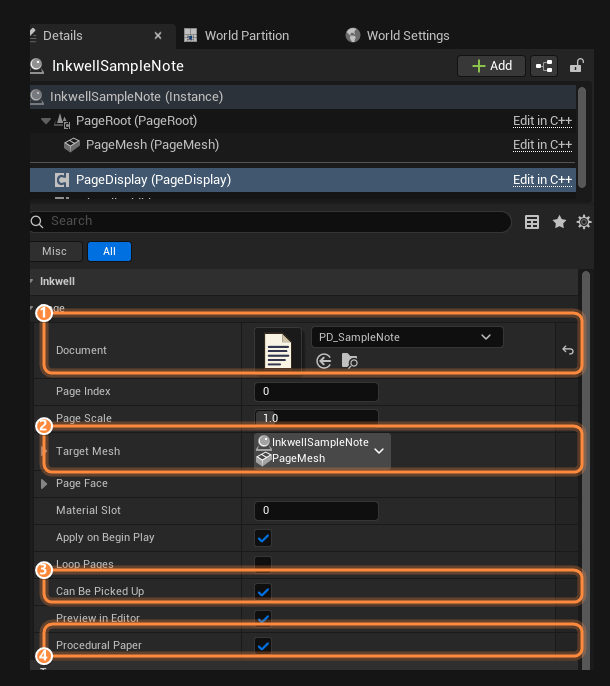
An Ink Page Display component in the Details panel.
Adding it to an actor you already have
1
Add the component
Open the actor (Blueprint editor, or select a placed actor in the level), press
Add Component, and pick Ink Page Display — it is in the Inkwell class group.
It is an ordinary actor component and needs no C++.
2
Assign a Document
Set Document to a Page Document. If the actor already owns a mesh, the page appears
on it straight away in the viewport — no Play needed, because
Preview In Editor is on by default. If the actor has no mesh, a
sheet of paper appears instead: see Procedural Paper.
3
Say which mesh, if there is any doubt
With one mesh on the actor there is nothing to do — skip this. With several, set
Target Mesh to the one the page belongs on; otherwise the component takes whichever
mesh comes first on the actor, which is rarely the one you meant. See
how the mesh is chosen.
4
Check the material slot and the UVs
The page is applied to Material Slot
0 unless you change it. By default the face
it lands on must have clean 0–1 UVs across the whole page area — if the writing looks
stretched, smeared or cropped, this is why. For a mesh that was not unwrapped that
way — a face parked in the corner of an atlas, an unwrap that runs sideways — open
Page Face instead of re-unwrapping the mesh.5
Turn a page
From your interaction code, call Next Page / Previous Page / Set Page Index
on the component. Bind On Page Changed to play a paper rustle or update a “3 / 12”
counter.
Properties
Functions
All of these are Blueprint-callable or Blueprint-pure, in the Inkwell → Page palette category.Next Page and Previous Page both return
false immediately when the document has
one page or fewer, so calling them straight from an input event is safe.Events
On Page Changed
Fires whenever the shown page changes: a successful Set Page Index, a Next Page or Previous Page that moved, a Set Document call, and the initial draw at Begin Play when Apply On Begin Play is on.
Use it for page-turn audio, a page counter, or driving quest state off “the player reached
the last page”.
On Page Size Changed
Fires when the paper’s physical size changes — a Page Scale edit, a Set Document bringing in a differently sized document, or the first time the size is applied.
It only fires on a real change: the component remembers the last size it announced, so a
Refresh that leaves the size alone is silent. Bind it to reposition whatever sits on or
around the page — a frame mesh, a pinned label, a collision volume. It is what the
Ink Page actor uses to keep its own sheet fitted.
How the component finds a mesh
The component draws onto exactly one mesh, chosen in this order:- Target Mesh, if the pick resolves to something that is a
MeshComponent(static or skeletal). Worth setting only when the actor carries several meshes — rule 2 covers the ordinary one-mesh actor without you touching anything. - Otherwise the actor’s first mesh component, in component order — deliberately skipping the sheet Procedural Paper spawned. That exclusion matters: the spawned sheet is itself a mesh component on the actor, so counting it would make the component conclude the actor supplies its own paper and destroy the sheet on the next refresh.
- Otherwise the procedurally spawned sheet, if there is one.
- Otherwise nothing is drawn. When a document is assigned, a Warning on
LogInkwellnames the actor: “has no mesh to draw onto - set Target Mesh, add a mesh component to the actor, or enable Procedural Paper.”
The Target Mesh dropdown only fills in on an actor placed in a level. Opened inside the
Blueprint editor it comes up empty, and no pick can be made — Unreal’s component picker
resolves candidates against an actor, and in the Components tab you are editing a component
template, which has no actor to search.That is also why the Component Property Name field underneath becomes editable there:
the engine enables it precisely when the picker cannot resolve. It is the working path in a
Blueprint. Type the mesh component’s variable name —
PageMesh, not a display label —
and it resolves at runtime the same way a pick would.Page Face — custom meshes
By default the page spans the target mesh’s whole 0–1 UV square — the flat-sheet assumption the bundledSM_PageSheet is built for, and the right answer for any mesh whose page face
was unwrapped to fill 0–1. Page Face (FInkPageFaceMapping) exists for the prop that
was not unwrapped that way: the sticky note whose face sits in a corner of an atlas, the
board whose UVs run sideways, the thick note whose back face should stay bare.
The whole mapping folds into one affine UV transform costing the material two vector
parameters, so what it can express is exactly region plus quarter turns — not arbitrary
warps. The bend of a curved sheet comes from the mesh’s own UVs, which is where it belongs:
the text follows the surface because the UVs do.
Where the paper comes from
What the component actually applies depends on the document’s Paper Mode — all four modes are covered on the paper page:- Texture and Procedural: the component creates a dynamic instance of the project’s page ink material and feeds it the baked ink plus the resolved paper texture — supplied or generated.
- Custom Material: the document’s Paper Material — your own graph, carrying the
MF_InkwellPageInkmaterial function to receive the ink — replaces whatever the target slot wore. - Mesh’s Own Material: no paper from Inkwell at all. The component makes a dynamic
instance of the material the slot already wears — per mesh instance, so per-instance
textures and parameter overrides survive — and writes only the ink parameters onto it.
The material must contain
MF_InkwellPageInk; one without it shows no ink and raises no error — that is the contract. Unlike Custom Material, nothing is replaced.
The back of the sheet
A page can carry an authored back — its own layer stack for the other side of the physical sheet — and the display component shows it without being asked:- On the bundled
SM_PageSheet(and any custom mesh that names a material slot Back), the back slot is dressed with the back’s ink and the document’s back paper. - On a mesh with no Back slot — a flat plane, a customer prop — the one page material carries the back itself, shown on back faces only, sampled mirrored the way real show-through reads.
- A back that was never authored bakes nothing and allocates nothing; what an unauthored back shows is governed by Page Face → Ink On Back Face: the front’s writing showing through mirrored (on, the default — thin paper), or bare paper (off).
Procedural Paper
When the actor has no mesh of its own, the component supplies the paper: it spawns a static mesh sheet, attaches it to the actor’s root component, and scales it from the document’s own size. Add the component to an empty actor, assign a document, and you have a readable sheet of paper. That is the whole reason Procedural Paper is a single boolean and is on by default. The details worth knowing:- The sheet uses the project’s page sheet mesh from
Project Settings → Plugins → Inkwell (
/Inkwell/Meshes/SM_PageSheetby default — a 100 cm sheet, so document centimeters map straight to scale). - It is scaled to Get Effective Page Size Cm on every refresh, so editing the document’s Page Width Cm or dragging Page Scale resizes it live in the viewport.
- Its collision is set once, at spawn: Query Only (no physics collision at all), object type World Dynamic, ignoring every channel except Visibility, which it blocks. Overlap events are off and it never affects the navmesh. So the player walks straight through it, the camera does not collide with it, AI sight and hitscan traces on project channels pass through it — and a Visibility line trace (the demo interactor’s default Trace Channel) hits the page.
- With no document assigned you still get a sheet, sized A4 × Page Scale, showing blank paper — so a freshly added component immediately shows what it is about to print on.
It never takes over a mesh you provided. The sheet is a fallback, used only when
mesh resolution finds nothing on the actor. An explicit
Target Mesh, or any mesh component already on the actor, wins and no sheet is spawned —
so leaving the option on costs nothing on a prop, a book or the
Ink Page actor. The moment the actor gains a mesh of its own, an
existing sheet is destroyed.
When to turn it off
- The actor is meant to draw nothing until something else happens, and you do not want a blank sheet floating there in the meantime.
- The page belongs on a mesh that is not on this actor yet — spawned later, or attached at runtime — and you would rather see nothing than a stray sheet in the interim.
- You are managing paper yourself and want the component to be purely a page API.
Ink Page Stack always spawns one sheet per page, so this option
never applies there.
Sizing
Physical size is a property of the content, not of the component:1. Set Page Scale to 2 on
one placement and that copy alone becomes a desk-sized ledger.
Apply Page Size is what pushes the size onto the paper. It re-fits the paper and fires
On Page Size Changed; it does not touch the ink, because resizing does not change a single
pixel of what is written. That is why it is safe to run on every tick of a slider drag, and
why editing Page Scale in the Details panel resizes the sheet live without ever re-baking
or turning a page.
Setting Page Scale from Blueprint does not apply itself. Call Apply Page Size after
it (or Refresh, which also re-bakes and is far more expensive).
Inkwell only resizes paper it made. On the spawned sheet, Apply Page Size rescales
the sheet directly; the Ink Page actor re-fits its Page Mesh;
Ink Page Stack re-deals the whole pile. When the page is drawn onto
a mesh you supplied, the component never touches your transform — it only changes the size
it reports and fires On Page Size Changed. Scaling the prop is yours to do, and that
event is the hook for doing it.
Which material slot the ink lands in
The baked page is applied withSetMaterial on the resolved mesh, into Material Slot
(default 0). In Texture and Procedural paper modes the component creates a dynamic
instance of the project’s page ink material (/Inkwell/Materials/MI_PageInk by default,
repointable in Project Settings) and sets the ink texture, paper
texture, tints and ink strength on it; the other paper modes
swap what the instance derives from. No other slot on the mesh is touched — with one
exception: a slot named Back, which is how the sheet’s underside
is dressed.
Set Material Slot when the page belongs on the second material of a multi-material prop:
a book cover mesh whose pages are slot 1, a clipboard whose paper is slot 2. The bundled
sheet’s slots are Front (slot 0), Back and Edge, so on the procedural sheet
leave it at 0.
Grab the instance with Get Page Material if you want to drive material parameters
yourself — an ink fade-in, a wetness or burn parameter of your own. It is recreated on every
refresh, so read it again after one.
With no document
The component does not leave stale ink in the slot. With Document unset it applies the page material with the project’s blank-ink texture and the paper texture switched off, so the mesh shows plain paper. Assign a document later with Set Document and the page appears.Editor preview
With Preview In Editor on (the default), the page renders in the level viewport as you edit: assign a document, scrub Page Index, drag Page Scale, and the mesh updates without pressing Play. Editing the document in the Page Editor updates every placed page using it, immediately. Authored backs preview too, on the sheet’s Back slot.- The preview is cosmetic. Neither the sheet nor the material assignment dirties the level package, so opening a map full of pages never demands a save.
- It bakes into one reused transient render target per component (plus a second for a page with an authored back), rather than allocating a new one per refresh.
- A Page Scale edit takes the cheap path. In the Details panel it calls Apply Page Size only — no re-bake — which is what lets the paper follow the slider. Any other property edit triggers a full Refresh.
- During editor startup the Slate renderer can briefly be unavailable and the bake fails. The
component retries on the core ticker up to 8 times with an exponential backoff, from 0.25 s
to 32 s (about a minute in total). If it still cannot bake, it logs a Warning on
LogInkwelland the sheet refreshes the next time it is edited or the map is reopened. - In game and PIE the preview path is not used. Pages bake through the per-world page cache, which shares one bake between every display showing the same document page — see rendering.
The page is a checkerboard, or nothing appears
The page is a checkerboard, or nothing appears
Check the Output Log first: every misconfiguration this component can detect logs a Warning
on LogInkwell. Then work down this list:
- No mesh. The Warning reads
has no mesh to draw onto. Set Target Mesh, add a mesh, or leave Procedural Paper on. - Procedural Paper on, but no sheet. The actor needs a root component for the sheet to attach to; an actor with no scene root gets its own Warning saying so.
- Preview In Editor off. Nothing draws outside of play. Turn it on, or press Play.
- Apply On Begin Play off. In game, nothing is drawn until you call Refresh yourself.
- Wrong material slot. The ink went into a slot you cannot see. Try
0. - Custom paper material shows no writing. The material lacks the ink texture parameter —
the
LogInkwellWarning names it. DropMF_InkwellPageInkinto the graph. - Editor just started. Give it the retry window, or touch any property to force a refresh.
Next
Ink Page Stack
A physical pile of sheets with animated page turns — a drop-in replacement for this.
Ink Page
The ready-made placeable sheet built around this component.
Integration guide
Driving this page API from an interaction system you already have.
Paper
The four paper modes and what each one means for the material on your mesh.
Authoring meshes
UVs, material slots, and export settings that make a custom mesh take ink cleanly.