> ## Documentation Index
> Fetch the complete documentation index at: https://docs.teriyakigaming.com/llms.txt
> Use this file to discover all available pages before exploring further.
# Authoring meshes for Inkwell
> Best practices for modeling readable props in Blender or any DCC: laying out UVs for the writing surface, setting up material slots, matching the page's aspect, and exporting FBX so Inkwell's ink lands exactly where you meant it to.
Inkwell puts writing on **any static mesh** — a scroll, a poster board, a sticky note, a
plank, a gravestone. The plugin does not care how the mesh was made; it cares about three
things you decide in your DCC:
1. **Which faces are the writing surface**, and which material slot they use.
2. **Where those faces sit in UV space** — because the page lands on the mesh through its
UVs, and nothing else.
3. **The mesh's real-world size and orientation**, so the page's physical dimensions and
the reading pose both make sense.
Get those three right and everything else — paper, ink, face mapping — is a handful of
settings on the document and the [Ink Page Display](/plugins/inkwell/components/page-display) component.
The four props that ship with the plugin (`/Inkwell/DemoProps/Meshes/`) were authored
exactly this way; open them next to this guide and everything below has a live example.
## The writing surface gets its own faces — and usually its own slot
Model the area the text should occupy as a distinct set of faces. Inkwell drives ink into
**one material slot** on the target mesh (the display component's **Material Slot**), so
the cleanest setup gives the writing surface a dedicated slot and leaves the rest of the
prop — frame, edges, back — on other slots that Inkwell never touches.
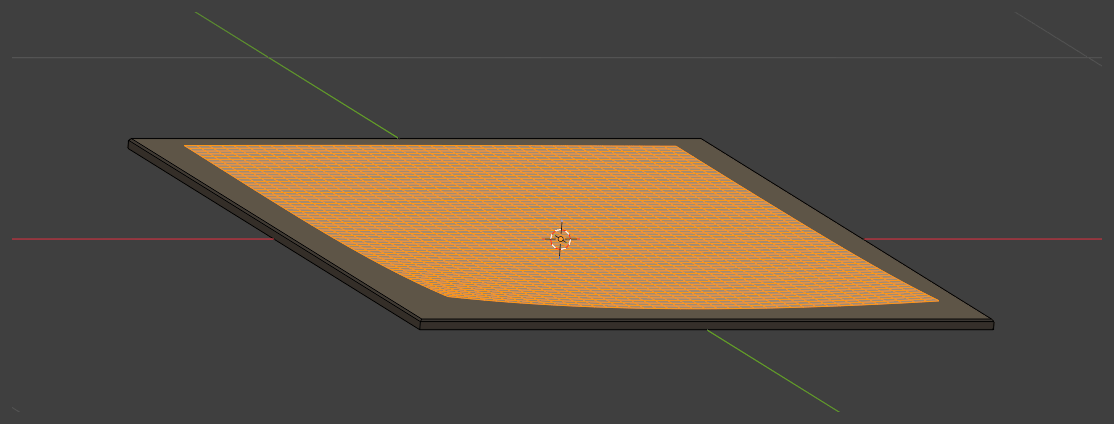
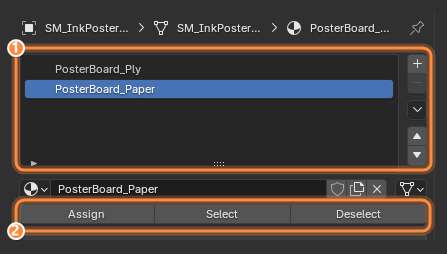 `PosterBoard_Ply` is the frame; `PosterBoard_Paper` is the writing face. The material
*names* in Blender are placeholders — real materials are assigned in Unreal — but the
slot **count and order** survive the FBX round trip, and the paper slot's index is
what you type into the display component's **Material Slot**.
In Edit Mode, select the writing faces, pick the paper slot, press **Assign**. Every
face in that slot will carry paper and ink; every face outside it is left alone.
A single-slot mesh is fine too — the crumpled page and the scroll each have one material
covering the whole prop, and **Material Slot** stays at 0. Use a dedicated slot when the
prop is more than paper (boards, signs, books with covers), or when you want
[Mesh's Own Material mode](/plugins/inkwell/authoring/paper#meshs-own-material) to leave the rest of the
prop's look untouched.
## UVs are the whole contract
Inkwell maps the page onto the mesh **through its UVs**. The face mapping on the document
(**Page Face** on the display component) can pick a rectangle and turn it in quarter
turns, but it cannot fix a bad unwrap — what a mapping can express is exactly what an
affine transform can. So the unwrap is where the quality is decided:
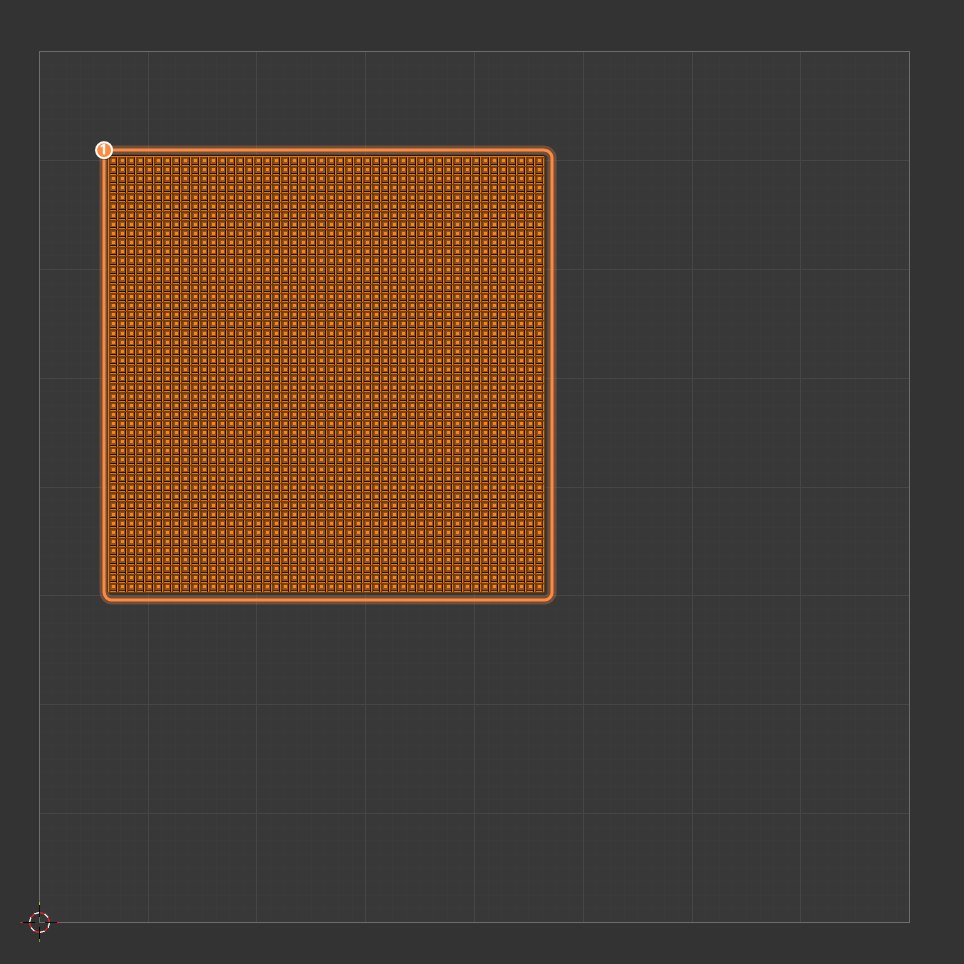
* **Axis-aligned, non-overlapping island.** Unwrap the writing surface as one rectangular
island, page-upright: U runs along the page's width, V up its height. No other island
may overlap it — overlapping faces would repeat the writing.
* **Match the page's aspect ratio.** The island's proportions should match the document's
page (an A4 document is 21 × 29.7 cm). If the island is squashed relative to the page,
the writing is squashed by exactly that much — Inkwell will not re-proportion it.
* **Fill the square, or declare the region.** The simplest unwrap spans the full 0–1
square — that is the flat-sheet assumption and the default (**Fit: Full UV Range**).
But an island can sit anywhere, at any size, if the face mapping says where.
`PosterBoard_Ply` is the frame; `PosterBoard_Paper` is the writing face. The material
*names* in Blender are placeholders — real materials are assigned in Unreal — but the
slot **count and order** survive the FBX round trip, and the paper slot's index is
what you type into the display component's **Material Slot**.
In Edit Mode, select the writing faces, pick the paper slot, press **Assign**. Every
face in that slot will carry paper and ink; every face outside it is left alone.
A single-slot mesh is fine too — the crumpled page and the scroll each have one material
covering the whole prop, and **Material Slot** stays at 0. Use a dedicated slot when the
prop is more than paper (boards, signs, books with covers), or when you want
[Mesh's Own Material mode](/plugins/inkwell/authoring/paper#meshs-own-material) to leave the rest of the
prop's look untouched.
## UVs are the whole contract
Inkwell maps the page onto the mesh **through its UVs**. The face mapping on the document
(**Page Face** on the display component) can pick a rectangle and turn it in quarter
turns, but it cannot fix a bad unwrap — what a mapping can express is exactly what an
affine transform can. So the unwrap is where the quality is decided:
* **Axis-aligned, non-overlapping island.** Unwrap the writing surface as one rectangular
island, page-upright: U runs along the page's width, V up its height. No other island
may overlap it — overlapping faces would repeat the writing.
* **Match the page's aspect ratio.** The island's proportions should match the document's
page (an A4 document is 21 × 29.7 cm). If the island is squashed relative to the page,
the writing is squashed by exactly that much — Inkwell will not re-proportion it.
* **Fill the square, or declare the region.** The simplest unwrap spans the full 0–1
square — that is the flat-sheet assumption and the default (**Fit: Full UV Range**).
But an island can sit anywhere, at any size, if the face mapping says where.
 The three **Fit** modes on the face mapping (`FInkPageFaceMapping`), and when to reach
for each:
| Fit | What it does | Use when |
| ----------------- | --------------------------------------------------------------------- | --------------------------------------------------------------------------------------- |
| **Full UV Range** | Page spans the whole 0–1 square. The default. | The writing face is unwrapped edge-to-edge, like the bundled sheet. |
| **Auto Fit** | Measures the rectangle the face's UVs actually occupy, from the mesh. | The island sits in part of the square and you'd rather not type numbers. |
| **Custom Region** | Page spans the `Region Min` / `Region Max` rectangle you enter. | You know the atlas layout, or Auto Fit's measure includes faces you don't want counted. |
**Rotation Quarter Turns** (0–3) rescues the unwrap that came out sideways or upside
down — quarter turns on purpose, because they can never clip the page's corners against
the region. **Ink On Back Face** controls whether back-facing geometry that shares the
front's UVs shows the writing mirrored through, the way real paper does; turn it off for
bare paper backs.
**Curved surfaces need nothing special.** The scroll's decree bends into its rolls
because the mesh's UVs bend — the text follows the surface because the UVs do. Unwrap the
curved face as if it were flattened, keep the proportions honest, and the ink will follow
every curve. Creases work the same way: the crumpled page is geometry with its folds in
the normals, and its UVs were never touched.
## Size, orientation, and pivot
* **Author at real-world size.** One Blender meter is 100 Unreal units. The shipped
props are literal: the crumpled page is 0.21 × 0.297 m (A4), the sticky note 0.076 m
square. The document's **Page Width Cm** describes the *page*; the mesh should agree
with it, or the reader will hold up a page whose physical size and printed size
disagree.
* **Lie flat, face up.** Author the sheet lying in the XY plane facing +Z, width along
+X, top along +Y — that is how a page is authored for Inkwell, and it is what makes the
reader's pickup, the flip animation, and wall mounting all orient correctly.
* **Apply your transforms.** Rotation and scale belong baked into the mesh data, not left
on the object. An unapplied transform exports as a surprise.
## Materials: what Blender decides, and what Unreal decides
In Blender you decide the **slots**. In Unreal you decide what fills them, and there are
two ways a custom mesh takes its ink — both covered in depth on the
[paper page](/plugins/inkwell/authoring/paper):
* **Custom material** — the document's Paper Material replaces the writing slot. Your
material graph carries the **`MF_InkwellPageInk`** material function wherever the ink
should multiply in.
* **Mesh's own material** — Inkwell replaces nothing: it makes a dynamic instance of the
material the slot already wears (per mesh instance, so instance overrides survive) and
drives only the ink parameters. The one contract: that material must contain
`MF_InkwellPageInk`, or the paper renders and the ink silently doesn't — check the
Output Log for the `LogInkwell` warning if a page comes up blank.
Nothing about the textures or shading you preview in Blender ships — export the mesh
without materials or textures and author the real ones in Unreal.
## Exporting FBX
The settings that matter, as used to export every shipped prop:
| Setting | Value | Why |
| ------------------------------- | ----------------------------------------------------- | ----------------------------------------------------------------------------- |
| Global Scale / Apply Unit Scale | `1.0` / on | One Blender meter arrives as 100 Unreal units. |
| Apply Scalings | `FBX All` or `FBX Scale None` with applied transforms | No surprise scale on import. |
| Forward / Up | `-Z Forward`, `Y Up` | A sheet lying flat facing +Z in Blender lands lying flat facing +Z in Unreal. |
| Bake Space Transform | **off** | On is a known source of rotated imports. |
| Object Types | Mesh only | Nothing else needs to ship. |
| Tangent Space | on | Stable normals for lit paper. |
On the Unreal side, import with **Import Materials** and **Import Textures** off (slots
arrive as empty names for you to fill), and skip Nanite for props this light.
## Check it in five minutes
Import the FBX, open the static mesh, and confirm the slot order — note which index
the writing surface took.
Add an **Ink Page Display** to an actor with your mesh, set **Document**, **Target
Mesh**, and **Material Slot**. With **Preview In Editor** on, the page appears
immediately.
Writing sideways? **Rotation Quarter Turns**. Writing covering the whole prop when it
should sit in one panel? **Fit: Auto Fit** or **Custom Region**. Writing stretched?
That one *is* the mesh — the island's aspect doesn't match the page's, and the honest
fix is in the DCC.
## Next
The four paper modes, and where MF\_InkwellPageInk goes in your material.
Material Slot, Page Face, and every other knob the mesh plugs into.
The scroll, poster, sticky note, and crumpled page, placed and readable.
The three **Fit** modes on the face mapping (`FInkPageFaceMapping`), and when to reach
for each:
| Fit | What it does | Use when |
| ----------------- | --------------------------------------------------------------------- | --------------------------------------------------------------------------------------- |
| **Full UV Range** | Page spans the whole 0–1 square. The default. | The writing face is unwrapped edge-to-edge, like the bundled sheet. |
| **Auto Fit** | Measures the rectangle the face's UVs actually occupy, from the mesh. | The island sits in part of the square and you'd rather not type numbers. |
| **Custom Region** | Page spans the `Region Min` / `Region Max` rectangle you enter. | You know the atlas layout, or Auto Fit's measure includes faces you don't want counted. |
**Rotation Quarter Turns** (0–3) rescues the unwrap that came out sideways or upside
down — quarter turns on purpose, because they can never clip the page's corners against
the region. **Ink On Back Face** controls whether back-facing geometry that shares the
front's UVs shows the writing mirrored through, the way real paper does; turn it off for
bare paper backs.
**Curved surfaces need nothing special.** The scroll's decree bends into its rolls
because the mesh's UVs bend — the text follows the surface because the UVs do. Unwrap the
curved face as if it were flattened, keep the proportions honest, and the ink will follow
every curve. Creases work the same way: the crumpled page is geometry with its folds in
the normals, and its UVs were never touched.
## Size, orientation, and pivot
* **Author at real-world size.** One Blender meter is 100 Unreal units. The shipped
props are literal: the crumpled page is 0.21 × 0.297 m (A4), the sticky note 0.076 m
square. The document's **Page Width Cm** describes the *page*; the mesh should agree
with it, or the reader will hold up a page whose physical size and printed size
disagree.
* **Lie flat, face up.** Author the sheet lying in the XY plane facing +Z, width along
+X, top along +Y — that is how a page is authored for Inkwell, and it is what makes the
reader's pickup, the flip animation, and wall mounting all orient correctly.
* **Apply your transforms.** Rotation and scale belong baked into the mesh data, not left
on the object. An unapplied transform exports as a surprise.
## Materials: what Blender decides, and what Unreal decides
In Blender you decide the **slots**. In Unreal you decide what fills them, and there are
two ways a custom mesh takes its ink — both covered in depth on the
[paper page](/plugins/inkwell/authoring/paper):
* **Custom material** — the document's Paper Material replaces the writing slot. Your
material graph carries the **`MF_InkwellPageInk`** material function wherever the ink
should multiply in.
* **Mesh's own material** — Inkwell replaces nothing: it makes a dynamic instance of the
material the slot already wears (per mesh instance, so instance overrides survive) and
drives only the ink parameters. The one contract: that material must contain
`MF_InkwellPageInk`, or the paper renders and the ink silently doesn't — check the
Output Log for the `LogInkwell` warning if a page comes up blank.
Nothing about the textures or shading you preview in Blender ships — export the mesh
without materials or textures and author the real ones in Unreal.
## Exporting FBX
The settings that matter, as used to export every shipped prop:
| Setting | Value | Why |
| ------------------------------- | ----------------------------------------------------- | ----------------------------------------------------------------------------- |
| Global Scale / Apply Unit Scale | `1.0` / on | One Blender meter arrives as 100 Unreal units. |
| Apply Scalings | `FBX All` or `FBX Scale None` with applied transforms | No surprise scale on import. |
| Forward / Up | `-Z Forward`, `Y Up` | A sheet lying flat facing +Z in Blender lands lying flat facing +Z in Unreal. |
| Bake Space Transform | **off** | On is a known source of rotated imports. |
| Object Types | Mesh only | Nothing else needs to ship. |
| Tangent Space | on | Stable normals for lit paper. |
On the Unreal side, import with **Import Materials** and **Import Textures** off (slots
arrive as empty names for you to fill), and skip Nanite for props this light.
## Check it in five minutes
Import the FBX, open the static mesh, and confirm the slot order — note which index
the writing surface took.
Add an **Ink Page Display** to an actor with your mesh, set **Document**, **Target
Mesh**, and **Material Slot**. With **Preview In Editor** on, the page appears
immediately.
Writing sideways? **Rotation Quarter Turns**. Writing covering the whole prop when it
should sit in one panel? **Fit: Auto Fit** or **Custom Region**. Writing stretched?
That one *is* the mesh — the island's aspect doesn't match the page's, and the honest
fix is in the DCC.
## Next
The four paper modes, and where MF\_InkwellPageInk goes in your material.
Material Slot, Page Face, and every other knob the mesh plugs into.
The scroll, poster, sticky note, and crumpled page, placed and readable.