> ## Documentation Index
> Fetch the complete documentation index at: https://docs.teriyakigaming.com/llms.txt
> Use this file to discover all available pages before exploring further.
# Integrating with your interaction system
> Wire Inkwell into the interaction system your project already has: your own focus and interact logic — trace or overlap — calling the Ink Page Reader, the shipped Enhanced Input actions, page turns, flips, and closing.
This guide assumes the situation most projects are actually in.
**The scenario.** Your project already has a working interaction system — or you are about
to build one, and it will be yours. Every interactable in the level inherits from a base
Blueprint — call it `BP_InteractableActor` — which owns the collision, the outline
highlight, the "Press E" prompt, and an **Interact** event your player pawn fires at
whatever it is looking at. You want a readable note to be one more interactable in that
system. You do **not** want Inkwell's own trace, its own prompt, or its own key bindings.
That works, and it is the intended path. The production pieces of Inkwell —
[Ink Page Display](/plugins/inkwell/components/page-display) (`UInkPageDisplayComponent`),
[Ink Page Stack](/plugins/inkwell/components/page-stack), the [Ink Page](/plugins/inkwell/components/page-actor) actor, the
[Ink Page](/plugins/inkwell/components/page-widget) widget, and the
[Ink Page Reader](/plugins/inkwell/components/reader) (`UInkPageReaderComponent`) — contain **no input
handling and no focus tracing whatsoever**. They are services your interaction system
calls: your interact verb calls **Begin Reading** / **End Reading** on the reader, your
page-turn input calls **Next Page** / **Previous Page**, your flip input calls **Flip
Page**. That is the whole integration surface.
The [Ink Page Interactor](/plugins/inkwell/components/interactor) (`UInkPageInteractorComponent`) — along
with the demo pawn `AInkwellReaderCharacter`, `AInkwellReaderGameMode`, the Inkwell Exhibit
component, and `WBP_InkwellReadPrompt` — is **demo and reference content, not recommended
for production**. It exists so the [showroom](/plugins/inkwell/guides/examples) plays out of the box and so
you can read a complete working example of the calls this guide describes. In a project
with its own interaction system it is a second trace, a second prompt, and a second set of
key bindings. Replace it with the wiring below.
Everything below is Blueprint-only. Every Inkwell function named here is
`BlueprintCallable` or `BlueprintPure` — on a component you add from the Components panel,
or on the Ink Page widget you drag in from the UMG palette.
## The walkthrough
Open the Blueprint you want to be readable. Either an existing interactable, or a new
child of your base class: right-click `BP_InteractableActor` and choose **Create Child
Blueprint Class**, then name it `BP_ReadableNote`.
1. In the **Components** panel, click **Add** and search for **Ink Page Display**.
(It is in the **Inkwell** class group; the C++ class is `UInkPageDisplayComponent`.)
2. Select the new component and set **Document** (category *Inkwell | Page*) to your
[Ink Page Document](/plugins/inkwell/authoring/documents) asset.
3. Leave **Page Index** at 0.
That is the whole world-side setup. **Preview In Editor** is on by default, so the page
appears on the actor in the level viewport without pressing Play. Your base class is
untouched — Inkwell added a component, it did not replace anything, so your collision,
focus, save flags, and quest hooks all keep working.
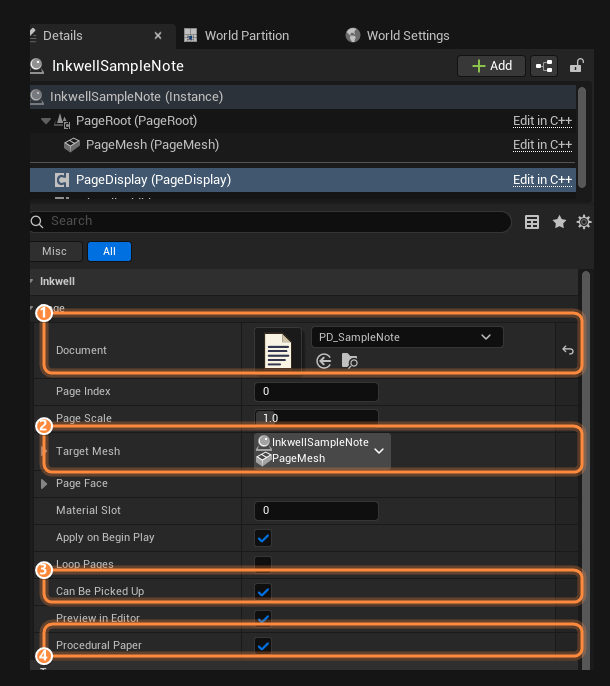 The properties that matter when you are integrating:
| Property | Type | Default | What it does |
| ----------------------------------------- | --------------------- | ------------- | ----------------------------------------------------------------------------------------------------------------------------------------------------------------------------------------------------------------------------------------------------------------------------------------------------- |
| Document (`Document`) | Ink Page Document | None | The authored page content to show. Writable from Blueprint; **Set Document** swaps it and re-bakes. |
| Page Index (`PageIndex`) | Integer | 0 | Which page is shown. Out-of-range values are clamped. |
| Page Scale (`PageScale`) | Float | 1.0 | Multiplies the document's authored size for this component only. Both axes together, so the writing never stretches. |
| Target Mesh (`TargetMesh`) | Component reference | None | The mesh the page is drawn onto. Empty = the first mesh component found on the actor, so this is only worth setting on an actor carrying several. The dropdown fills in on a placed actor; in a Blueprint you type the component's variable name into **Component Property Name** underneath instead. |
| Page Face (`FaceMapping`) | Ink Page Face Mapping | Full UV Range | Where on the target mesh's UVs the page lands, with quarter-turn rotation. Only needed for a mesh that was not unwrapped for Inkwell. |
| Material Slot (`MaterialSlot`) | Integer | 0 | Which material slot on the target mesh the page is drawn into. |
| Apply On Begin Play (`bApplyOnBeginPlay`) | Bool | true | Draw the page when play starts. Turn off to reveal it yourself later with **Refresh**. |
| Loop Pages (`bLoopPages`) | Bool | false | Wrap from the last page back to the first when turning pages. |
| Can Be Picked Up (`bAllowReading`) | Bool | true | Whether interaction should offer this page for reading. The demo interactor honors it; **your focus code should read it too** — it is the "this poster is scenery" flag. Writable at runtime, so a page can be locked until a quest step. |
| Preview In Editor (`bPreviewInEditor`) | Bool | true | Bake the page live in the level viewport, without PIE. |
| Procedural Paper (`bProceduralPaper`) | Bool | true | Spawn and size a paper sheet **when the actor has no mesh of its own**. See the next step. |
The component draws onto exactly one mesh, resolved in this order: the explicit
**Target Mesh** pick, then the first mesh component on the actor, and only if there is
no mesh at all, the sheet **Procedural Paper** spawns.
Set **Target Mesh** with the component picker to the mesh that should carry the
page — the folded letter, the clipboard, the page face of a book prop. Or leave it
empty and let the component find the actor's first mesh component.
What this choice implies:
* **Inkwell replaces the material** in **Material Slot** with a dynamic instance of
the page ink material, and pushes the baked ink plus the document's paper
settings into it. Whatever material was in that slot is gone, for that slot. (The
exceptions are the document paper modes **Custom Material** — your material, with
the `MF_InkwellPageInk` function in it, replaces the slot — and **Mesh's Own
Material**, which replaces nothing and drives the ink into the material the mesh
already wears. See [Paper](/plugins/inkwell/authoring/paper).)
* **The mesh needs clean 0–1 UVs across the page face** — or a **Page Face**
mapping that says which UV rectangle the face actually occupies. Without either,
an atlas-mapped prop mesh garbles the text.
* **Inkwell never resizes your mesh.** The page's aspect ratio comes from the
document's **Page Size Pixels**; if your mesh face is not that shape, the writing
is stretched to fit it. Match the mesh to the document's aspect — **Get Effective
Page Size Cm** on the component gives you the exact centimeters — or accept the
distortion.
* **Procedural Paper does nothing** while the actor supplies a mesh. It is a
fallback, never a takeover: it can never replace a prop you provided.
Leave **Target Mesh** empty, leave **Procedural Paper** on, and give the actor no
mesh component of its own.
What this choice implies:
* A static mesh component is spawned at registration, attached to the actor's root,
and given the project's page sheet mesh (`/Inkwell/Meshes/SM_PageSheet` —
repointable in [Settings](/plugins/inkwell/reference/settings)).
* It is **sized from the document**: **Page Width Cm**, with the height derived from
the page's aspect ratio, multiplied by **Page Scale**. Swap in a document authored
at a different size and the sheet resizes itself, live in the editor viewport.
* The sheet is **transient**. It is derived state, respawned from the document on
load, and never saved into the level.
* Its collision is **query-only, blocking exactly one channel: Visibility.** It
ignores every other channel, so it never blocks the player, physics, AI sight,
hitscan, or the camera. If your focus trace runs on a custom channel, that trace
passes straight through the sheet — see the next step.
* The actor needs a **root component** for the sheet to attach to.
A base `BP_InteractableActor` usually already has a mesh component — often an empty
`StaticMesh` component with no mesh assigned. That still counts as "the actor
supplies a mesh", so **no sheet is spawned** and the page is drawn onto an invisible
mesh. Either assign a real mesh to that component and point **Target Mesh** at it,
or derive the readable from a base class that has no mesh component.
Inkwell does not care how you decide the player is aiming at a readable — a view
trace, an overlap volume, a targeting system. Whatever you use, the question it has to
answer is the same: *does this actor carry an Ink Page Display, and may it be read?*
**If your system traces** (the common case): your existing line trace hits the actor —
its own collision, or Inkwell's spawned sheet on the **Visibility** channel. From the
hit actor: **Get Component by Class**, Component Class = **Ink Page Display**. The
return pin is typed from the class pick, so no **Cast To** node is needed. Valid, and
its **Can Be Picked Up** is true → show your "read" prompt.
**If your system overlaps**: same two nodes, from the overlapping actor on your begin-
and end-overlap events. Nothing about Inkwell needs a trace.
Two channel facts to get right:
* **The spawned sheet answers only Visibility.** If your focus trace runs on a custom
trace channel, either trace against the actor's own collision instead, or set a
response on the sheet yourself: **Get Procedural Paper Mesh** on the display →
**Set Collision Response To Channel** (your channel, Block) after Begin Play.
* **Ink Page Stack sheets answer only their own Sheet Trace Channel** (default
Visibility). Set every stack's **Sheet Trace Channel** to match your trace channel,
or the stack never registers under your crosshair — with no warning anywhere.
An [Ink Page](/plugins/inkwell/components/page-actor) actor also offers **Notify Focus Changed** and
**Notify Interacted** — call them from your system and implement the matching **On
Focus Changed** / **On Interacted** events on the actor, if you prefer the reaction
logic to live on the prop rather than the pawn.
Now the only Inkwell-specific wiring in the whole integration: what your existing
**Interact** event does. Two shapes — pick one.
The [Ink Page Reader](/plugins/inkwell/components/reader) (`UInkPageReaderComponent`) contains no
input handling whatsoever. It is a pure "float this page up to the camera and put it
back afterwards" service that you call. It is a **production component** — only its
optional flip-key convenience touches input, and that is a checkbox.
**On the player pawn, once:**
1. **Components → Add → Ink Page Reader**. Do not add an Ink Page Interactor.
2. The defaults are tuned: **Fit Page To View** (true) computes the hold distance
from the page's real size and the camera FOV, so a poster and a sticky note both
fill **View Fill Fraction** (0.75) of the screen, clamped between **Min View
Distance** (18 cm) and **Max View Distance** (90 cm). Untick it to use the flat
**View Distance** (45 cm) instead. **Keep Clear Of Obstructions** (true) traces
so the held page is never buried in a desk or podium.
3. If you will bind the flip to your own input, untick **Bind Flip Key** — on by
default, it binds **Flip Key** (F) directly on the pawn, without consuming, so a
two-sided page can be turned over out of the box.
**In `BP_ReadableNote`, override your base class's interact event:**
1. From the interacting pawn (your event's instigator pin) → **Get Component by
Class**, Component Class = **Ink Page Reader**.
2. → **Is Reading** → **Branch**.
* **True** → **End Reading**, so the same key closes the page.
* **False** → **Begin Reading Actor**, Page Actor = **Self**.
**Begin Reading Actor** finds the Ink Page Display on the actor for you. It returns
false when there is none, when something is already being read, or when the display
has no owning actor. **Begin Reading** takes the component directly if you already
have it in hand.
The reader does **not** check **Can Be Picked Up** — that filter belongs to the
focus side. Read it in your focus code (previous step) before offering the
interaction at all.
The reader moves **the whole page actor** to the camera: it saves the actor's
transform, switches off physics simulation and collision for the ride, blends the
actor up, and puts it back exactly where it was on **End Reading**. Set the readable
actor's root **Mobility** to *Movable*, and do not use this path for a page printed
on a desk, a door, or anything else that must stay put — use the widget tab for
those, or set dressing's **Can Be Picked Up** to false and let it stay scenery.
**Reading Rotation Offset** (default Pitch 0, Yaw 90, Roll 90) is tuned for the
Inkwell page sheet: a flat plane whose printed face points up. If you read from your
own mesh and the page arrives face-down or sideways, this is the property to change.
Nothing moves in the world. The page is drawn full-screen by the same bake code, so
it looks identical to the in-world sheet.
**Build the reading widget, once:**
1. Create a Widget Blueprint, `WBP_PageReader`.
2. In the palette, under the **Inkwell** category, drag an **Ink Page** widget
(`UInkPageWidget`) onto the canvas and tick **Is Variable**. Name it `PageView`.
It scales to fit whatever slot you give it, keeping the page's aspect ratio.
3. Add your own close button and page buttons around it if you want them.
**In `BP_ReadableNote`, on your interact event:**
1. **Create Widget**, Class = `WBP_PageReader`, Owning Player = **Get Player
Controller**. Promote the return value to a variable, `ActiveReader`.
2. Drag from the Ink Page Display component and get its **Document** variable.
3. On the widget: **Set Document** (Target = `PageView`), New Document = that
document, New Page Index = the display's **Get Current Page Index**. The widget's
**Document** property is read-only in Blueprint on purpose — going through **Set
Document** is what rebuilds the page.
4. **Add to Viewport**.
5. **Set Input Mode UI Only** (or *Game And UI*) and **Set Show Mouse Cursor** if
your close and turn controls are mouse-driven.
The widget also exposes **Show Paper** — draw the document's paper behind the
writing, or turn it off to print ink straight onto your own UI background — and
**Apply Ink Tint**.
Page turning is two nodes plus a guard. Bind them wherever your project already handles
input: an Enhanced Input action, a UMG button, a gamepad face button.
**Reader path** — a page floating in front of the camera:
* your "next page" input → the pawn's Ink Page Reader → **Next Page**
* your "previous page" input → the pawn's Ink Page Reader → **Previous Page**
* your "flip" input → **Flip Page** (only if you turned **Bind Flip Key** off)
The reader turns in **book order**: on a sheet with an authored back, **Next Page**
turns the sheet over to its back first and only then moves to the next page, and
**Previous Page** returns from a back to its front before retreating a page. So your
two page-turn inputs already read a two-sided document completely — **Flip Page** is
the direct "turn it over" verb on top of that. All three return false when nothing is
being read (and the page-turns also when there is nowhere further to go), so you can
drive prompt feedback straight off the return value. For a "Front / Back" label, bind
**On Reading Side Changed** — it fires exactly when the visible face changes — and
**Get Reading Side Text** hands you the word ready-made.
**Widget or direct path** — no reader involved: call **Next Page** / **Previous Page**
on the Ink Page Display component, the Ink Page widget, or the Ink Page actor. On the
display component, **Loop Pages** decides whether the last page wraps back to the first.
(The flip is a reader presentation; the display and widget show one face at a time.)
**Knowing when you are on the last page.** The display component owns that knowledge,
and the reader hands you the display:
1. your "next page" input → reader → **Is Reading** → **Branch** (False → do nothing).
2. True → reader → **Get Current Page**, which returns the Ink Page Display being read.
3. → **Is On Last Page** → **Branch**.
* **True** → reader → **End Reading** — "one more press closes the note".
* **False** → reader → **Next Page**.
Check **Is On Last Page** *before* calling **Next Page**, not after: **Next Page**
changes the answer. **Is On First Page** is the mirror image, useful for graying out a
"back" prompt.
For a "page 2 / 5" counter or a page-turn sound, bind **On Page Changed** on the display
component. It fires with **New Page Index** and **Page Count** every time the shown page
changes — including on **Set Document** — from any source, so one binding covers your
input, a cutscene, and a Blueprint that jumps straight to a specific page. (A flip never
fires it: turning a sheet over does not change which page is shown.)
**Reader path.** Call **End Reading** on the reader. It blends the actor back to exactly
where it was lying — starting the descent from wherever the page actually is, flipped
pages turning face-up on the way down — restores its collision and any physics
simulation it switched off, and releases the movement and look locks. The locks release
**the moment End Reading is called**, not when the page finishes floating down, so the
player is never left standing still watching paper land.
**Widget path.** Call **Remove from Parent** on your stored widget reference, then **Set
Input Mode Game Only** and **Set Show Mouse Cursor** (false) to undo whatever you set on
open.
**Your HUD.** The reader broadcasts **On Reading Started** and **On Reading Ended**, both
carrying the Ink Page Display being read (it can be None if the page actor was destroyed
mid-read). Bind them on the pawn to hide your interaction prompt, crosshair, or outline
highlight, and to restore them afterwards. Nothing about movement or camera needs any
wiring: **Lock Movement While Reading** and **Lock Look While Reading** apply and release
themselves.
## The shipped Enhanced Input actions
If your pawn's input is Enhanced Input, `/Inkwell/Examples/Input/` saves you four assets:
**IA\_Interact**, **IA\_NextPage**, **IA\_PreviousPage**, and **IA\_PutBack** — plain digital
button actions with no logic in them — plus **IMC\_InkwellDefault**, a ready-made Input
Mapping Context binding them to **E**, **Right**, **Left**, and **Q**, with mouse wheel
variants of the two page turns. Use them as-is, add
the four actions to your own mapping context under your own keys, or ignore them and use
your own actions; they are names, nothing more.
To wire them straight to the reader:
1. On your pawn's Begin Play: **Get Controller** → **Cast To Player Controller** →
**Enhanced Input Local Player Subsystem** → **Add Mapping Context**, Mapping Context =
`IMC_InkwellDefault` (or your own IMC carrying the four actions).
2. In the pawn's Event Graph, add the four Enhanced Input events and, from the pawn's Ink
Page Reader:
| Action event (Triggered) | Call on the reader |
| ------------------------ | -------------------------------------------------------------------------------------------------------- |
| `IA_Interact` | **Is Reading** → Branch: True → **End Reading**; False → **Begin Reading Actor** with your focused actor |
| `IA_NextPage` | **Next Page** |
| `IA_PreviousPage` | **Previous Page** |
| `IA_PutBack` | **End Reading** |
The focused actor in that first row comes from *your* focus logic — the shipped actions
deliberately carry no trace of their own.
## What not to bring across
The bundled interaction pieces exist so an empty project is readable out of the box and so
the showroom is a complete worked reference. In a project that has its own interaction
system they are duplicates, and they will fight you.
**The Ink Page Interactor's trace.** It line-traces from the player's view every **Focus
Check Interval** (0.1 s) out to **Interaction Distance** (300 cm) on **Trace Channel**
(Visibility), and raises its own **On Focus Changed**. Running it alongside your own focus
system gives you two sources of truth for "what am I looking at", two prompts to keep in
sync, and a second definition of interaction range.
**Its key bindings.** With **Enable Default Input** on — the default — the interactor binds
keys directly on the owning pawn: **Interact Key** (E) to interact, **Put Back Key** (Q) to
close, **Previous Page Key** (Left) or mouse wheel down for the previous page, **Next Page
Key** (Right) or mouse wheel up for the next. Those bindings sit underneath your input
system and will double-fire your own interact key.
**The demo pawn, game mode, prompt widget, and exhibit component.**
`AInkwellReaderCharacter`, `AInkwellReaderGameMode`, `WBP_InkwellReadPrompt`, and the
Inkwell Exhibit component are the showroom's furniture — read them as the worked example
they are ([Example content](/plugins/inkwell/guides/examples) walks through each), and leave them there.
If you want the interactor's trace but not its keys, that hybrid is supported: add the
component, untick **Enable Default Input**, and call **Interact**, **Stop Reading**, **Next
Page**, and **Previous Page** from your own bindings. It is still a second trace — worth it
only if your own system cannot report what the player is looking at.
## Your system's concept, and Inkwell's equivalent
| In your system | In Inkwell |
| ------------------------------------------ | -------------------------------------------------------------------------------------------------------------------------------------------------------------------------------------------------- |
| `BP_InteractableActor` and its children | Any actor with an **Ink Page Display** component. Nothing else is required. |
| Your focus trace, "what am I looking at" | Keep yours. **Get Component by Class** (Ink Page Display) on the candidate actor, then check **Can Be Picked Up**. |
| Your "Press E to read" prompt widget | Keep yours. **On Page Changed** feeds a "page 2 / 5" counter; **Get Reading Side Text** feeds a "Front / Back" label. |
| Your **Interact** / **Use** event | **Begin Reading Actor** (Self) on the pawn's Ink Page Reader, or **Set Document** on your Ink Page widget. |
| Your **Cancel** / **Close** input | **End Reading**, or **Remove from Parent** on your widget. |
| Your next / previous / flip input | **Next Page** / **Previous Page** / **Flip Page** on the reader; **Next Page** / **Previous Page** on the display or the widget. |
| Your "disable movement while in UI" | **Lock Movement While Reading** and **Lock Look While Reading** on the reader — automatic, released on **End Reading**. |
| Your prop's mesh | **Target Mesh** on the display component, **Material Slot** if the page face is not slot 0, **Page Face** if its UVs are not the full 0–1 square. |
| Your item or lore data asset | The **Ink Page Document** reference on the display component. **Set Document** swaps it at runtime. |
| A stack of loose sheets, a journal, a book | Swap the component for [Ink Page Stack](/plugins/inkwell/components/page-stack). It extends Ink Page Display, so every node above still applies — but match **Sheet Trace Channel** to your trace. |
## When it does not work
* **Your trace channel and the sheet disagree.** The spawned procedural sheet blocks
only the **Visibility** channel; an Ink Page Stack's sheets answer only their
**Sheet Trace Channel**. Trace Visibility, set the stack's channel to yours, or add a
response to the spawned sheet via **Get Procedural Paper Mesh** → **Set Collision
Response To Channel**.
* **You traced for the component's class.** Trace for the actor, then **Get Component
by Class** — the display component has no collision of its own.
* **The actor's own collision swallowed the hit** in front of the page mesh, and your
code only checked the hit component. Check the hit *actor* for the component.
Work down this list, and check the Output Log for `LogInkwell` — the misconfiguration
cases below log Warnings naming the actor:
* **No document assigned.** A display with no **Document** deliberately draws a blank
sheet — the fully transparent "no ink" texture over the paper — rather than leaving
whatever was in the material slot before. Blank paper means "no document", not
"broken".
* **The text layer is hidden, empty, or at zero opacity.** A page is a stack of layers,
and hidden layers are skipped by the bake exactly as they are in the editor preview.
Open the document and check the eye toggles and layer opacities in the
[Layers](/plugins/inkwell/authoring/layers) panel.
* **The document's Paper Mode is "Mesh's Own Material" and the mesh's material has no
`MF_InkwellPageInk`.** In that mode the ink is driven into the material the mesh
already wears; a material without the function shows no ink and raises no error —
that is the contract. Add the function to the material, or use another paper mode.
* **The page ink material is missing.** If **Page Ink Material** in *Project Settings →
Plugins → Inkwell* cannot be loaded, Inkwell falls back to whatever material the mesh
already had, where the ink parameters do nothing. The Output Log carries one warning
per session naming the setting.
* **You are on a dedicated server or in a null-RHI build.** Baking a page paints a Slate
widget into a render target; with no Slate renderer there is no bake. Pages are a
client-side visual.
Almost always the mesh, not the document. By default the bake is mapped across the full
0–1 UV range of the page face, and the page's shape comes from the document's **Page
Size Pixels** aspect ratio.
* **The mesh face is a different shape than the page.** Inkwell never resizes a mesh you
supplied. Scale the mesh to the document's aspect — **Get Effective Page Size Cm** on
the display component gives you the exact centimeters — or let **Procedural Paper**
make the sheet, which is the right shape by construction.
* **The mesh's page face does not span 0–1 UVs.** Set the component's **Page Face**:
*Auto Fit* measures the UV rectangle the face actually occupies, *Custom Region*
takes the rectangle you type, and **Rotation Quarter Turns** rights an unwrap that
runs sideways.
* **You scaled the actor non-uniformly.** X and Y at different scales distorts the page
like any other texture. Use **Page Scale** instead: it scales both dimensions together
precisely so this cannot happen.
You cannot cause this by authoring: **Page Width Cm** is the only physical dimension a
document has, and the height is derived from it, so the paper always has the shape of the
page you wrote.
**Procedural Paper** is a fallback, and it steps aside whenever the actor supplies a
mesh. The usual causes, in order:
* **The actor already has a mesh component** — including an empty one inherited from
your interactable base class, with no static mesh assigned. The page is being drawn
onto that invisible mesh. Assign a mesh to it, or point **Target Mesh** at a mesh that
actually renders.
* **Target Mesh points at something that is not a mesh component.** The pick is ignored,
and the component falls back to searching the actor.
* **The actor has no root component**, so there is nothing for the sheet to attach to.
This logs its own Warning on `LogInkwell`.
* **Procedural Paper is off** on a mesh-less actor, which is the "draw nothing" setting.
* **You used an Ink Page Stack.** A stack always builds its own pile of sheets, one per
page, so the inherited **Procedural Paper** toggle is grayed out and does nothing.
The "no mesh to draw onto" case logs a Warning from `LogInkwell` naming the actor.
Editing a document from the [Page Editor](/plugins/inkwell/authoring/page-editor) or the Details panel
re-bakes and re-sizes every placed page in every editor world that shows it, so this
should be immediate.
* **Preview In Editor is off** on that component. That is the switch for level-viewport
baking; turn it back on.
* **You are in PIE, or in a packaged build.** Displays do not watch their document.
After changing a document at runtime, call **Refresh** on each component, widget, or
actor currently showing it: the mutation invalidates the cached bake, but the material
already applied keeps the texture it was handed. See
[Runtime documents](/plugins/inkwell/guides/runtime-documents).
* **You edited the Blueprint's component default while a placed instance overrides it.**
Standard Blueprint behavior — check the placed actor's own Details panel.
* **The bake failed during editor startup.** A map opened by a startup script can
register before the Slate renderer is usable. Inkwell retries with backoff and logs a
warning if it gives up; touching the actor or reopening the map fixes it.
## Next
The reading pose, the fit-to-view math, the flip, and the movement and look locks in full.
Every property, function, and event on the component this guide is built around.
Write pages from gameplay: generated notes, journals that grow, documents built in play.
The properties that matter when you are integrating:
| Property | Type | Default | What it does |
| ----------------------------------------- | --------------------- | ------------- | ----------------------------------------------------------------------------------------------------------------------------------------------------------------------------------------------------------------------------------------------------------------------------------------------------- |
| Document (`Document`) | Ink Page Document | None | The authored page content to show. Writable from Blueprint; **Set Document** swaps it and re-bakes. |
| Page Index (`PageIndex`) | Integer | 0 | Which page is shown. Out-of-range values are clamped. |
| Page Scale (`PageScale`) | Float | 1.0 | Multiplies the document's authored size for this component only. Both axes together, so the writing never stretches. |
| Target Mesh (`TargetMesh`) | Component reference | None | The mesh the page is drawn onto. Empty = the first mesh component found on the actor, so this is only worth setting on an actor carrying several. The dropdown fills in on a placed actor; in a Blueprint you type the component's variable name into **Component Property Name** underneath instead. |
| Page Face (`FaceMapping`) | Ink Page Face Mapping | Full UV Range | Where on the target mesh's UVs the page lands, with quarter-turn rotation. Only needed for a mesh that was not unwrapped for Inkwell. |
| Material Slot (`MaterialSlot`) | Integer | 0 | Which material slot on the target mesh the page is drawn into. |
| Apply On Begin Play (`bApplyOnBeginPlay`) | Bool | true | Draw the page when play starts. Turn off to reveal it yourself later with **Refresh**. |
| Loop Pages (`bLoopPages`) | Bool | false | Wrap from the last page back to the first when turning pages. |
| Can Be Picked Up (`bAllowReading`) | Bool | true | Whether interaction should offer this page for reading. The demo interactor honors it; **your focus code should read it too** — it is the "this poster is scenery" flag. Writable at runtime, so a page can be locked until a quest step. |
| Preview In Editor (`bPreviewInEditor`) | Bool | true | Bake the page live in the level viewport, without PIE. |
| Procedural Paper (`bProceduralPaper`) | Bool | true | Spawn and size a paper sheet **when the actor has no mesh of its own**. See the next step. |
The component draws onto exactly one mesh, resolved in this order: the explicit
**Target Mesh** pick, then the first mesh component on the actor, and only if there is
no mesh at all, the sheet **Procedural Paper** spawns.
Set **Target Mesh** with the component picker to the mesh that should carry the
page — the folded letter, the clipboard, the page face of a book prop. Or leave it
empty and let the component find the actor's first mesh component.
What this choice implies:
* **Inkwell replaces the material** in **Material Slot** with a dynamic instance of
the page ink material, and pushes the baked ink plus the document's paper
settings into it. Whatever material was in that slot is gone, for that slot. (The
exceptions are the document paper modes **Custom Material** — your material, with
the `MF_InkwellPageInk` function in it, replaces the slot — and **Mesh's Own
Material**, which replaces nothing and drives the ink into the material the mesh
already wears. See [Paper](/plugins/inkwell/authoring/paper).)
* **The mesh needs clean 0–1 UVs across the page face** — or a **Page Face**
mapping that says which UV rectangle the face actually occupies. Without either,
an atlas-mapped prop mesh garbles the text.
* **Inkwell never resizes your mesh.** The page's aspect ratio comes from the
document's **Page Size Pixels**; if your mesh face is not that shape, the writing
is stretched to fit it. Match the mesh to the document's aspect — **Get Effective
Page Size Cm** on the component gives you the exact centimeters — or accept the
distortion.
* **Procedural Paper does nothing** while the actor supplies a mesh. It is a
fallback, never a takeover: it can never replace a prop you provided.
Leave **Target Mesh** empty, leave **Procedural Paper** on, and give the actor no
mesh component of its own.
What this choice implies:
* A static mesh component is spawned at registration, attached to the actor's root,
and given the project's page sheet mesh (`/Inkwell/Meshes/SM_PageSheet` —
repointable in [Settings](/plugins/inkwell/reference/settings)).
* It is **sized from the document**: **Page Width Cm**, with the height derived from
the page's aspect ratio, multiplied by **Page Scale**. Swap in a document authored
at a different size and the sheet resizes itself, live in the editor viewport.
* The sheet is **transient**. It is derived state, respawned from the document on
load, and never saved into the level.
* Its collision is **query-only, blocking exactly one channel: Visibility.** It
ignores every other channel, so it never blocks the player, physics, AI sight,
hitscan, or the camera. If your focus trace runs on a custom channel, that trace
passes straight through the sheet — see the next step.
* The actor needs a **root component** for the sheet to attach to.
A base `BP_InteractableActor` usually already has a mesh component — often an empty
`StaticMesh` component with no mesh assigned. That still counts as "the actor
supplies a mesh", so **no sheet is spawned** and the page is drawn onto an invisible
mesh. Either assign a real mesh to that component and point **Target Mesh** at it,
or derive the readable from a base class that has no mesh component.
Inkwell does not care how you decide the player is aiming at a readable — a view
trace, an overlap volume, a targeting system. Whatever you use, the question it has to
answer is the same: *does this actor carry an Ink Page Display, and may it be read?*
**If your system traces** (the common case): your existing line trace hits the actor —
its own collision, or Inkwell's spawned sheet on the **Visibility** channel. From the
hit actor: **Get Component by Class**, Component Class = **Ink Page Display**. The
return pin is typed from the class pick, so no **Cast To** node is needed. Valid, and
its **Can Be Picked Up** is true → show your "read" prompt.
**If your system overlaps**: same two nodes, from the overlapping actor on your begin-
and end-overlap events. Nothing about Inkwell needs a trace.
Two channel facts to get right:
* **The spawned sheet answers only Visibility.** If your focus trace runs on a custom
trace channel, either trace against the actor's own collision instead, or set a
response on the sheet yourself: **Get Procedural Paper Mesh** on the display →
**Set Collision Response To Channel** (your channel, Block) after Begin Play.
* **Ink Page Stack sheets answer only their own Sheet Trace Channel** (default
Visibility). Set every stack's **Sheet Trace Channel** to match your trace channel,
or the stack never registers under your crosshair — with no warning anywhere.
An [Ink Page](/plugins/inkwell/components/page-actor) actor also offers **Notify Focus Changed** and
**Notify Interacted** — call them from your system and implement the matching **On
Focus Changed** / **On Interacted** events on the actor, if you prefer the reaction
logic to live on the prop rather than the pawn.
Now the only Inkwell-specific wiring in the whole integration: what your existing
**Interact** event does. Two shapes — pick one.
The [Ink Page Reader](/plugins/inkwell/components/reader) (`UInkPageReaderComponent`) contains no
input handling whatsoever. It is a pure "float this page up to the camera and put it
back afterwards" service that you call. It is a **production component** — only its
optional flip-key convenience touches input, and that is a checkbox.
**On the player pawn, once:**
1. **Components → Add → Ink Page Reader**. Do not add an Ink Page Interactor.
2. The defaults are tuned: **Fit Page To View** (true) computes the hold distance
from the page's real size and the camera FOV, so a poster and a sticky note both
fill **View Fill Fraction** (0.75) of the screen, clamped between **Min View
Distance** (18 cm) and **Max View Distance** (90 cm). Untick it to use the flat
**View Distance** (45 cm) instead. **Keep Clear Of Obstructions** (true) traces
so the held page is never buried in a desk or podium.
3. If you will bind the flip to your own input, untick **Bind Flip Key** — on by
default, it binds **Flip Key** (F) directly on the pawn, without consuming, so a
two-sided page can be turned over out of the box.
**In `BP_ReadableNote`, override your base class's interact event:**
1. From the interacting pawn (your event's instigator pin) → **Get Component by
Class**, Component Class = **Ink Page Reader**.
2. → **Is Reading** → **Branch**.
* **True** → **End Reading**, so the same key closes the page.
* **False** → **Begin Reading Actor**, Page Actor = **Self**.
**Begin Reading Actor** finds the Ink Page Display on the actor for you. It returns
false when there is none, when something is already being read, or when the display
has no owning actor. **Begin Reading** takes the component directly if you already
have it in hand.
The reader does **not** check **Can Be Picked Up** — that filter belongs to the
focus side. Read it in your focus code (previous step) before offering the
interaction at all.
The reader moves **the whole page actor** to the camera: it saves the actor's
transform, switches off physics simulation and collision for the ride, blends the
actor up, and puts it back exactly where it was on **End Reading**. Set the readable
actor's root **Mobility** to *Movable*, and do not use this path for a page printed
on a desk, a door, or anything else that must stay put — use the widget tab for
those, or set dressing's **Can Be Picked Up** to false and let it stay scenery.
**Reading Rotation Offset** (default Pitch 0, Yaw 90, Roll 90) is tuned for the
Inkwell page sheet: a flat plane whose printed face points up. If you read from your
own mesh and the page arrives face-down or sideways, this is the property to change.
Nothing moves in the world. The page is drawn full-screen by the same bake code, so
it looks identical to the in-world sheet.
**Build the reading widget, once:**
1. Create a Widget Blueprint, `WBP_PageReader`.
2. In the palette, under the **Inkwell** category, drag an **Ink Page** widget
(`UInkPageWidget`) onto the canvas and tick **Is Variable**. Name it `PageView`.
It scales to fit whatever slot you give it, keeping the page's aspect ratio.
3. Add your own close button and page buttons around it if you want them.
**In `BP_ReadableNote`, on your interact event:**
1. **Create Widget**, Class = `WBP_PageReader`, Owning Player = **Get Player
Controller**. Promote the return value to a variable, `ActiveReader`.
2. Drag from the Ink Page Display component and get its **Document** variable.
3. On the widget: **Set Document** (Target = `PageView`), New Document = that
document, New Page Index = the display's **Get Current Page Index**. The widget's
**Document** property is read-only in Blueprint on purpose — going through **Set
Document** is what rebuilds the page.
4. **Add to Viewport**.
5. **Set Input Mode UI Only** (or *Game And UI*) and **Set Show Mouse Cursor** if
your close and turn controls are mouse-driven.
The widget also exposes **Show Paper** — draw the document's paper behind the
writing, or turn it off to print ink straight onto your own UI background — and
**Apply Ink Tint**.
Page turning is two nodes plus a guard. Bind them wherever your project already handles
input: an Enhanced Input action, a UMG button, a gamepad face button.
**Reader path** — a page floating in front of the camera:
* your "next page" input → the pawn's Ink Page Reader → **Next Page**
* your "previous page" input → the pawn's Ink Page Reader → **Previous Page**
* your "flip" input → **Flip Page** (only if you turned **Bind Flip Key** off)
The reader turns in **book order**: on a sheet with an authored back, **Next Page**
turns the sheet over to its back first and only then moves to the next page, and
**Previous Page** returns from a back to its front before retreating a page. So your
two page-turn inputs already read a two-sided document completely — **Flip Page** is
the direct "turn it over" verb on top of that. All three return false when nothing is
being read (and the page-turns also when there is nowhere further to go), so you can
drive prompt feedback straight off the return value. For a "Front / Back" label, bind
**On Reading Side Changed** — it fires exactly when the visible face changes — and
**Get Reading Side Text** hands you the word ready-made.
**Widget or direct path** — no reader involved: call **Next Page** / **Previous Page**
on the Ink Page Display component, the Ink Page widget, or the Ink Page actor. On the
display component, **Loop Pages** decides whether the last page wraps back to the first.
(The flip is a reader presentation; the display and widget show one face at a time.)
**Knowing when you are on the last page.** The display component owns that knowledge,
and the reader hands you the display:
1. your "next page" input → reader → **Is Reading** → **Branch** (False → do nothing).
2. True → reader → **Get Current Page**, which returns the Ink Page Display being read.
3. → **Is On Last Page** → **Branch**.
* **True** → reader → **End Reading** — "one more press closes the note".
* **False** → reader → **Next Page**.
Check **Is On Last Page** *before* calling **Next Page**, not after: **Next Page**
changes the answer. **Is On First Page** is the mirror image, useful for graying out a
"back" prompt.
For a "page 2 / 5" counter or a page-turn sound, bind **On Page Changed** on the display
component. It fires with **New Page Index** and **Page Count** every time the shown page
changes — including on **Set Document** — from any source, so one binding covers your
input, a cutscene, and a Blueprint that jumps straight to a specific page. (A flip never
fires it: turning a sheet over does not change which page is shown.)
**Reader path.** Call **End Reading** on the reader. It blends the actor back to exactly
where it was lying — starting the descent from wherever the page actually is, flipped
pages turning face-up on the way down — restores its collision and any physics
simulation it switched off, and releases the movement and look locks. The locks release
**the moment End Reading is called**, not when the page finishes floating down, so the
player is never left standing still watching paper land.
**Widget path.** Call **Remove from Parent** on your stored widget reference, then **Set
Input Mode Game Only** and **Set Show Mouse Cursor** (false) to undo whatever you set on
open.
**Your HUD.** The reader broadcasts **On Reading Started** and **On Reading Ended**, both
carrying the Ink Page Display being read (it can be None if the page actor was destroyed
mid-read). Bind them on the pawn to hide your interaction prompt, crosshair, or outline
highlight, and to restore them afterwards. Nothing about movement or camera needs any
wiring: **Lock Movement While Reading** and **Lock Look While Reading** apply and release
themselves.
## The shipped Enhanced Input actions
If your pawn's input is Enhanced Input, `/Inkwell/Examples/Input/` saves you four assets:
**IA\_Interact**, **IA\_NextPage**, **IA\_PreviousPage**, and **IA\_PutBack** — plain digital
button actions with no logic in them — plus **IMC\_InkwellDefault**, a ready-made Input
Mapping Context binding them to **E**, **Right**, **Left**, and **Q**, with mouse wheel
variants of the two page turns. Use them as-is, add
the four actions to your own mapping context under your own keys, or ignore them and use
your own actions; they are names, nothing more.
To wire them straight to the reader:
1. On your pawn's Begin Play: **Get Controller** → **Cast To Player Controller** →
**Enhanced Input Local Player Subsystem** → **Add Mapping Context**, Mapping Context =
`IMC_InkwellDefault` (or your own IMC carrying the four actions).
2. In the pawn's Event Graph, add the four Enhanced Input events and, from the pawn's Ink
Page Reader:
| Action event (Triggered) | Call on the reader |
| ------------------------ | -------------------------------------------------------------------------------------------------------- |
| `IA_Interact` | **Is Reading** → Branch: True → **End Reading**; False → **Begin Reading Actor** with your focused actor |
| `IA_NextPage` | **Next Page** |
| `IA_PreviousPage` | **Previous Page** |
| `IA_PutBack` | **End Reading** |
The focused actor in that first row comes from *your* focus logic — the shipped actions
deliberately carry no trace of their own.
## What not to bring across
The bundled interaction pieces exist so an empty project is readable out of the box and so
the showroom is a complete worked reference. In a project that has its own interaction
system they are duplicates, and they will fight you.
**The Ink Page Interactor's trace.** It line-traces from the player's view every **Focus
Check Interval** (0.1 s) out to **Interaction Distance** (300 cm) on **Trace Channel**
(Visibility), and raises its own **On Focus Changed**. Running it alongside your own focus
system gives you two sources of truth for "what am I looking at", two prompts to keep in
sync, and a second definition of interaction range.
**Its key bindings.** With **Enable Default Input** on — the default — the interactor binds
keys directly on the owning pawn: **Interact Key** (E) to interact, **Put Back Key** (Q) to
close, **Previous Page Key** (Left) or mouse wheel down for the previous page, **Next Page
Key** (Right) or mouse wheel up for the next. Those bindings sit underneath your input
system and will double-fire your own interact key.
**The demo pawn, game mode, prompt widget, and exhibit component.**
`AInkwellReaderCharacter`, `AInkwellReaderGameMode`, `WBP_InkwellReadPrompt`, and the
Inkwell Exhibit component are the showroom's furniture — read them as the worked example
they are ([Example content](/plugins/inkwell/guides/examples) walks through each), and leave them there.
If you want the interactor's trace but not its keys, that hybrid is supported: add the
component, untick **Enable Default Input**, and call **Interact**, **Stop Reading**, **Next
Page**, and **Previous Page** from your own bindings. It is still a second trace — worth it
only if your own system cannot report what the player is looking at.
## Your system's concept, and Inkwell's equivalent
| In your system | In Inkwell |
| ------------------------------------------ | -------------------------------------------------------------------------------------------------------------------------------------------------------------------------------------------------- |
| `BP_InteractableActor` and its children | Any actor with an **Ink Page Display** component. Nothing else is required. |
| Your focus trace, "what am I looking at" | Keep yours. **Get Component by Class** (Ink Page Display) on the candidate actor, then check **Can Be Picked Up**. |
| Your "Press E to read" prompt widget | Keep yours. **On Page Changed** feeds a "page 2 / 5" counter; **Get Reading Side Text** feeds a "Front / Back" label. |
| Your **Interact** / **Use** event | **Begin Reading Actor** (Self) on the pawn's Ink Page Reader, or **Set Document** on your Ink Page widget. |
| Your **Cancel** / **Close** input | **End Reading**, or **Remove from Parent** on your widget. |
| Your next / previous / flip input | **Next Page** / **Previous Page** / **Flip Page** on the reader; **Next Page** / **Previous Page** on the display or the widget. |
| Your "disable movement while in UI" | **Lock Movement While Reading** and **Lock Look While Reading** on the reader — automatic, released on **End Reading**. |
| Your prop's mesh | **Target Mesh** on the display component, **Material Slot** if the page face is not slot 0, **Page Face** if its UVs are not the full 0–1 square. |
| Your item or lore data asset | The **Ink Page Document** reference on the display component. **Set Document** swaps it at runtime. |
| A stack of loose sheets, a journal, a book | Swap the component for [Ink Page Stack](/plugins/inkwell/components/page-stack). It extends Ink Page Display, so every node above still applies — but match **Sheet Trace Channel** to your trace. |
## When it does not work
* **Your trace channel and the sheet disagree.** The spawned procedural sheet blocks
only the **Visibility** channel; an Ink Page Stack's sheets answer only their
**Sheet Trace Channel**. Trace Visibility, set the stack's channel to yours, or add a
response to the spawned sheet via **Get Procedural Paper Mesh** → **Set Collision
Response To Channel**.
* **You traced for the component's class.** Trace for the actor, then **Get Component
by Class** — the display component has no collision of its own.
* **The actor's own collision swallowed the hit** in front of the page mesh, and your
code only checked the hit component. Check the hit *actor* for the component.
Work down this list, and check the Output Log for `LogInkwell` — the misconfiguration
cases below log Warnings naming the actor:
* **No document assigned.** A display with no **Document** deliberately draws a blank
sheet — the fully transparent "no ink" texture over the paper — rather than leaving
whatever was in the material slot before. Blank paper means "no document", not
"broken".
* **The text layer is hidden, empty, or at zero opacity.** A page is a stack of layers,
and hidden layers are skipped by the bake exactly as they are in the editor preview.
Open the document and check the eye toggles and layer opacities in the
[Layers](/plugins/inkwell/authoring/layers) panel.
* **The document's Paper Mode is "Mesh's Own Material" and the mesh's material has no
`MF_InkwellPageInk`.** In that mode the ink is driven into the material the mesh
already wears; a material without the function shows no ink and raises no error —
that is the contract. Add the function to the material, or use another paper mode.
* **The page ink material is missing.** If **Page Ink Material** in *Project Settings →
Plugins → Inkwell* cannot be loaded, Inkwell falls back to whatever material the mesh
already had, where the ink parameters do nothing. The Output Log carries one warning
per session naming the setting.
* **You are on a dedicated server or in a null-RHI build.** Baking a page paints a Slate
widget into a render target; with no Slate renderer there is no bake. Pages are a
client-side visual.
Almost always the mesh, not the document. By default the bake is mapped across the full
0–1 UV range of the page face, and the page's shape comes from the document's **Page
Size Pixels** aspect ratio.
* **The mesh face is a different shape than the page.** Inkwell never resizes a mesh you
supplied. Scale the mesh to the document's aspect — **Get Effective Page Size Cm** on
the display component gives you the exact centimeters — or let **Procedural Paper**
make the sheet, which is the right shape by construction.
* **The mesh's page face does not span 0–1 UVs.** Set the component's **Page Face**:
*Auto Fit* measures the UV rectangle the face actually occupies, *Custom Region*
takes the rectangle you type, and **Rotation Quarter Turns** rights an unwrap that
runs sideways.
* **You scaled the actor non-uniformly.** X and Y at different scales distorts the page
like any other texture. Use **Page Scale** instead: it scales both dimensions together
precisely so this cannot happen.
You cannot cause this by authoring: **Page Width Cm** is the only physical dimension a
document has, and the height is derived from it, so the paper always has the shape of the
page you wrote.
**Procedural Paper** is a fallback, and it steps aside whenever the actor supplies a
mesh. The usual causes, in order:
* **The actor already has a mesh component** — including an empty one inherited from
your interactable base class, with no static mesh assigned. The page is being drawn
onto that invisible mesh. Assign a mesh to it, or point **Target Mesh** at a mesh that
actually renders.
* **Target Mesh points at something that is not a mesh component.** The pick is ignored,
and the component falls back to searching the actor.
* **The actor has no root component**, so there is nothing for the sheet to attach to.
This logs its own Warning on `LogInkwell`.
* **Procedural Paper is off** on a mesh-less actor, which is the "draw nothing" setting.
* **You used an Ink Page Stack.** A stack always builds its own pile of sheets, one per
page, so the inherited **Procedural Paper** toggle is grayed out and does nothing.
The "no mesh to draw onto" case logs a Warning from `LogInkwell` naming the actor.
Editing a document from the [Page Editor](/plugins/inkwell/authoring/page-editor) or the Details panel
re-bakes and re-sizes every placed page in every editor world that shows it, so this
should be immediate.
* **Preview In Editor is off** on that component. That is the switch for level-viewport
baking; turn it back on.
* **You are in PIE, or in a packaged build.** Displays do not watch their document.
After changing a document at runtime, call **Refresh** on each component, widget, or
actor currently showing it: the mutation invalidates the cached bake, but the material
already applied keeps the texture it was handed. See
[Runtime documents](/plugins/inkwell/guides/runtime-documents).
* **You edited the Blueprint's component default while a placed instance overrides it.**
Standard Blueprint behavior — check the placed actor's own Details panel.
* **The bake failed during editor startup.** A map opened by a startup script can
register before the Slate renderer is usable. Inkwell retries with backoff and logs a
warning if it gives up; touching the actor or reopening the map fixes it.
## Next
The reading pose, the fit-to-view math, the flip, and the movement and look locks in full.
Every property, function, and event on the component this guide is built around.
Write pages from gameplay: generated notes, journals that grow, documents built in play.