> ## Documentation Index
> Fetch the complete documentation index at: https://docs.teriyakigaming.com/llms.txt
> Use this file to discover all available pages before exploring further.
# Example content
> The showroom map and every demo asset that ships inside the plugin — what each exhibit demonstrates, how to play it, and which pieces are reference material rather than production components.
Inkwell ships a complete demo inside the plugin: a showroom map you can press Play in with
nothing configured, the documents and props it displays, a journal prop Blueprint, four
Enhanced Input actions with a ready-made mapping context, and a read-prompt widget. They
exist so you can see everything the plugin does within two minutes of enabling it, and so
you have finished content to pull apart in the [Page Editor](/plugins/inkwell/authoring/page-editor).
Everything on this page is **demo and reference content**. The pieces that make the
showroom playable — the **Ink Page Interactor** (`UInkPageInteractorComponent`), the demo
pawn `AInkwellReaderCharacter`, `AInkwellReaderGameMode`, the **Inkwell Exhibit** component
(`UInkwellExhibitComponent`), and the prompt widget `WBP_InkwellReadPrompt` — are **not
recommended for production**. They show you a complete working wiring of the production
components: [Ink Page Display](/plugins/inkwell/components/page-display),
[Ink Page Stack](/plugins/inkwell/components/page-stack), the [Ink Page](/plugins/inkwell/components/page-actor) actor, the
[Ink Page](/plugins/inkwell/components/page-widget) widget, and the
[Ink Page Reader](/plugins/inkwell/components/reader) your own interaction system drives. When you build
your own, follow [Integrating with your interaction system](/plugins/inkwell/guides/integration).
## Finding the content
In the Content Browser, open the **Settings** menu and tick **Show Plugin Content**.
Plugin folders are hidden by default, which is the single most common reason people
think Inkwell shipped no examples.
In the source panel, go to **Plugins → Inkwell Content**. The demo lives in **Maps**
(the showroom), **DemoProps** (its documents, meshes, and materials), and **Examples**
(the journal, the input assets, and the prompt widget). Asset paths are written as
`/Inkwell/Maps/...`, `/Inkwell/DemoProps/...`, and `/Inkwell/Examples/...`.
## The showroom: L\_InkwellShowroom
`/Inkwell/Maps/L_InkwellShowroom` — one long gallery hall that demonstrates the whole
feature set in a single walk. Open it and press **Play**; it needs nothing from your
project.
It plays out of the box because the map's **GameMode Override** is
`AInkwellReaderGameMode`, whose default pawn is `AInkwellReaderCharacter` — a first-person
reader pawn shipped in the plugin. The pawn's move and look input is Enhanced Input **built
at runtime in C++**, so no project input assets are involved; its page interaction comes
from the bundled Ink Page Interactor's demo keys and the reader's flip key, which bind
themselves.
| Input | Does |
| ------------------------------------ | --------------------------------------------------------------------------------------------------- |
| **WASD** / mouse | Walk and look (Space jumps) |
| **E** | Read the page you are looking at; press again to put it back |
| **Right** / **Left**, or mouse wheel | Turn pages — in book order, so a sheet with a written back turns over before the next page comes up |
| **F** | Flip the held sheet over directly |
| **Q** | Put the page back down |
The walk, in the order you meet things:
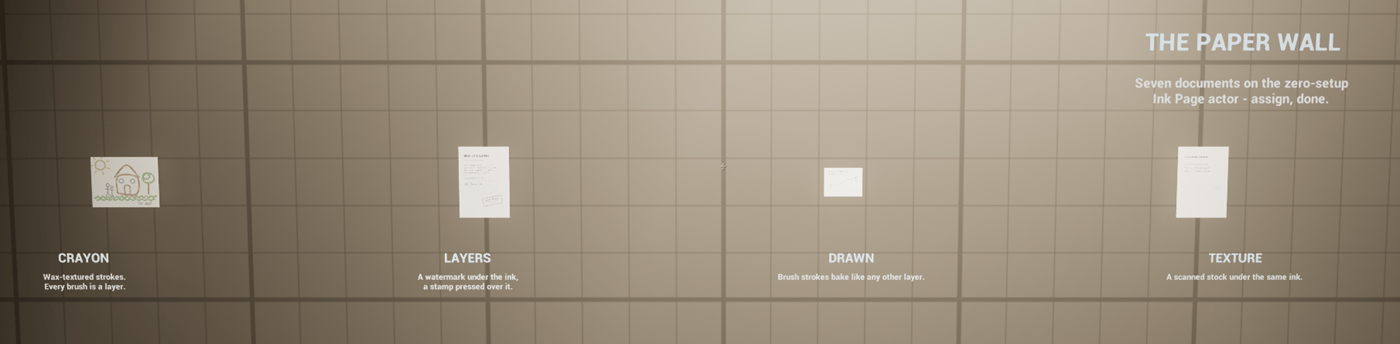
**The paper wall.** Just inside the door: seven flat pages hung at eye height, each on the
zero-setup **Ink Page** actor — assign a document, done. One per paper treatment: generated
**lined** stock (with margin rule and punch holes), the same generator ruled as **grid**
and as **dots**, a scanned **texture** under the same ink, a page of **brush drawings**, a
**layered** page (a watermark under the ink, a stamp pressed over it), and a child's
**crayon** drawing. The documents are `PD_PaperLined`, `PD_PaperGrid`, `PD_PaperDotted`,
`PD_PaperTexture`, `PD_Drawn`, `PD_Layers`, and `PD_Crayon` in
`/Inkwell/DemoProps/Documents/` — and each opens in the Page Editor exactly as it hangs.
 **Six podium exhibits**, easy cases nearest the door:
| Exhibit | Document | Demonstrates |
| ------------------------ | ------------------- | --------------------------------------------------------------------------------------------------------------------------------------------------------------------------------------------------------------------------------------------------------------------------------------------------- |
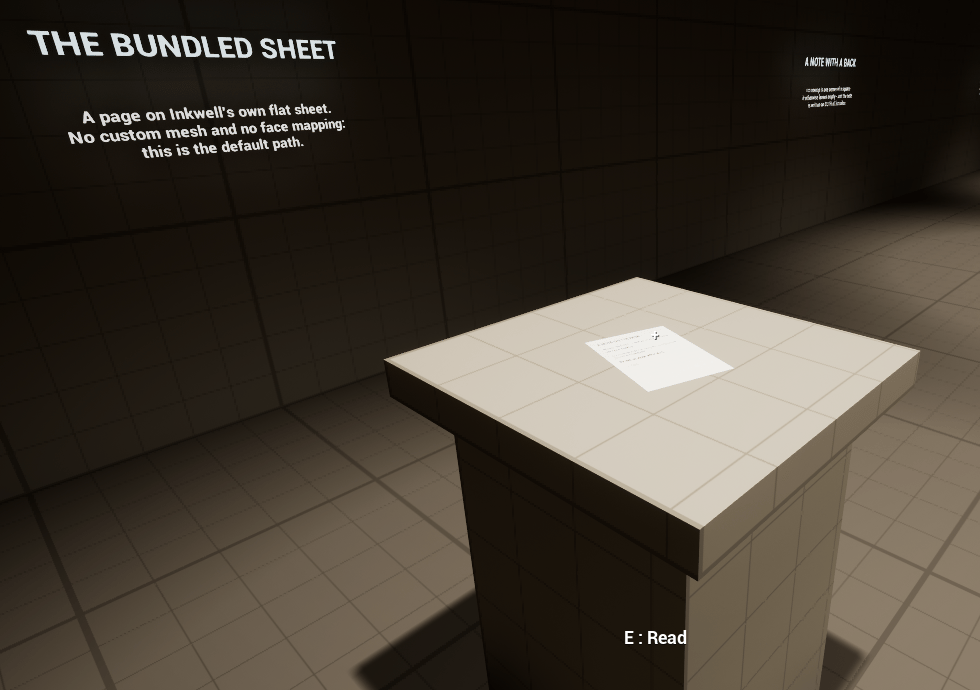
| The bundled sheet | `PD_SampleNote` | A page on Inkwell's own flat sheet (`SM_PageSheet`) — no custom mesh, no face mapping. The default path. |
| The crumpled page | `PD_CrumpledPage` | A custom mesh (`SM_InkCrumpledPage`) crumpled and smoothed flat: the geometry remembers the folds, the UVs were never touched, and the writing follows the surface. |
| The sticky note | `PD_StickyNote` | A custom mesh whose unwrap occupies one corner of its UV square — the component's **Page Face** mapping puts the page there — and the note is written on **both sides**. Read it, then turn it over. Its exhibit component also pulls the reading distance in to 15 cm: a note is read in the hand. |
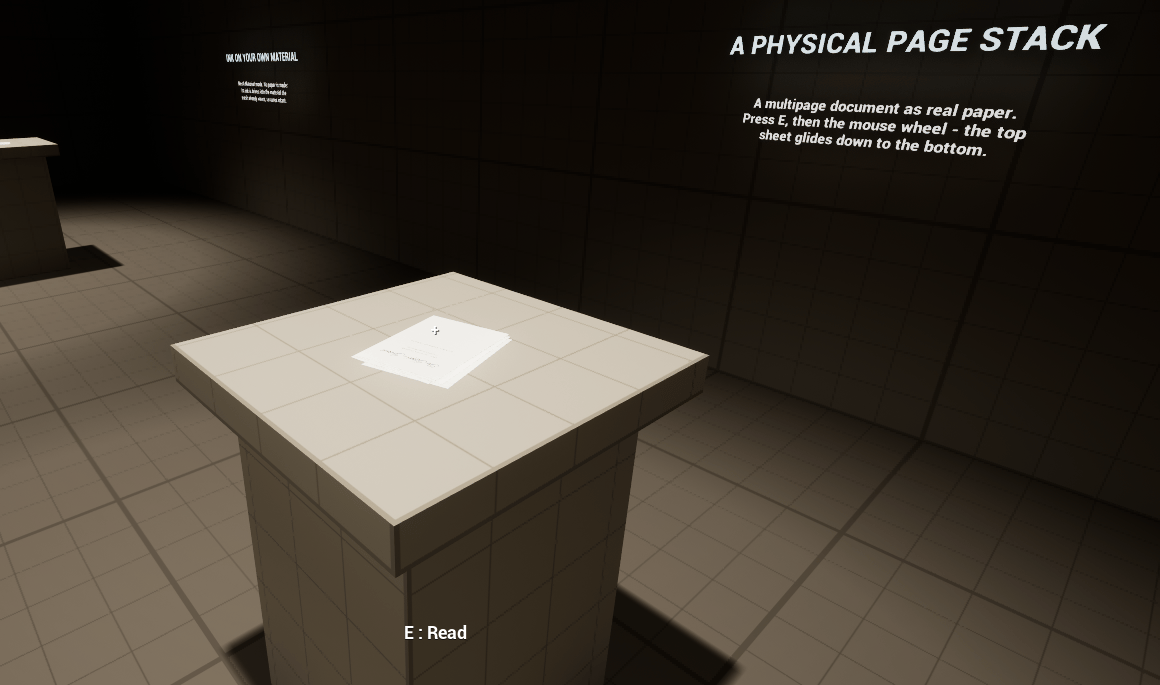
| The journal stack | `PD_InkwellJournal` | [Ink Page Stack](/plugins/inkwell/components/page-stack): a multipage document as a physical pile of sheets. Turn pages and the top sheet glides down to the bottom. |
| The scroll | `PD_Scroll` | A curved mesh (`SM_InkScroll`): the mesh's own UVs bend the writing into the rolls, and the document's **Custom Material** paper mode wears the aged parchment material (`M_InkAgedParchment`). |
| Ink on your own material | `PD_Overlay` | **Mesh's Own Material** paper mode: no paper from Inkwell — the ink is driven into the material the mesh already wears, textures intact, through the `MF_InkwellPageInk` material function. |
**The poster**, on the far wall: `PD_Poster` on a poster-board mesh, drawn into **material
slot 1** through a quarter-turned **Page Face** mapping, wearing its own **Custom
Material** — and its display component's **Can Be Picked Up** is off, so it is scenery. A
poster glued to a wall that leaps into the player's hands would break the fiction; this is
the flag that prevents it.
**Six podium exhibits**, easy cases nearest the door:
| Exhibit | Document | Demonstrates |
| ------------------------ | ------------------- | --------------------------------------------------------------------------------------------------------------------------------------------------------------------------------------------------------------------------------------------------------------------------------------------------- |
| The bundled sheet | `PD_SampleNote` | A page on Inkwell's own flat sheet (`SM_PageSheet`) — no custom mesh, no face mapping. The default path. |
| The crumpled page | `PD_CrumpledPage` | A custom mesh (`SM_InkCrumpledPage`) crumpled and smoothed flat: the geometry remembers the folds, the UVs were never touched, and the writing follows the surface. |
| The sticky note | `PD_StickyNote` | A custom mesh whose unwrap occupies one corner of its UV square — the component's **Page Face** mapping puts the page there — and the note is written on **both sides**. Read it, then turn it over. Its exhibit component also pulls the reading distance in to 15 cm: a note is read in the hand. |
| The journal stack | `PD_InkwellJournal` | [Ink Page Stack](/plugins/inkwell/components/page-stack): a multipage document as a physical pile of sheets. Turn pages and the top sheet glides down to the bottom. |
| The scroll | `PD_Scroll` | A curved mesh (`SM_InkScroll`): the mesh's own UVs bend the writing into the rolls, and the document's **Custom Material** paper mode wears the aged parchment material (`M_InkAgedParchment`). |
| Ink on your own material | `PD_Overlay` | **Mesh's Own Material** paper mode: no paper from Inkwell — the ink is driven into the material the mesh already wears, textures intact, through the `MF_InkwellPageInk` material function. |
**The poster**, on the far wall: `PD_Poster` on a poster-board mesh, drawn into **material
slot 1** through a quarter-turned **Page Face** mapping, wearing its own **Custom
Material** — and its display component's **Can Be Picked Up** is off, so it is scenery. A
poster glued to a wall that leaps into the player's hands would break the fiction; this is
the flag that prevents it.
 The showroom's per-exhibit tuning — prompt lines and reading distances — lives on the
demo-only **Inkwell Exhibit** component, described [below](#the-inkwell-exhibit-component).
Select any exhibit actor in the map and its knobs are in the Details panel, live during
PIE.
## The demo documents
All bundled documents share the `PD_` prefix. The showroom's live in
`/Inkwell/DemoProps/Documents/`; the journal lives at
`/Inkwell/Examples/PD_InkwellJournal`. Every one is an ordinary
[Ink Page Document](/plugins/inkwell/authoring/documents) — double-click any of them to open it in the
Page Editor and see exactly how it was authored: which paper mode, which layers, which
styled runs.
The best single reference is `PD_InkwellJournal`, the five-page journal the stack displays:
each page deliberately uses a different hand, so it shows all five bundled font families
and every text style — bold, italic, underline, strikethrough, colored ink — in one
document. Open it and click into any run: the toolbar shows the exact font, typeface,
size, and color that run carries, which is the quickest way to learn how the
[markup](/plugins/inkwell/guides/runtime-documents#the-markup-format) is put together.
## BP\_InkwellJournalStack
`/Inkwell/Examples/Blueprints/BP_InkwellJournalStack` — an Actor Blueprint with exactly two
things in it: a default scene root, and an **Ink Page Stack** component named `PageStack`
with its **Document** set to `PD_InkwellJournal`. There is no Event Graph logic at all.
That is the point: a readable multi-page prop is a component and a document reference.
**To place it:** drag the Blueprint from the Content Browser into any level. The journal
appears as a physical pile of sheets, one mesh per page, the current page on top and the
rest squared up underneath — no Play needed.
The showroom's per-exhibit tuning — prompt lines and reading distances — lives on the
demo-only **Inkwell Exhibit** component, described [below](#the-inkwell-exhibit-component).
Select any exhibit actor in the map and its knobs are in the Details panel, live during
PIE.
## The demo documents
All bundled documents share the `PD_` prefix. The showroom's live in
`/Inkwell/DemoProps/Documents/`; the journal lives at
`/Inkwell/Examples/PD_InkwellJournal`. Every one is an ordinary
[Ink Page Document](/plugins/inkwell/authoring/documents) — double-click any of them to open it in the
Page Editor and see exactly how it was authored: which paper mode, which layers, which
styled runs.
The best single reference is `PD_InkwellJournal`, the five-page journal the stack displays:
each page deliberately uses a different hand, so it shows all five bundled font families
and every text style — bold, italic, underline, strikethrough, colored ink — in one
document. Open it and click into any run: the toolbar shows the exact font, typeface,
size, and color that run carries, which is the quickest way to learn how the
[markup](/plugins/inkwell/guides/runtime-documents#the-markup-format) is put together.
## BP\_InkwellJournalStack
`/Inkwell/Examples/Blueprints/BP_InkwellJournalStack` — an Actor Blueprint with exactly two
things in it: a default scene root, and an **Ink Page Stack** component named `PageStack`
with its **Document** set to `PD_InkwellJournal`. There is no Event Graph logic at all.
That is the point: a readable multi-page prop is a component and a document reference.
**To place it:** drag the Blueprint from the Content Browser into any level. The journal
appears as a physical pile of sheets, one mesh per page, the current page on top and the
rest squared up underneath — no Play needed.
 It is also a live playground for the stack's look. Select the placed actor and drag **Sheet
Gap**, **Fan Splay**, **Fan Angle**, **Stack Yaw** — or switch **Page Turn Style** between
*Glide* and the theatrical *Arc* — and the pile re-lays itself in the editor viewport as
you drag. See [Ink Page Stack](/plugins/inkwell/components/page-stack) for what each property does.
## The Enhanced Input assets
`/Inkwell/Examples/Input/` holds four Input Action assets — `IA_Interact`, `IA_NextPage`,
`IA_PreviousPage`, `IA_PutBack`, the plainest possible button actions, with no logic in
them — and **`IMC_InkwellDefault`**, an Input Mapping Context binding them to **E**,
**Right**, **Left**, and **Q**, plus mouse wheel variants of the two page turns.
These are for **your own pawn**: the demo character does not use them (its input is built
in code). Add `IMC_InkwellDefault` to your pawn with **Add Mapping Context** — or add the
four actions to your own IMC under your own keys — and bind the action events to the
reader's functions. The wiring is spelled out in
[Integration](/plugins/inkwell/guides/integration#the-shipped-enhanced-input-actions).
| Action | Default key in `IMC_InkwellDefault` | Wire to |
| ----------------- | ----------------------------------- | ----------------------------------------------------------- |
| `IA_Interact` | E | Ink Page Reader → **Begin Reading Actor** / **End Reading** |
| `IA_NextPage` | Right | Ink Page Reader → **Next Page** |
| `IA_PreviousPage` | Left | Ink Page Reader → **Previous Page** |
| `IA_PutBack` | Q | Ink Page Reader → **End Reading** |
## The Inkwell Exhibit component
**Inkwell Exhibit** (`UInkwellExhibitComponent`) is per-exhibit interaction tuning for the
demo room — and only the demo room. Deliberately, nothing in the plugin knows the class
exists: it listens to the reader's public delegates and writes the reader's public
properties, which is exactly what your own game-side tuning component would do. That makes
it a worked example of driving the reader from game code, as well as the showroom's
convenience.
It sits on an exhibit actor and, while the player is reading *that* exhibit, pushes its
overrides into the pawn's reader — restoring everything the moment the page goes down:
| Property | What it does |
| ----------------------------------------------------- | ------------------------------------------------------------------------------------------------------------------------------------------------------------------------------------------------------------------------------------------------------------------------------------------------------------------------------------------------------------------------------------------------ |
| **Focus Prompt** / **Reading Prompt** | Override the prompt widget's composed line for this exhibit, whenever non-empty. |
| **Hold Distance Cm** (checkbox-gated, default 45) | Takes over this exhibit's reading distance. An **absolute distance in centimeters, so smaller is closer** — drag it down to pull the page toward your face. **Live**: it is pushed into the reader every tick while this exhibit is read, so dragging it in the Details panel during PIE moves the held page in front of you, and unticking the box hands the distance back to the fit mid-read. |
| **View Fill Fraction** (checkbox-gated, default 0.75) | Takes over how much screen the page covers. Ignored while Hold Distance Cm is overridden — a fixed distance already decides the size. |
The static **Find For Page** function returns the exhibit component on the actor a page
belongs to — the one call a prompt widget needs to know whose prompt lines to show.
## WBP\_InkwellReadPrompt
`/Inkwell/Examples/UI/WBP_InkwellReadPrompt` — the demo's crosshair-and-prompt widget,
created on screen by the demo character. It is a Widget Blueprint reparented onto the C++
base `UInkwellReadPromptBase`, which composes the prompt line from what the page actually
is: a multipage document gets "Turn page" and a page counter, a single sheet with an
authored back gets "Flip over" (then "Flip back" once it is showing its back), and a plain
single sheet gets no turning prompt at all. An Inkwell Exhibit component on the page's
actor overrides the whole line whenever its prompt fields are non-empty.
It finds the pawn's Ink Page Interactor and Ink Page Reader itself and works with no other
setup, provided the pawn carries both components.
Demo only — its prompt text names the interactor's demo keys, and it depends on the demo
interactor being present. In your own HUD, bind the reader's **On Reading Started** /
**On Reading Ended** / **On Reading Side Changed** and your own focus event, and take the
key names from your own input system.
## What to copy, and what to leave
| Asset | Copy it into your project? |
| ------------------------------------------------------------------------------------------------ | ---------------------------------------------------------------------------------------------------------------------------------------------------------------------------------------------------- |
| `PD_*` documents | **Reference or copy freely.** Ordinary Ink Page Documents. Copy one into `/Game` and edit it as a starting template; the five bundled fonts are open-licensed and ship with the plugin. |
| `BP_InkwellJournalStack` | **Copy the pattern, not the asset.** It is two clicks to rebuild: an actor, an Ink Page Stack, a document. |
| `IA_*` actions and `IMC_InkwellDefault` | **Fine to reference directly**, or copy into `/Game` if you would rather own the key bindings. The actions contain no logic. |
| The DemoProps meshes and materials | **Reference or copy** — `SM_InkScroll`, `SM_InkStickyNote`, `M_InkAgedParchment` and friends are ordinary assets, useful as worked examples of custom page meshes and `MF_InkwellPageInk` materials. |
| `L_InkwellShowroom`, the reader character, game mode, exhibit component, `WBP_InkwellReadPrompt` | **Leave them.** Play them, read them, then build your own wiring per the [integration guide](/plugins/inkwell/guides/integration). |
Copy anything you intend to modify into `/Game` first (right-click → **Duplicate**, or drag
into a project folder). Assets in the plugin's own Content folder are replaced when you
update Inkwell, and any edits you made to them go with the old version.
## Next
Enable, play the showroom, author a document, wire it into your own game.
Replace the demo interactor with your own interaction system, step by step.
Everything the journal prop is doing, property by property.
It is also a live playground for the stack's look. Select the placed actor and drag **Sheet
Gap**, **Fan Splay**, **Fan Angle**, **Stack Yaw** — or switch **Page Turn Style** between
*Glide* and the theatrical *Arc* — and the pile re-lays itself in the editor viewport as
you drag. See [Ink Page Stack](/plugins/inkwell/components/page-stack) for what each property does.
## The Enhanced Input assets
`/Inkwell/Examples/Input/` holds four Input Action assets — `IA_Interact`, `IA_NextPage`,
`IA_PreviousPage`, `IA_PutBack`, the plainest possible button actions, with no logic in
them — and **`IMC_InkwellDefault`**, an Input Mapping Context binding them to **E**,
**Right**, **Left**, and **Q**, plus mouse wheel variants of the two page turns.
These are for **your own pawn**: the demo character does not use them (its input is built
in code). Add `IMC_InkwellDefault` to your pawn with **Add Mapping Context** — or add the
four actions to your own IMC under your own keys — and bind the action events to the
reader's functions. The wiring is spelled out in
[Integration](/plugins/inkwell/guides/integration#the-shipped-enhanced-input-actions).
| Action | Default key in `IMC_InkwellDefault` | Wire to |
| ----------------- | ----------------------------------- | ----------------------------------------------------------- |
| `IA_Interact` | E | Ink Page Reader → **Begin Reading Actor** / **End Reading** |
| `IA_NextPage` | Right | Ink Page Reader → **Next Page** |
| `IA_PreviousPage` | Left | Ink Page Reader → **Previous Page** |
| `IA_PutBack` | Q | Ink Page Reader → **End Reading** |
## The Inkwell Exhibit component
**Inkwell Exhibit** (`UInkwellExhibitComponent`) is per-exhibit interaction tuning for the
demo room — and only the demo room. Deliberately, nothing in the plugin knows the class
exists: it listens to the reader's public delegates and writes the reader's public
properties, which is exactly what your own game-side tuning component would do. That makes
it a worked example of driving the reader from game code, as well as the showroom's
convenience.
It sits on an exhibit actor and, while the player is reading *that* exhibit, pushes its
overrides into the pawn's reader — restoring everything the moment the page goes down:
| Property | What it does |
| ----------------------------------------------------- | ------------------------------------------------------------------------------------------------------------------------------------------------------------------------------------------------------------------------------------------------------------------------------------------------------------------------------------------------------------------------------------------------ |
| **Focus Prompt** / **Reading Prompt** | Override the prompt widget's composed line for this exhibit, whenever non-empty. |
| **Hold Distance Cm** (checkbox-gated, default 45) | Takes over this exhibit's reading distance. An **absolute distance in centimeters, so smaller is closer** — drag it down to pull the page toward your face. **Live**: it is pushed into the reader every tick while this exhibit is read, so dragging it in the Details panel during PIE moves the held page in front of you, and unticking the box hands the distance back to the fit mid-read. |
| **View Fill Fraction** (checkbox-gated, default 0.75) | Takes over how much screen the page covers. Ignored while Hold Distance Cm is overridden — a fixed distance already decides the size. |
The static **Find For Page** function returns the exhibit component on the actor a page
belongs to — the one call a prompt widget needs to know whose prompt lines to show.
## WBP\_InkwellReadPrompt
`/Inkwell/Examples/UI/WBP_InkwellReadPrompt` — the demo's crosshair-and-prompt widget,
created on screen by the demo character. It is a Widget Blueprint reparented onto the C++
base `UInkwellReadPromptBase`, which composes the prompt line from what the page actually
is: a multipage document gets "Turn page" and a page counter, a single sheet with an
authored back gets "Flip over" (then "Flip back" once it is showing its back), and a plain
single sheet gets no turning prompt at all. An Inkwell Exhibit component on the page's
actor overrides the whole line whenever its prompt fields are non-empty.
It finds the pawn's Ink Page Interactor and Ink Page Reader itself and works with no other
setup, provided the pawn carries both components.
Demo only — its prompt text names the interactor's demo keys, and it depends on the demo
interactor being present. In your own HUD, bind the reader's **On Reading Started** /
**On Reading Ended** / **On Reading Side Changed** and your own focus event, and take the
key names from your own input system.
## What to copy, and what to leave
| Asset | Copy it into your project? |
| ------------------------------------------------------------------------------------------------ | ---------------------------------------------------------------------------------------------------------------------------------------------------------------------------------------------------- |
| `PD_*` documents | **Reference or copy freely.** Ordinary Ink Page Documents. Copy one into `/Game` and edit it as a starting template; the five bundled fonts are open-licensed and ship with the plugin. |
| `BP_InkwellJournalStack` | **Copy the pattern, not the asset.** It is two clicks to rebuild: an actor, an Ink Page Stack, a document. |
| `IA_*` actions and `IMC_InkwellDefault` | **Fine to reference directly**, or copy into `/Game` if you would rather own the key bindings. The actions contain no logic. |
| The DemoProps meshes and materials | **Reference or copy** — `SM_InkScroll`, `SM_InkStickyNote`, `M_InkAgedParchment` and friends are ordinary assets, useful as worked examples of custom page meshes and `MF_InkwellPageInk` materials. |
| `L_InkwellShowroom`, the reader character, game mode, exhibit component, `WBP_InkwellReadPrompt` | **Leave them.** Play them, read them, then build your own wiring per the [integration guide](/plugins/inkwell/guides/integration). |
Copy anything you intend to modify into `/Game` first (right-click → **Duplicate**, or drag
into a project folder). Assets in the plugin's own Content folder are replaced when you
update Inkwell, and any edits you made to them go with the old version.
## Next
Enable, play the showroom, author a document, wire it into your own game.
Replace the demo interactor with your own interaction system, step by step.
Everything the journal prop is doing, property by property.