> ## Documentation Index
> Fetch the complete documentation index at: https://docs.teriyakigaming.com/llms.txt
> Use this file to discover all available pages before exploring further.
# Paper
> The four paper modes — texture, generated stock, your own material, or the mesh's own — plus the back of the sheet, per-page overrides, and tints.
Paper is what the ink is multiplied over. An **Ink Page Document** (`UInkPageDocument`)
gets it one of four ways, chosen by **Paper** at the top of the **Paper & Ink** section in
the Page Editor's left column:
| Mode (`EInkPaperMode`) | Panel label | What it means |
| ---------------------- | ----------------------- | -------------------------------------------------------------------------------------------------------------------------------------------------------------------------------------------------------------------------------------------------------------- |
| `Texture` | **Texture asset** | Use the `UTexture2D` in **Paper texture (all pages)**. Unset, the page rides the project's Default Paper Texture. |
| `Procedural` | **Generated** | Inkwell rasterizes the sheet from the settings below. No texture asset is involved at all: the ruling, the holes, and the grain are all drawn. |
| `CustomMaterial` | **Custom material** | The document's **Paper Material** *is* the page's material — your own graph, carrying the `MF_InkwellPageInk` material function to receive the ink. It replaces whatever the target slot wore. |
| `MeshMaterial` | **Mesh's own material** | **No paper from Inkwell at all**: the ink is laid onto whatever material the mesh already wears, through a dynamic instance made per mesh instance. That material must contain `MF_InkwellPageInk` or the ink silently does not appear — that is the contract. |
`PaperMode` defaults to `Texture`. The **Paper** dropdown is shown while you edit the front
of a sheet; flip to the back and a **Back paper** dropdown takes its place — see
[the back's paper](#the-backs-paper).
 ## Texture asset
The simplest mode: point **Paper texture (all pages)** at any `UTexture2D` and every page
in the document sits on it. With the picker left empty the page rides the project's
**Default Paper Texture** (Project Settings > Plugins > Inkwell, `T_PaperPlain` out of the
box) — and only if that is also unset or unloadable does the page material fall back to its
plain-paper color.
## Generated paper
Everything in `FInkProceduralPaper`, with the real defaults from `InkPageLayer.h`. Distances
are in **page pixels** — pixels of the document's **Page Size Pixels** — so they scale with
the page rather than with the screen.
| Property | Type | Default | What it does |
| -------------------- | ----------------- | ------------------------ | ----------------------------------------------------------------------------------------------------------------------------------------------------------------- |
| `Ruling` | `EInkPaperRuling` | `Lined` | Plain, Lined, Grid, or Dotted. |
| `PaperColor` | `FLinearColor` | `(0.96, 0.945, 0.90, 1)` | The stock itself — a warm off-white. With a texture base, it multiplies over the stock as a tint. |
| `bTextureBase` | `bool` | `false` | Print the sheet on real stock instead of a flat color: the ruling, margin rule, holes and grain go down on `BaseTexture` exactly as they would on flat stock. |
| `BaseTexture` | `UTexture2D*` | `None` | The stock to print on. `None` uses the project's Default Paper Texture — repoint that one setting and every texture-based generated sheet in the project follows. |
| `LineColor` | `FLinearColor` | `(0.55, 0.68, 0.82, 1)` | The ruling: lines, grid, or dots. Its alpha is honored. |
| `LineSpacingPx` | `float` | `64` | Distance between ruled lines, and the grid's cell pitch. Minimum 4. |
| `LineThicknessPx` | `float` | `2` | How heavy the ruling is drawn. Minimum 0.5. Sub-pixel rules fade rather than vanish. |
| `TopMarginPx` | `float` | `90` | Blank paper above the first line and below the last. Clamped to half the page height. |
| `bMarginRule` | `bool` | `false` | Draw a vertical margin rule down the left — a notebook's red line. |
| `MarginRuleColor` | `FLinearColor` | `(0.85, 0.42, 0.42, 1)` | Color of that rule. |
| `MarginRuleOffsetPx` | `float` | `90` | How far in from the left edge the rule sits. |
| `bPunchHoles` | `bool` | `false` | Punched binder holes down the left edge. |
| `HoleCount` | `int32` | `3` | How many holes. 1–16; three is a standard binder. |
| `HoleDiameterPx` | `float` | `34` | Width of each punch. Minimum 2. |
| `HoleInsetPx` | `float` | `42` | Left edge to the center of the holes. |
| `HoleEdgeMarginPx` | `float` | `220` | Blank space above the first hole and below the last. |
| `HoleColor` | `FLinearColor` | `(0.05, 0.05, 0.06, 1)` | What a punch shows. See the caveat below. |
| `GrainStrength` | `float` | `0.04` | Per-pixel fiber noise. 0 is perfectly flat stock. |
| `GrainSeed` | `int32` | `0` | Seed for the grain. |
## Texture asset
The simplest mode: point **Paper texture (all pages)** at any `UTexture2D` and every page
in the document sits on it. With the picker left empty the page rides the project's
**Default Paper Texture** (Project Settings > Plugins > Inkwell, `T_PaperPlain` out of the
box) — and only if that is also unset or unloadable does the page material fall back to its
plain-paper color.
## Generated paper
Everything in `FInkProceduralPaper`, with the real defaults from `InkPageLayer.h`. Distances
are in **page pixels** — pixels of the document's **Page Size Pixels** — so they scale with
the page rather than with the screen.
| Property | Type | Default | What it does |
| -------------------- | ----------------- | ------------------------ | ----------------------------------------------------------------------------------------------------------------------------------------------------------------- |
| `Ruling` | `EInkPaperRuling` | `Lined` | Plain, Lined, Grid, or Dotted. |
| `PaperColor` | `FLinearColor` | `(0.96, 0.945, 0.90, 1)` | The stock itself — a warm off-white. With a texture base, it multiplies over the stock as a tint. |
| `bTextureBase` | `bool` | `false` | Print the sheet on real stock instead of a flat color: the ruling, margin rule, holes and grain go down on `BaseTexture` exactly as they would on flat stock. |
| `BaseTexture` | `UTexture2D*` | `None` | The stock to print on. `None` uses the project's Default Paper Texture — repoint that one setting and every texture-based generated sheet in the project follows. |
| `LineColor` | `FLinearColor` | `(0.55, 0.68, 0.82, 1)` | The ruling: lines, grid, or dots. Its alpha is honored. |
| `LineSpacingPx` | `float` | `64` | Distance between ruled lines, and the grid's cell pitch. Minimum 4. |
| `LineThicknessPx` | `float` | `2` | How heavy the ruling is drawn. Minimum 0.5. Sub-pixel rules fade rather than vanish. |
| `TopMarginPx` | `float` | `90` | Blank paper above the first line and below the last. Clamped to half the page height. |
| `bMarginRule` | `bool` | `false` | Draw a vertical margin rule down the left — a notebook's red line. |
| `MarginRuleColor` | `FLinearColor` | `(0.85, 0.42, 0.42, 1)` | Color of that rule. |
| `MarginRuleOffsetPx` | `float` | `90` | How far in from the left edge the rule sits. |
| `bPunchHoles` | `bool` | `false` | Punched binder holes down the left edge. |
| `HoleCount` | `int32` | `3` | How many holes. 1–16; three is a standard binder. |
| `HoleDiameterPx` | `float` | `34` | Width of each punch. Minimum 2. |
| `HoleInsetPx` | `float` | `42` | Left edge to the center of the holes. |
| `HoleEdgeMarginPx` | `float` | `220` | Blank space above the first hole and below the last. |
| `HoleColor` | `FLinearColor` | `(0.05, 0.05, 0.06, 1)` | What a punch shows. See the caveat below. |
| `GrainStrength` | `float` | `0.04` | Per-pixel fiber noise. 0 is perfectly flat stock. |
| `GrainSeed` | `int32` | `0` | Seed for the grain. |
 ### Printing on real stock
**Texture base** turns the generated sheet from flat color into printed paper: the sheet
starts as the base texture (or the project's Default Paper Texture when none is named),
**Paper color** multiplies over it as a tint — keep it near white to show the stock as
authored — and the ruling, margin rule, holes and grain print on top exactly as they do on
flat stock. It is the way to get "my parchment, but lined" without authoring a lined
parchment texture. The generated result is cached like any other sheet, keyed on the
resolved stock, so changing the project default regenerates every sheet that rides it.
### The four rulings
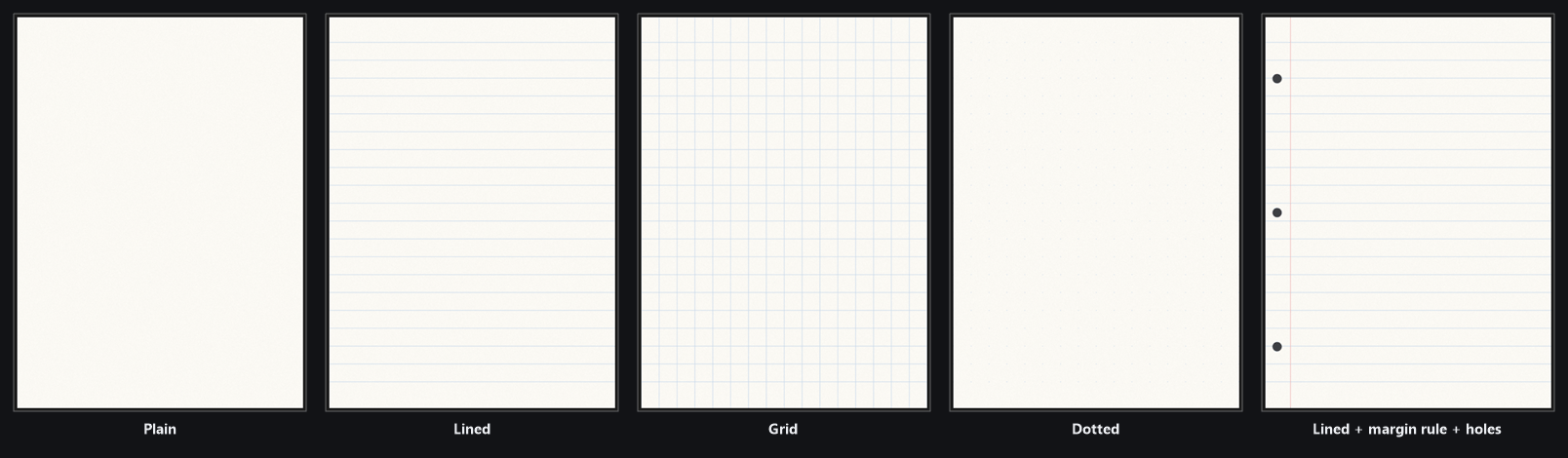
* **Plain** — no ruling at all. Still gets grain, a margin rule, and holes if you ask for
them.
* **Lined** — horizontal writing lines every `LineSpacingPx`, starting `TopMarginPx` from the
top and stopping the same distance from the bottom.
* **Grid** — the same rows plus vertical rules at the same pitch, so cells come out square.
The column run is centered across the width, which leaves equal margins on both sides
instead of a ragged part-cell jammed against one edge.
* **Dotted** — a dot at each grid intersection, radius `0.75 × LineThicknessPx`. Dots sit on
exactly the line centers Grid would use, so switching a sheet between Grid and Dotted never
shifts the writing guides.
Rows, columns, and dots are unioned rather than summed, so a grid intersection does not print
twice as dark as the lines crossing it.
### The margin rule
`bMarginRule` is independent of the ruling: a Plain sheet can still carry a red line, and on
a Lined sheet the rule draws **over** the ruling. It is drawn at `LineThicknessPx`, centered
on `MarginRuleOffsetPx` from the left edge, and its color's alpha is honored.
Line up the writing with the ruling. `TopMarginPx` and `MarginRuleOffsetPx` both default to
90, which is also the default `MarginsPx` on the document — so out of the box the text
block's top edge lands on the first ruled line and its left edge lands on the rule itself.
Pull `MarginRuleOffsetPx` in a little if you want the writing to start clear of the rule, and
change one of these numbers only by changing the other, or the writing floats away from the
lines.
### Punched holes
Holes are spread evenly between `HoleEdgeMarginPx` from the top and the same from the bottom
(clamped to half the page height). A single hole centers on the sheet instead of sitting at
the top margin. Each punch gets a shaded rim just inside its edge, derived from `HoleColor`
rather than being a fixed gray, standing in for the cut edge of the stock catching less
light.
**Holes are drawn, not cut.** The sheet is an opaque albedo texture that the page material
multiplies ink over, so there is no alpha to punch through — `HoleColor`'s alpha is ignored
for the same reason, and the holes are painted last, over the grain, the ruling, and the
margin rule alike.
Pick the color accordingly:
* **A near-black** (the default) reads as a hole against most backgrounds — it looks like a
shadowed punch-through wherever the page is seen against something darker than the paper.
* **The color of whatever the page lies on** — the desk, the table, the wall — reads as a
real punch-through, and is the better choice for a page that only ever appears in one
place.
* **The color of the paper** hides the holes entirely, which is the honest way to say "not
this page".
### Grain
`GrainStrength` is multiplicative per-pixel fiber noise applied to the paper color **under**
the ruling: printed lines sit on paper, they are not made of it. It multiplies rather than
adds, so the stock keeps its hue instead of drifting gray. The default `0.04` is a barely
perceptible tooth; push it to 0.15 for cheap pulp, drop it to 0 for a laser-printed sheet.
`GrainSeed` picks which noise you get. Two documents with identical settings and different
seeds get different fiber — worth setting when several notes in one scene share a look and
you do not want them to be visibly the same sheet.
### How the sheet is produced
The generated texture is built once per distinct set of settings and cached **on the
document**, so twenty pages sharing a document share one sheet. A back generated with
identical settings reuses the front's cached sheet rather than rasterizing a second copy.
It is built at the document's clamped bake size — **Page Size Pixels**, reduced if either
axis exceeds **Max Page Bake Dimension** in
[Project Settings → Plugins → Inkwell](/plugins/inkwell/reference/settings) (default 4096) — so the paper
always matches the ink texture it sits behind, pixel for pixel. It carries a full mip chain
generated in linear space, so the ruling does not alias or darken when the page is a couple
of meters away.
The sheet is transient: it lives in memory, is never saved into the asset, and is
regenerated from the settings on load. Change any procedural setting and the cache hash
stops matching, so the next request rebuilds it — which is why the Page Editor's preview
updates as you drag a slider.
### Recipe: lined notebook paper
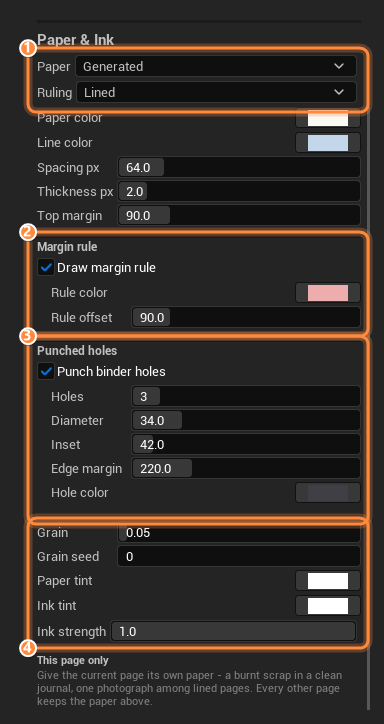
In the Page Editor's left column, find **Paper & Ink** and set **Paper** to **Generated**.
The paper texture picker disappears and the ruling controls take its place.
Set **Ruling** to **Lined**. **Spacing px** is the distance between ruled lines in page
pixels, 64 by default. Set it against the pitch of your own text — **Size** in Default
Text Style and **Line height** in Page Setup decide that — and check the result in
the **3D Preview** rather than by arithmetic: writing that sits on the lines is the
only test that counts.
**Top margin** is the blank paper above the first line and below the last. Match it to the
document's vertical **Margins** in Page Setup so the writing starts on a line.
Tick **Draw margin rule**. Set **Rule offset** a little *smaller* than the document's
horizontal **Margins** — at the shared default of 90 the rule lands exactly under the
text block's left edge — and pick a **Rule color**; the default dusty red reads as a
school exercise book.
Tick **Punch binder holes**. Leave **Holes** at 3, set **Inset** well left of the rule
offset, and set **Hole color** to the color of whatever surface the page will be seen
against.
Nudge **Grain** to about 0.06 and give **Grain seed** a number of its own. Then check the
**3D Preview** at the top of the right column — it is baked through the same path
the game uses.
## Custom material
**Custom material** hands the whole page material over to you. The document's **Paper
Material** (`PaperMaterial`) replaces whatever material the target slot wore — a wood desk,
aged vellum, an animated hologram — and your graph carries the ink by containing the
**`MF_InkwellPageInk`** material function (`/Inkwell/Materials/MF_InkwellPageInk`): drop it
into the graph and wire your final color through it. The function carries the named
parameters Inkwell drives, so every runtime control — the baked ink, **Ink tint**, **Ink
strength**, face mapping onto custom meshes — keeps working inside your material.
Make your material as usual, add the `MF_InkwellPageInk` material function, and route
the color that would have gone to your output through it. What comes out is your surface
with the page's ink laid over it.
Set **Paper** to **Custom material** and pick the material in the picker that appears
under the dropdown. The panel's hint text restates the contract right there.
The **3D Preview** bakes through the same path the game uses, so the writing
should appear on your material immediately. If it does not, see the warning below.
Two shipped documents are worked examples: `PD_Scroll` in `/Inkwell/DemoProps/Documents/`
uses **Custom material** with `M_InkAgedParchment`, and `PD_Poster` uses `M_InkPosterBoard`
— both materials live in `/Inkwell/DemoProps/Materials/` and both carry
`MF_InkwellPageInk`. Open either material to see how little wiring the function needs.
A paper material **without an ink parameter shows paper and no writing**. Inkwell warns
once per material on the `LogInkwell` channel — *"paper material '…' has no 'InkTexture'
parameter, so pages on it show no writing. Drop the MF\_InkwellPageInk material function
into its graph."* — so if a custom-material page comes up blank, check the Output Log for
`LogInkwell` before anything else.
While Custom material is active (and a material is actually assigned), the paper inputs on
this page do not apply: no paper texture, no generated ruling, and no per-page paper
override — your material *is* the paper. **Ink tint** and **Ink strength** still work, and
so does **Paper tint** if your graph chooses to use the parameter the function carries.
### Printing on real stock
**Texture base** turns the generated sheet from flat color into printed paper: the sheet
starts as the base texture (or the project's Default Paper Texture when none is named),
**Paper color** multiplies over it as a tint — keep it near white to show the stock as
authored — and the ruling, margin rule, holes and grain print on top exactly as they do on
flat stock. It is the way to get "my parchment, but lined" without authoring a lined
parchment texture. The generated result is cached like any other sheet, keyed on the
resolved stock, so changing the project default regenerates every sheet that rides it.
### The four rulings
* **Plain** — no ruling at all. Still gets grain, a margin rule, and holes if you ask for
them.
* **Lined** — horizontal writing lines every `LineSpacingPx`, starting `TopMarginPx` from the
top and stopping the same distance from the bottom.
* **Grid** — the same rows plus vertical rules at the same pitch, so cells come out square.
The column run is centered across the width, which leaves equal margins on both sides
instead of a ragged part-cell jammed against one edge.
* **Dotted** — a dot at each grid intersection, radius `0.75 × LineThicknessPx`. Dots sit on
exactly the line centers Grid would use, so switching a sheet between Grid and Dotted never
shifts the writing guides.
Rows, columns, and dots are unioned rather than summed, so a grid intersection does not print
twice as dark as the lines crossing it.
### The margin rule
`bMarginRule` is independent of the ruling: a Plain sheet can still carry a red line, and on
a Lined sheet the rule draws **over** the ruling. It is drawn at `LineThicknessPx`, centered
on `MarginRuleOffsetPx` from the left edge, and its color's alpha is honored.
Line up the writing with the ruling. `TopMarginPx` and `MarginRuleOffsetPx` both default to
90, which is also the default `MarginsPx` on the document — so out of the box the text
block's top edge lands on the first ruled line and its left edge lands on the rule itself.
Pull `MarginRuleOffsetPx` in a little if you want the writing to start clear of the rule, and
change one of these numbers only by changing the other, or the writing floats away from the
lines.
### Punched holes
Holes are spread evenly between `HoleEdgeMarginPx` from the top and the same from the bottom
(clamped to half the page height). A single hole centers on the sheet instead of sitting at
the top margin. Each punch gets a shaded rim just inside its edge, derived from `HoleColor`
rather than being a fixed gray, standing in for the cut edge of the stock catching less
light.
**Holes are drawn, not cut.** The sheet is an opaque albedo texture that the page material
multiplies ink over, so there is no alpha to punch through — `HoleColor`'s alpha is ignored
for the same reason, and the holes are painted last, over the grain, the ruling, and the
margin rule alike.
Pick the color accordingly:
* **A near-black** (the default) reads as a hole against most backgrounds — it looks like a
shadowed punch-through wherever the page is seen against something darker than the paper.
* **The color of whatever the page lies on** — the desk, the table, the wall — reads as a
real punch-through, and is the better choice for a page that only ever appears in one
place.
* **The color of the paper** hides the holes entirely, which is the honest way to say "not
this page".
### Grain
`GrainStrength` is multiplicative per-pixel fiber noise applied to the paper color **under**
the ruling: printed lines sit on paper, they are not made of it. It multiplies rather than
adds, so the stock keeps its hue instead of drifting gray. The default `0.04` is a barely
perceptible tooth; push it to 0.15 for cheap pulp, drop it to 0 for a laser-printed sheet.
`GrainSeed` picks which noise you get. Two documents with identical settings and different
seeds get different fiber — worth setting when several notes in one scene share a look and
you do not want them to be visibly the same sheet.
### How the sheet is produced
The generated texture is built once per distinct set of settings and cached **on the
document**, so twenty pages sharing a document share one sheet. A back generated with
identical settings reuses the front's cached sheet rather than rasterizing a second copy.
It is built at the document's clamped bake size — **Page Size Pixels**, reduced if either
axis exceeds **Max Page Bake Dimension** in
[Project Settings → Plugins → Inkwell](/plugins/inkwell/reference/settings) (default 4096) — so the paper
always matches the ink texture it sits behind, pixel for pixel. It carries a full mip chain
generated in linear space, so the ruling does not alias or darken when the page is a couple
of meters away.
The sheet is transient: it lives in memory, is never saved into the asset, and is
regenerated from the settings on load. Change any procedural setting and the cache hash
stops matching, so the next request rebuilds it — which is why the Page Editor's preview
updates as you drag a slider.
### Recipe: lined notebook paper
In the Page Editor's left column, find **Paper & Ink** and set **Paper** to **Generated**.
The paper texture picker disappears and the ruling controls take its place.
Set **Ruling** to **Lined**. **Spacing px** is the distance between ruled lines in page
pixels, 64 by default. Set it against the pitch of your own text — **Size** in Default
Text Style and **Line height** in Page Setup decide that — and check the result in
the **3D Preview** rather than by arithmetic: writing that sits on the lines is the
only test that counts.
**Top margin** is the blank paper above the first line and below the last. Match it to the
document's vertical **Margins** in Page Setup so the writing starts on a line.
Tick **Draw margin rule**. Set **Rule offset** a little *smaller* than the document's
horizontal **Margins** — at the shared default of 90 the rule lands exactly under the
text block's left edge — and pick a **Rule color**; the default dusty red reads as a
school exercise book.
Tick **Punch binder holes**. Leave **Holes** at 3, set **Inset** well left of the rule
offset, and set **Hole color** to the color of whatever surface the page will be seen
against.
Nudge **Grain** to about 0.06 and give **Grain seed** a number of its own. Then check the
**3D Preview** at the top of the right column — it is baked through the same path
the game uses.
## Custom material
**Custom material** hands the whole page material over to you. The document's **Paper
Material** (`PaperMaterial`) replaces whatever material the target slot wore — a wood desk,
aged vellum, an animated hologram — and your graph carries the ink by containing the
**`MF_InkwellPageInk`** material function (`/Inkwell/Materials/MF_InkwellPageInk`): drop it
into the graph and wire your final color through it. The function carries the named
parameters Inkwell drives, so every runtime control — the baked ink, **Ink tint**, **Ink
strength**, face mapping onto custom meshes — keeps working inside your material.
Make your material as usual, add the `MF_InkwellPageInk` material function, and route
the color that would have gone to your output through it. What comes out is your surface
with the page's ink laid over it.
Set **Paper** to **Custom material** and pick the material in the picker that appears
under the dropdown. The panel's hint text restates the contract right there.
The **3D Preview** bakes through the same path the game uses, so the writing
should appear on your material immediately. If it does not, see the warning below.
Two shipped documents are worked examples: `PD_Scroll` in `/Inkwell/DemoProps/Documents/`
uses **Custom material** with `M_InkAgedParchment`, and `PD_Poster` uses `M_InkPosterBoard`
— both materials live in `/Inkwell/DemoProps/Materials/` and both carry
`MF_InkwellPageInk`. Open either material to see how little wiring the function needs.
A paper material **without an ink parameter shows paper and no writing**. Inkwell warns
once per material on the `LogInkwell` channel — *"paper material '…' has no 'InkTexture'
parameter, so pages on it show no writing. Drop the MF\_InkwellPageInk material function
into its graph."* — so if a custom-material page comes up blank, check the Output Log for
`LogInkwell` before anything else.
While Custom material is active (and a material is actually assigned), the paper inputs on
this page do not apply: no paper texture, no generated ruling, and no per-page paper
override — your material *is* the paper. **Ink tint** and **Ink strength** still work, and
so does **Paper tint** if your graph chooses to use the parameter the function carries.
Mesh's own material
**Mesh's own material** (`MeshMaterial`, display name *Mesh's Own Material*) is the mode
for props that already look right: no paper comes from Inkwell at all. The ink is laid onto
whatever material the mesh already wears — Inkwell finds the target slot's existing
material *per mesh instance*, makes a dynamic material instance of it, and writes **only
the ink parameters** onto that. Your per-instance textures and parameter overrides all
survive; a dynamic instance already sitting in the slot (yours, or Inkwell's from a
previous page turn) is driven in place rather than wrapped or replaced.
The one requirement is the same function as above:
**The contract:** the mesh's material must contain the `MF_InkwellPageInk` material
function for ink to appear. A material without the function shows no ink and raises no
error — that is the contract, not a failure. Unlike **Custom material**, which replaces the
slot with a material the *document* names, this mode never replaces anything.
The practical difference from Custom material: with Custom material, twenty different props
showing the document all get the document's one material; with Mesh's own material, each
prop keeps its own — a carved sign, a painted wall, and a gravestone can all take the same
writing while staying themselves. None of the front's paper inputs on this page apply —
texture, generated settings, per-page override: the mesh's material is the paper. Backs
stay the mesh's own too — on a mesh with a distinct **Back** material slot the ink is
driven onto that slot's existing material the same way — though a **Back paper** of
**Custom material** still wins and replaces that slot.
## Per-page override
Dead last in the **Paper & Ink** section, under the heading **This page only**, sits a
texture picker for the page currently on screen — the page's own `PaperOverride`. Set, it
beats the document paper — **Texture asset** or **Generated** — for this page alone;
cleared, the page goes back to the document's paper. Use it for the one page in a journal
that is a torn receipt. Flip the sheet over and the same picker reads **This page's back
only** and writes the page's `BackPaperOverride` instead.
The override is a texture, so it has no effect on a page whose paper comes from a material:
under **Custom material** (with a material assigned) and **Mesh's own material** the
material owns the paper and the override is never applied to it.
The back's paper
A sheet's back can wear different paper from its front. The document-level control is
**Back paper** — it appears in **Paper & Ink** in place of the **Paper** dropdown while the
**Back** side is being edited — backed by `FInkPaperFace BackPaper` on the document, whose
`Mode` is an `EInkBackPaperMode`:
| Mode (`EInkBackPaperMode`) | Panel label | What the back gets |
| -------------------------- | ------------------- | --------------------------------------------------------------------------------------------------------------------------- |
| `SameAsFront` | **Same as front** | The front's paper, whatever that resolves to page by page — the front's per-page overrides included. The default, and free. |
| `Texture` | **Texture asset** | Its own texture (`BackPaper.Texture`). |
| `Procedural` | **Generated** | Its own generated sheet (`BackPaper.Procedural`) — so a lined front can carry a plain back. |
| `CustomMaterial` | **Custom material** | Its own material entirely (`BackPaper.Material`), carrying `MF_InkwellPageInk` like any custom paper material. |
There is deliberately no *Mesh's own material* entry here — that mode already means "the
mesh decides", both faces included.
Everything about the back's paper edits through the same controls as the front's: flip to
**Back** and the texture picker, the generated-paper settings, and **Paper tint** all read
and write the back's own values (`BackPaper.Texture`, `BackPaper.Procedural`,
`BackPaper.Tint`). While the back is **Same as front** there is nothing to edit — the
section collapses to the one dropdown.
Two more things to know:
* **`BackPaper.Tint`** is multiplied over the back's paper the way **Paper tint** is over
the front's, and applies once the back declares a mode of its own.
* **The back's Custom material is slab-only.** A flat single-slot mesh has one material for
both faces, so its back keeps the front's material and `BackPaper.Material` is ignored
there. On a mesh with a distinct **Back** material slot — the plugin's own page sheet is
one — it applies.
Whether the back has *content* is a separate question from what paper it wears: layers on
the back are covered in [the two sides of a sheet](/plugins/inkwell/authoring/layers#the-two-sides-of-a-sheet),
and an unauthored back on **Same as front** paper costs nothing at all.
## Paper tint, ink tint, ink strength
Three document-level controls sit under the mode-specific ones and apply whatever the mode:
| Control | Property | Default | What it does |
| ---------------- | ------------- | ------- | ---------------------------------------------------------------------------------------------------------------------------------------------------------------------------------- |
| **Paper tint** | `PaperTint` | White | Multiplied over the finished paper, generated or supplied. How one document is aged without touching the stock itself. Flipped to the back, the control edits the back's own tint. |
| **Ink tint** | `InkTint` | White | Multiplied over everything the page draws: text, images, and strokes alike. |
| **Ink strength** | `InkStrength` | `1.0` | How dark the ink sits on the paper. Lower it for pencil that has been rubbed at, or writing that has faded. |
## Reading paper from Blueprint
Three pure nodes on the **Ink Page Document** asset resolve what a page actually wears:
| Node | Returns | What it does |
| -------------------------------------------- | -------------- | ----------------------------------------------------------------------------------------------------------------------------------------------------------------------------------------------------------------------------------------------------------------------------------------------------------- |
| **Get Paper For Page** (`PageIndex`, `Side`) | `Texture 2D` | That side's paper texture: the per-page override first — an override is returned even under the material modes — then the document's mode, generating and caching the sheet on first use in Generated mode. With no override, the material modes return nothing, because the material brings its own paper. |
| **Get Paper Tint** (`Side`) | `Linear Color` | The tint over that side's paper: the front's **Paper tint**, or the back's own once the back declares its own mode. |
| **Has Distinct Back Paper** (`PageIndex`) | `bool` | Whether this page's back *declares* its own paper — a document back mode, or a per-page back override. |
## The other Procedural Paper
**Ink Page Display** (`UInkPageDisplayComponent`) has a boolean also called **Procedural
Paper** (`bProceduralPaper`, default **true**). It is a completely different thing, and the
shared name is the only thing the two have in common.
| | Document's **Generated** paper mode | Component's **Procedural Paper** |
| -------- | ----------------------------------- | --------------------------------------------- |
| Lives on | The Ink Page Document asset | The Ink Page Display component |
| Answers | *What does the paper look like?* | *Is there anything in the world to print on?* |
| Produces | A texture — ruled, tinted, grained | A static mesh component in the level |
| Default | Off (`Texture`) | **On** |
The component's boolean makes the page **spawn its own sheet of paper** — a transient static
mesh sized from the document — when the actor has no mesh of its own. Nothing on this page
changes when you toggle it, and nothing on that component changes the ruling, the holes or
the grain. The spawned sheet, its collision, when it steps aside for a mesh you supplied, and
when to turn it off are covered under
[Procedural Paper on Ink Page Display](/plugins/inkwell/components/page-display#procedural-paper).
## Next
The component that prints a page onto a mesh, including its own Procedural Paper.
What gets stacked on top of the paper — on both sides of the sheet.
Page size, margins, and the rest of the document's properties.
How paper and baked ink meet in the page material.