> ## Documentation Index
> Fetch the complete documentation index at: https://docs.teriyakigaming.com/llms.txt
> Use this file to discover all available pages before exploring further.
# Layers
> Every page is a back-to-front stack of text, image, and drawing layers — the model, the two sides of a sheet, the Layers panel, and the Blueprint API.
A page in an **Ink Page Document** (`UInkPageDocument`) is not "some text with pictures
around it". It is an ordered stack of layers, and each layer is one of three things: a body
of text, a placed image, or a set of brush strokes. Where the text sits in that stack is
what decides whether an image is a watermark under the writing or a stamp over it.
## The stacking model
A page (`FInkPageSpec`) owns a `Layers` array of `FInkPageLayer`. The bake walks that array
in order and draws each layer over the one before it:
* **Index 0 is the back of the page.** It draws first, and everything else draws on top.
* **The last entry is the front.** It draws last, over everything.
The **Layers** panel lists layers **front to back** — its header literally reads
*Layers (front to back)* — which is the **reverse of the array order**. The top row in the
panel is the last element of `Layers`; the bottom row is index 0. This is the single most
confusing thing about the feature, and it is deliberate: the list reads like the page looks
from above. Only remember the inversion when you write Blueprint against the array. In the
panel, "up" always means "closer to the front".
Everything else follows from that one rule. Move a layer up the panel and it moves later in
the array. **Bring Forward** is `Delta = +1`. **Send Backward** is `Delta = -1`.
## The two sides of a sheet
A page is one side of a physical sheet, and the sheet has another. Alongside `Layers` (the
front) a page carries `BackLayers` — everything drawn on the **back** of the same sheet,
authored independently under exactly the same stacking rules. Which side is meant is an
**Ink Page Side** (`EInkPageSide`): `Front` or `Back`.
In the Page Editor, the **Front** / **Back** toggle sits directly under the page list —
page picks the sheet, the toggle picks the side. Flip to **Back** and the page surface, the
Layers panel, and every mode work on the back's stack instead. The Back button reads
**Back •** when the current sheet has an authored back, so a journal's backs can be
surveyed without flipping every sheet.
Three rules make backs free until you use them:
* **An empty `BackLayers` array means the back was never authored.** The sheet renders bare
paper there, and it costs no bake and no render target. Every document saved before backs
existed loads exactly like this.
* **Putting any layer on the back authors it.** `HasBack()` flips to true, and the back
starts baking like any page.
* **Deleting the back's last layer un-authors it again.** The "a page must keep one Text
layer" rule is a *front* rule only — on the back, deleting the last layer of any kind is
the gesture that returns the underside to bare paper at zero cost.
What the back looks like as paper — its own texture, its own generated sheet, its own
material — is set separately; see [the back's paper](/plugins/inkwell/authoring/paper#the-backs-paper). At
runtime the **Ink Page Reader** turns a sheet over with **Flip Page**, and on a multipage
document **Next Page** reads in book order: front, back, next sheet — see
[Ink Page Reader](/plugins/inkwell/components/reader).
## Layer types
| Type (`EInkLayerType`) | Payload | What it draws |
| ---------------------- | --------------------- | -------------------------------------------------------------------------------------------------- |
| **Text** | `FInkPageText Text` | One independent text box: its own markup, its own justification, its own position and size. |
| **Image** | `FInkPageImage Image` | One `UTexture2D` placed in normalized page coordinates, with rotation and its own opacity. |
| **Drawing** | `FInkDrawing Drawing` | An ordered list of `FInkStroke`, oldest first — see [Drawing](/plugins/inkwell/authoring/drawing). |
A layer struct carries all three payloads; only the one matching `Type` is drawn, and only
that one is shown when the layer is edited in a details view — change a layer's **Type**
and the matching payload appears in its place. Nothing is thrown away: the other payloads
keep their data, which is what makes switching a type back harmless.
### Text layers
Text is a layer payload, not a page property. A page can carry a heading, a body, and a
signature as three separate text layers, with images or drawings stacked between them.
| Property | Type | Default | What it does |
| ---------------------- | -------------- | -------- | --------------------------------------------------------------------------------------------------------------------------------------------------------------------------------- |
| `Markup` | `FString` | empty | Rich-text markup. Author it in the Page Editor, not by hand. |
| `Justification` | `ETextJustify` | `Left` | Alignment of **this box** — each text layer aligns on its own. |
| `Position` | `FVector2D` | `(0, 0)` | Top-left of the box, normalized. Ignored while the box fills the page. |
| `Size` | `FVector2D` | `(0, 0)` | Normalized box size. **Zero (or negative) on either axis means the layer fills the page inside the document's `MarginsPx`.** |
| `LineHeightPercentage` | `float` | `0` | Line spacing for **this box**, as a multiple of the font's own line height. **Zero means inherit the document's `LineHeightPercentage`**, which is where every text layer starts. |
A text layer whose `Size` is zero on either axis fills the page inside the document
margins (`FInkPageText::FillsPage()`). That is exactly how a page written as one block of
text behaves, and it is what every page authored before text layers existed becomes. A
page-filling box wraps and follows the margins; a placed box wraps at its own explicit
width. Give a filling box a **Box W** and **Box H** and it turns into a placed box you can
drag.
#### Line spacing, per box
**Line height** in Page Setup sets the spacing for the whole document, and every text layer
follows it. A single box can break ranks with its own **Line height** in the layer panel —
which is what a heading, a block of verse or a signature usually wants, since a script or
display face needs room that body text does not.
The layer's spin box always reads the spacing the box is actually drawn at: the document's
until you change it, its own afterwards. Once it holds an override the reset arrow appears
beside it, and clicking that hands the box back to the document.
`LineHeightPercentage` is `0` on a text layer that has not overridden anything, and `0` is
the sentinel rather than a real spacing — `FInkPageText::ResolveLineHeight()` is what turns
it into the number the bake uses. Read `InheritsLineHeight()` rather than comparing to zero
yourself.
### Image layers
| Property | Type | Default | What it does |
| ----------------- | ------------- | ------------ | ---------------------------------------------------------------------------------------- |
| `Texture` | `UTexture2D*` | `None` | The art. An image layer with no texture still gets a drag box so it can be placed first. |
| `Position` | `FVector2D` | `(0.1, 0.1)` | Top-left of the image box, normalized (0,0 = page top-left). |
| `Size` | `FVector2D` | `(0.3, 0.0)` | Normalized width/height. **Height ≤ 0 keeps the texture's aspect ratio.** |
| `RotationDegrees` | `float` | `0` | Rotation about the image's center. The drag box stays axis-aligned. |
| `Opacity` | `float` | `1.0` | Multiplied by the layer's own `Opacity`. |
## Per-layer controls
Every layer, whatever its type, has these four:
| Property | Type | Default | What it does |
| ---------- | --------- | ------- | -------------------------------------------------------------------------------------------------------------------------------------------------------------------- |
| `Name` | `FString` | empty | The label in the Layers list. Blank falls back to a name from the type: *Text*, *Drawing*, or — for an image with art — the texture's asset name, otherwise *Image*. |
| `bVisible` | `bool` | `true` | Hidden layers are skipped by the editor preview **and by the runtime bake**. |
| `bLocked` | `bool` | `false` | An authoring aid. See below. |
| `Opacity` | `float` | `1.0` | Multiplies the whole layer's alpha — text, strokes, and images alike, applied as Slate render opacity. |
### What locked actually prevents
A locked layer **still draws**, on the page and in the bake. Locking is purely about not
grabbing it by accident. While a layer is locked you cannot:
* select it — clicking its row or its content on the page does nothing;
* drag it around the page surface;
* drag its row to a new place in the Layers list;
* double-click its content on the page to activate it;
* draw strokes into it (a locked Drawing layer is never a stroke target).
Locking the currently selected layer clears the selection. Nothing about locking survives
into the game: it changes no pixel.
## The Layers panel
The panel is the bottom half of the Page Editor's right column, under the 3D preview.
The splitter between them is draggable, so you can squeeze the preview down to a thumbnail
when the work is in the layers. It always shows the stack of the side being edited: flip to
**Back** and the rows are the back's layers.
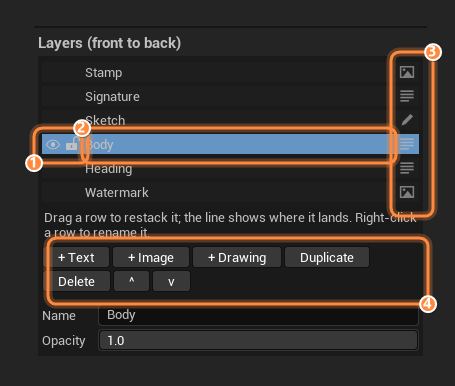 The eye is visibility: click to hide the layer, and it is skipped by the preview and the
bake alike. The closed eye stays lit on an idle row, because a hidden layer is a surprise
waiting to happen at bake time. The padlock locks the layer against selection and
dragging — it keeps drawing either way, and the lit padlock is what explains why a row
refuses to be picked up.
One row per layer, frontmost at the top; the selected row is highlighted. Drag a row to
restack it — an insertion line shows where it will land. Right-click for the row menu.
A layer with no name of its own is listed by its type.
The icon on the right-hand edge of the row says what kind of layer it is: text, image, or
drawing. It is a label, not a button — clicking the row still selects the layer. Its
tooltip names the kind ("Image layer - a texture placed on the page").
**+ Text**, **+ Image** and **+ Drawing** add a layer in front of the selected one;
**Duplicate** and **Delete** act on the selection, and **^** / **v** move it one step
towards the front or the back.
### Working the panel
**+ Text**, **+ Image**, or **+ Drawing**. New layers land **in front of the selected
layer** (one row above it in the list), and the editor switches to the mode that can edit
them: Text mode for a text layer — with the caret already in the new box — Image mode for
an image, Draw mode for a drawing.
A new text layer is created as a placed box at `Position (0.15, 0.15)`, `Size
(0.5, 0.25)` — deliberately not page-filling, since a second full-page box would sit
invisibly over the first. A new image layer starts at `Position (0.35, 0.35)`,
`Size (0.3, 0)`.
Click its row, or double-click the thing itself on the page. Double-clicking selects the
layer **and switches to the right mode** — double-click writing and you land in Text mode
with the caret in that box; double-click a picture and you land in Image mode ready to
drag it. Selecting a layer always pulls the mode with it.
Drag a row up or down the list. The insertion line shows where it lands, and the whole
drag is one undo step ("Reorder Layer"). The **^** and **v** buttons do the same thing one
step at a time, towards the front and towards the back respectively.
**Rename** (clear the name and the list goes back to the type-derived fallback),
**Duplicate** (payload included; the copy lands directly on top of the original),
**Delete**, **Visible** and **Locked** toggles, **Bring Forward**, and **Send Backward**.
Under the buttons, the properties for whatever is selected: **Name** and **Opacity** for
every layer, plus the texture picker and **X / Y / Width / Height / Rotation** for an
image, the stroke count and **Clear Strokes** for a drawing, and **Box X / Box Y / Box W /
Box H / Line height** for a text layer.
The eye is visibility: click to hide the layer, and it is skipped by the preview and the
bake alike. The closed eye stays lit on an idle row, because a hidden layer is a surprise
waiting to happen at bake time. The padlock locks the layer against selection and
dragging — it keeps drawing either way, and the lit padlock is what explains why a row
refuses to be picked up.
One row per layer, frontmost at the top; the selected row is highlighted. Drag a row to
restack it — an insertion line shows where it will land. Right-click for the row menu.
A layer with no name of its own is listed by its type.
The icon on the right-hand edge of the row says what kind of layer it is: text, image, or
drawing. It is a label, not a button — clicking the row still selects the layer. Its
tooltip names the kind ("Image layer - a texture placed on the page").
**+ Text**, **+ Image** and **+ Drawing** add a layer in front of the selected one;
**Duplicate** and **Delete** act on the selection, and **^** / **v** move it one step
towards the front or the back.
### Working the panel
**+ Text**, **+ Image**, or **+ Drawing**. New layers land **in front of the selected
layer** (one row above it in the list), and the editor switches to the mode that can edit
them: Text mode for a text layer — with the caret already in the new box — Image mode for
an image, Draw mode for a drawing.
A new text layer is created as a placed box at `Position (0.15, 0.15)`, `Size
(0.5, 0.25)` — deliberately not page-filling, since a second full-page box would sit
invisibly over the first. A new image layer starts at `Position (0.35, 0.35)`,
`Size (0.3, 0)`.
Click its row, or double-click the thing itself on the page. Double-clicking selects the
layer **and switches to the right mode** — double-click writing and you land in Text mode
with the caret in that box; double-click a picture and you land in Image mode ready to
drag it. Selecting a layer always pulls the mode with it.
Drag a row up or down the list. The insertion line shows where it lands, and the whole
drag is one undo step ("Reorder Layer"). The **^** and **v** buttons do the same thing one
step at a time, towards the front and towards the back respectively.
**Rename** (clear the name and the list goes back to the type-derived fallback),
**Duplicate** (payload included; the copy lands directly on top of the original),
**Delete**, **Visible** and **Locked** toggles, **Bring Forward**, and **Send Backward**.
Under the buttons, the properties for whatever is selected: **Name** and **Opacity** for
every layer, plus the texture picker and **X / Y / Width / Height / Rotation** for an
image, the stroke count and **Clear Strokes** for a drawing, and **Box X / Box Y / Box W /
Box H / Line height** for a text layer.
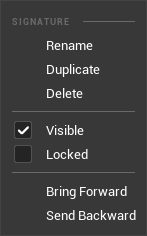
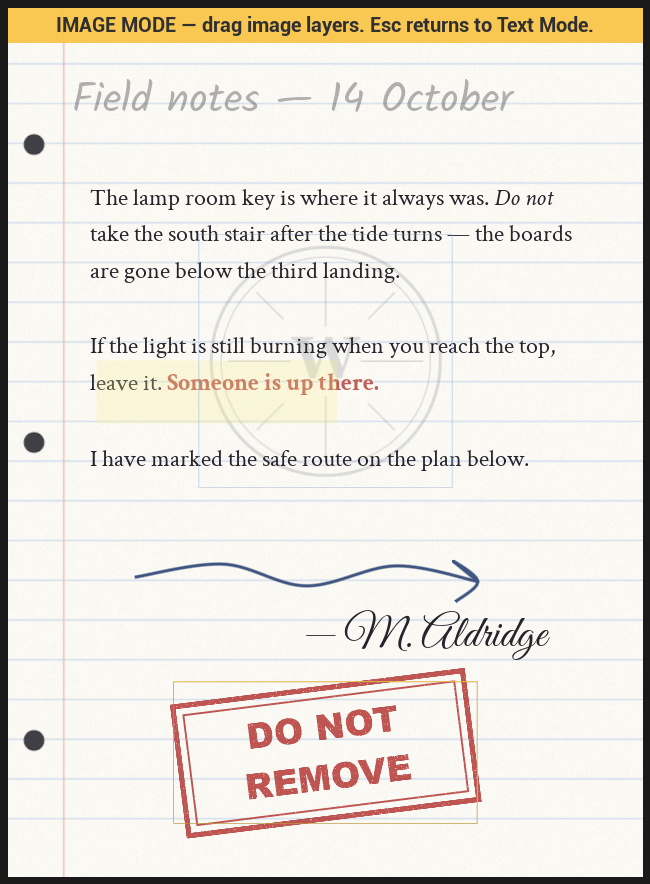 Image mode is where image layers get placed: drag any visible, unlocked one by its whole
area. Text editing is suspended while the mode is on, so a click lands on a layer rather than
on the caret. Text boxes are moved in **Text** mode, by the strips around the selected box —
see [the three modes](/plugins/inkwell/authoring/page-editor#the-three-modes). Press **Esc** or click
**Text** to go back to typing.
On the front, a page's **last text layer cannot be deleted** — the page's writing would
have nowhere to draw. Add a second text layer first, or delete a different one. The rule
is grayed out rather than hidden so it is visible rather than mysterious. On the
**back**, the same button is never gated: deleting the back's last layer is exactly how a
back is un-authored, returning the underside to bare paper.
Check the eye. Hidden layers are skipped by the editor preview and by the runtime bake
alike, and it is easy to hide one while chasing a stacking problem and forget.
It is locked. The padlock on the row is lit when it is — click it, or use **Locked** in the
right-click menu. Locking changes nothing about how the layer draws, in the editor or in
the game.
## Three recipes
### A watermark behind the writing
The stamp goes **below** the text layer in the panel — earlier in the array — so the writing
draws over it.
Click its row. New layers land in front of the selection, so this is the anchor.
Click **+ Image**, pick the texture in the layer properties, and drag it into place in
Image mode. It is currently in front of the text.
Right-click the image row → **Send Backward** (or drag its row below the text row). It is
now index-wise earlier than the text, so the writing draws over it.
Set the layer **Opacity** to something like 0.15. Layer opacity reaches the whole layer,
so the image goes translucent while the writing stays solid.
### A stamp over the writing
Identical, minus the last two steps: add the image layer while the text layer is selected
and leave it where it lands — in front. Turn its **Rotation** a few degrees off square so it
reads as something pressed onto the page rather than composited into it.
### Several independent text boxes
Type into the page's existing text layer. It fills the page inside the margins, so it is
the one that behaves like a normal page of writing.
**+ Text**, then — in **Text** mode, with the new box selected — drag it to the top of the
page by the strips around its outline, and size it with **Box W / Box H**. Type into it
directly: a selected text box takes the caret. Set its alignment with the toolbar's
justify buttons; justification is per box.
**+ Text** again, drag it to the bottom right, set that box to right-aligned, and give it
a script font from the toolbar's font picker.
Right-click each row → **Rename**: *Heading*, *Body*, *Signature*. Three rows all called
"Text" is how a page stops being editable a month later.
## Blueprint API
Every function below is on the **Ink Page Document** asset, in the
**Inkwell | Page Document** category. Layer indices are **array** indices — index 0 is the
back of the page, not the top row of the panel. Every layer function takes a **Side** pin
(an **Ink Page Side**: `Front` or `Back`, defaulting to `Front`), so the same calls read and
write the back of a sheet.
| Node | Returns | What it does |
| ------------------------------------------------------------------ | ----------------------- | -------------------------------------------------------------------------------------------------------------------------------- |
| **Get Page Layers** (`PageIndex`, `Side`) | `Array` | That side's layers, back to front. Empty array for an out-of-range page — and for a back that was never authored. |
| **Set Page Layers** (`PageIndex`, `Layers`, `Side`) | `bool` | Replaces the whole stack. False if the page index was out of range. |
| **Add Page Layer** (`PageIndex`, `Layer`, `Side`) | `int32` | Appends the layer to the **front** of that side and returns its index. -1 if out of range. |
| **Remove Page Layer** (`PageIndex`, `LayerIndex`, `Side`) | `bool` | Removes one layer. False if either index was out of range. |
| **Move Page Layer** (`PageIndex`, `LayerIndex`, `Delta`, `Side`) | `int32` | Moves a layer through the stack. Returns the layer's new index, or -1 when nothing moved. |
| **Find Text Layer Index** (`PageIndex`, `Side`) | `int32` | Index of that side's **first** Text layer, or -1 when it has none. |
| **Set Layer Markup** (`PageIndex`, `LayerIndex`, `Markup`, `Side`) | `bool` | Replaces the text of one specific Text layer. False if the indices are out of range or the layer is not a Text layer. |
| **Has Back** (`PageIndex`) | `bool` | Whether this sheet has an authored back. False is what every pre-back document loads with — and what keeps those documents free. |
**The delta convention on Move Page Layer: positive is towards the front.** `Delta = 1`
brings the layer one step forward (one row up the panel), `Delta = -1` sends it one step
back. The destination is clamped to the array, so a big delta parks the layer at the end
rather than failing — but a move that changes nothing (already at the end, or `Delta = 0`)
returns -1, not the current index. Test against -1 before trusting the result.
Three behaviors worth knowing before you write against these:
* **Set Page Layers repairs the front.** A front stack containing no Text layer gets one
appended, because a page with nowhere to draw its markup renders blank paper. The same
repair runs on **Add Page** and on load. It deliberately does **not** run on the back: an
empty back is the legal un-authored state, and the zero-cost guarantee hangs off it —
which also means **Set Page Layers** with an empty array and `Side = Back` is how you
un-author a back from Blueprint.
* **Set Page Layers, Add Page Layer, Remove Page Layer, and Move Page Layer all bump the
document's content revision**, which is what invalidates cached bakes. If you mutate a
layer struct you pulled out with **Get Page Layers**, you are working on a copy — write it
back with **Set Page Layers** or nothing on screen changes.
* **Adding a layer to an unauthored back authors it** — the sheet starts baking a back and
the reader will flip to it. Nothing else needs to be set.
### Recipe: add a watermark from Blueprint
1. **Make Ink Page Layer** — set **Type** to `Image`, **Name** to `Watermark`, **Opacity** to `0.15`.
2. On its **Image** member: set **Texture**, **Position** `(0.2, 0.3)`, **Size** `(0.6, 0.0)`.
3. **Find Text Layer Index** (`PageIndex`) → store as `TextIndex`.
4. **Add Page Layer** (`PageIndex`, the new layer) → returns `NewIndex` at the front.
5. **Move Page Layer** (`PageIndex`, `NewIndex`, `TextIndex - NewIndex`) — a negative delta,
which drops the image behind the writing.
6. **Refresh** on any **Ink Page Display** already showing that page.
**Documents authored before layers existed are converted when they load.** The old
per-page markup moves onto the page's first Text layer and the old images fold into the
stack on whichever side of the writing their behind/over flag asked for. There is nothing
to do, no button to press, and no version number to set — the migration is driven by the
page's own data and is safe to run repeatedly. Re-save the asset when convenient so the
converted stack is what ships.
## Next
The five brushes, the eraser, and the stroke data model behind Drawing layers.
What the layers are stacked on: textures, generated stock, your own materials — front
and back.
The window the Layers panel lives in, and everything else in it.
Page geometry, margins, default text style, and the document-level Blueprint API.
Image mode is where image layers get placed: drag any visible, unlocked one by its whole
area. Text editing is suspended while the mode is on, so a click lands on a layer rather than
on the caret. Text boxes are moved in **Text** mode, by the strips around the selected box —
see [the three modes](/plugins/inkwell/authoring/page-editor#the-three-modes). Press **Esc** or click
**Text** to go back to typing.
On the front, a page's **last text layer cannot be deleted** — the page's writing would
have nowhere to draw. Add a second text layer first, or delete a different one. The rule
is grayed out rather than hidden so it is visible rather than mysterious. On the
**back**, the same button is never gated: deleting the back's last layer is exactly how a
back is un-authored, returning the underside to bare paper.
Check the eye. Hidden layers are skipped by the editor preview and by the runtime bake
alike, and it is easy to hide one while chasing a stacking problem and forget.
It is locked. The padlock on the row is lit when it is — click it, or use **Locked** in the
right-click menu. Locking changes nothing about how the layer draws, in the editor or in
the game.
## Three recipes
### A watermark behind the writing
The stamp goes **below** the text layer in the panel — earlier in the array — so the writing
draws over it.
Click its row. New layers land in front of the selection, so this is the anchor.
Click **+ Image**, pick the texture in the layer properties, and drag it into place in
Image mode. It is currently in front of the text.
Right-click the image row → **Send Backward** (or drag its row below the text row). It is
now index-wise earlier than the text, so the writing draws over it.
Set the layer **Opacity** to something like 0.15. Layer opacity reaches the whole layer,
so the image goes translucent while the writing stays solid.
### A stamp over the writing
Identical, minus the last two steps: add the image layer while the text layer is selected
and leave it where it lands — in front. Turn its **Rotation** a few degrees off square so it
reads as something pressed onto the page rather than composited into it.
### Several independent text boxes
Type into the page's existing text layer. It fills the page inside the margins, so it is
the one that behaves like a normal page of writing.
**+ Text**, then — in **Text** mode, with the new box selected — drag it to the top of the
page by the strips around its outline, and size it with **Box W / Box H**. Type into it
directly: a selected text box takes the caret. Set its alignment with the toolbar's
justify buttons; justification is per box.
**+ Text** again, drag it to the bottom right, set that box to right-aligned, and give it
a script font from the toolbar's font picker.
Right-click each row → **Rename**: *Heading*, *Body*, *Signature*. Three rows all called
"Text" is how a page stops being editable a month later.
## Blueprint API
Every function below is on the **Ink Page Document** asset, in the
**Inkwell | Page Document** category. Layer indices are **array** indices — index 0 is the
back of the page, not the top row of the panel. Every layer function takes a **Side** pin
(an **Ink Page Side**: `Front` or `Back`, defaulting to `Front`), so the same calls read and
write the back of a sheet.
| Node | Returns | What it does |
| ------------------------------------------------------------------ | ----------------------- | -------------------------------------------------------------------------------------------------------------------------------- |
| **Get Page Layers** (`PageIndex`, `Side`) | `Array` | That side's layers, back to front. Empty array for an out-of-range page — and for a back that was never authored. |
| **Set Page Layers** (`PageIndex`, `Layers`, `Side`) | `bool` | Replaces the whole stack. False if the page index was out of range. |
| **Add Page Layer** (`PageIndex`, `Layer`, `Side`) | `int32` | Appends the layer to the **front** of that side and returns its index. -1 if out of range. |
| **Remove Page Layer** (`PageIndex`, `LayerIndex`, `Side`) | `bool` | Removes one layer. False if either index was out of range. |
| **Move Page Layer** (`PageIndex`, `LayerIndex`, `Delta`, `Side`) | `int32` | Moves a layer through the stack. Returns the layer's new index, or -1 when nothing moved. |
| **Find Text Layer Index** (`PageIndex`, `Side`) | `int32` | Index of that side's **first** Text layer, or -1 when it has none. |
| **Set Layer Markup** (`PageIndex`, `LayerIndex`, `Markup`, `Side`) | `bool` | Replaces the text of one specific Text layer. False if the indices are out of range or the layer is not a Text layer. |
| **Has Back** (`PageIndex`) | `bool` | Whether this sheet has an authored back. False is what every pre-back document loads with — and what keeps those documents free. |
**The delta convention on Move Page Layer: positive is towards the front.** `Delta = 1`
brings the layer one step forward (one row up the panel), `Delta = -1` sends it one step
back. The destination is clamped to the array, so a big delta parks the layer at the end
rather than failing — but a move that changes nothing (already at the end, or `Delta = 0`)
returns -1, not the current index. Test against -1 before trusting the result.
Three behaviors worth knowing before you write against these:
* **Set Page Layers repairs the front.** A front stack containing no Text layer gets one
appended, because a page with nowhere to draw its markup renders blank paper. The same
repair runs on **Add Page** and on load. It deliberately does **not** run on the back: an
empty back is the legal un-authored state, and the zero-cost guarantee hangs off it —
which also means **Set Page Layers** with an empty array and `Side = Back` is how you
un-author a back from Blueprint.
* **Set Page Layers, Add Page Layer, Remove Page Layer, and Move Page Layer all bump the
document's content revision**, which is what invalidates cached bakes. If you mutate a
layer struct you pulled out with **Get Page Layers**, you are working on a copy — write it
back with **Set Page Layers** or nothing on screen changes.
* **Adding a layer to an unauthored back authors it** — the sheet starts baking a back and
the reader will flip to it. Nothing else needs to be set.
### Recipe: add a watermark from Blueprint
1. **Make Ink Page Layer** — set **Type** to `Image`, **Name** to `Watermark`, **Opacity** to `0.15`.
2. On its **Image** member: set **Texture**, **Position** `(0.2, 0.3)`, **Size** `(0.6, 0.0)`.
3. **Find Text Layer Index** (`PageIndex`) → store as `TextIndex`.
4. **Add Page Layer** (`PageIndex`, the new layer) → returns `NewIndex` at the front.
5. **Move Page Layer** (`PageIndex`, `NewIndex`, `TextIndex - NewIndex`) — a negative delta,
which drops the image behind the writing.
6. **Refresh** on any **Ink Page Display** already showing that page.
**Documents authored before layers existed are converted when they load.** The old
per-page markup moves onto the page's first Text layer and the old images fold into the
stack on whichever side of the writing their behind/over flag asked for. There is nothing
to do, no button to press, and no version number to set — the migration is driven by the
page's own data and is safe to run repeatedly. Re-save the asset when convenient so the
converted stack is what ships.
## Next
The five brushes, the eraser, and the stroke data model behind Drawing layers.
What the layers are stacked on: textures, generated stock, your own materials — front
and back.
The window the Layers panel lives in, and everything else in it.
Page geometry, margins, default text style, and the document-level Blueprint API.