> ## Documentation Index
> Fetch the complete documentation index at: https://docs.teriyakigaming.com/llms.txt
> Use this file to discover all available pages before exploring further.
# Drawing
> Five procedurally drawn brushes, an eraser that rubs out ink rather than strokes, and the stroke data model behind them.
The Page Editor draws. Pick a brush, drag on the page, and the mark lands on a
[Drawing layer](/plugins/inkwell/authoring/layers) as a stroke — a margin scribble, a crossed-out line, a
highlighted passage, a map sketched on the back of a letter.
Every brush is **drawn procedurally**. Inkwell ships no brush images, no noise textures, and
no shaders for this: a brush's look is only ever how many passes it lays down, how far they
wander, and how transparent each one is. That is why strokes cost nothing to ship and why
they bake identically at any resolution.
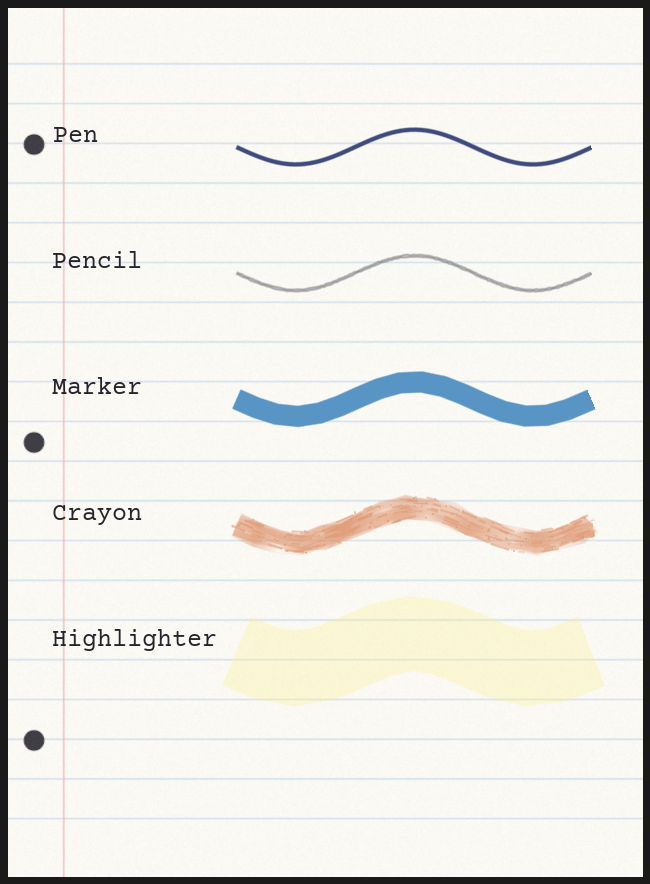 ## The five brushes
`EInkBrushType`, in the order the **Brush** dropdown lists them.
| Brush | How it behaves |
| --------------- | --------------------------------------------------------------------------------------------------------------------------------------------------------------------------------------------------------------------------------------------------------------------------------------------------------------------------------------------------------------------------------------------------------------------------- |
| **Pen** | One clean, even, fully opaque line at the width you set, with rounded joins. Everything else is a deviation from this. |
| **Pencil** | Thin and semi-transparent: two wandering passes at 60% of the authored width, each at 55% alpha. Where the passes cross, the mark darkens the way real graphite does — and a second stroke over the first darkens it again. Responds strongly to pressure, fading as well as thinning. |
| **Marker** | Thick, flat, and fully opaque: 1.7× the authored width and deliberately steady — no wander at all. The brush to reach for when you want the mark to read as deliberate. |
| **Crayon** | Broad, waxy and dry: five wandering passes at 1.35× width, each with its opacity jittered along its own length so the mark runs dense here and starved there, and each laid thinner toward the edge of the fan so the mark keeps a solid core with a chipped edge. Over that go short streaks dragged along the stroke and a dusting of near-pixel specks — wax catching, skipping and crumbling on the tooth of the paper. |
| **Highlighter** | Very wide (3×) and very transparent (30% alpha), so whatever it crosses still reads through it. To highlight *under* words rather than over them, put the Drawing layer below the Text layer in the stack. |
Every brush that jitters seeds its randomness from the stroke's own points, so a stroke
looks the same every time it is drawn — in the editor preview, in the bake, and after a
reload. Nothing is rolled fresh at paint time.
## The Drawing Tools panel
Bottom of the Page Editor's left column, under **Default Text Style**.
## The five brushes
`EInkBrushType`, in the order the **Brush** dropdown lists them.
| Brush | How it behaves |
| --------------- | --------------------------------------------------------------------------------------------------------------------------------------------------------------------------------------------------------------------------------------------------------------------------------------------------------------------------------------------------------------------------------------------------------------------------- |
| **Pen** | One clean, even, fully opaque line at the width you set, with rounded joins. Everything else is a deviation from this. |
| **Pencil** | Thin and semi-transparent: two wandering passes at 60% of the authored width, each at 55% alpha. Where the passes cross, the mark darkens the way real graphite does — and a second stroke over the first darkens it again. Responds strongly to pressure, fading as well as thinning. |
| **Marker** | Thick, flat, and fully opaque: 1.7× the authored width and deliberately steady — no wander at all. The brush to reach for when you want the mark to read as deliberate. |
| **Crayon** | Broad, waxy and dry: five wandering passes at 1.35× width, each with its opacity jittered along its own length so the mark runs dense here and starved there, and each laid thinner toward the edge of the fan so the mark keeps a solid core with a chipped edge. Over that go short streaks dragged along the stroke and a dusting of near-pixel specks — wax catching, skipping and crumbling on the tooth of the paper. |
| **Highlighter** | Very wide (3×) and very transparent (30% alpha), so whatever it crosses still reads through it. To highlight *under* words rather than over them, put the Drawing layer below the Text layer in the stack. |
Every brush that jitters seeds its randomness from the stroke's own points, so a stroke
looks the same every time it is drawn — in the editor preview, in the bake, and after a
reload. Nothing is rolled fresh at paint time.
## The Drawing Tools panel
Bottom of the Page Editor's left column, under **Default Text Style**.
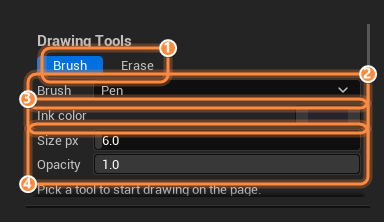 The two tools. Clicking either one switches the page into **Draw mode** immediately —
reaching for a brush and then having to find a mode button somewhere else is not how a
brush works.
Which of the five brushes the next stroke uses. Default **Pen**. The brush, the ink
color, and the opacity all disappear while **Erase** is selected — **Size px** is the
only one of them the eraser uses.
The color of the next stroke, alpha included. Strokes keep the color they were drawn
with — changing this never restyles a mark already on the page. Default is the same warm
near-black the document's default text color uses, `(0.02, 0.017, 0.025)`.
Stroke width in **page pixels** — pixels of the document's **Page Size Pixels**, not
screen pixels, so a stroke keeps its proportions however the page is scaled. Range
1–120, default 6. This is also the eraser's width, and the ring under the cursor is
drawn at this size.
Multiplies the brush's own transparency. A highlighter is already faint before this
touches it. Range 0.05–1, default 1.
Nothing in this panel is undoable, because nothing in it touches the document: the palette
is the toolbox, not the picture. The hint line at the bottom of the panel tells you where
the next stroke will land — into the selected drawing layer, or into a new one it is about
to make.
## Drawing on the page
The two tools. Clicking either one switches the page into **Draw mode** immediately —
reaching for a brush and then having to find a mode button somewhere else is not how a
brush works.
Which of the five brushes the next stroke uses. Default **Pen**. The brush, the ink
color, and the opacity all disappear while **Erase** is selected — **Size px** is the
only one of them the eraser uses.
The color of the next stroke, alpha included. Strokes keep the color they were drawn
with — changing this never restyles a mark already on the page. Default is the same warm
near-black the document's default text color uses, `(0.02, 0.017, 0.025)`.
Stroke width in **page pixels** — pixels of the document's **Page Size Pixels**, not
screen pixels, so a stroke keeps its proportions however the page is scaled. Range
1–120, default 6. This is also the eraser's width, and the ring under the cursor is
drawn at this size.
Multiplies the brush's own transparency. A highlighter is already faint before this
touches it. Range 0.05–1, default 1.
Nothing in this panel is undoable, because nothing in it touches the document: the palette
is the toolbox, not the picture. The hint line at the bottom of the panel tells you where
the next stroke will land — into the selected drawing layer, or into a new one it is about
to make.
## Drawing on the page
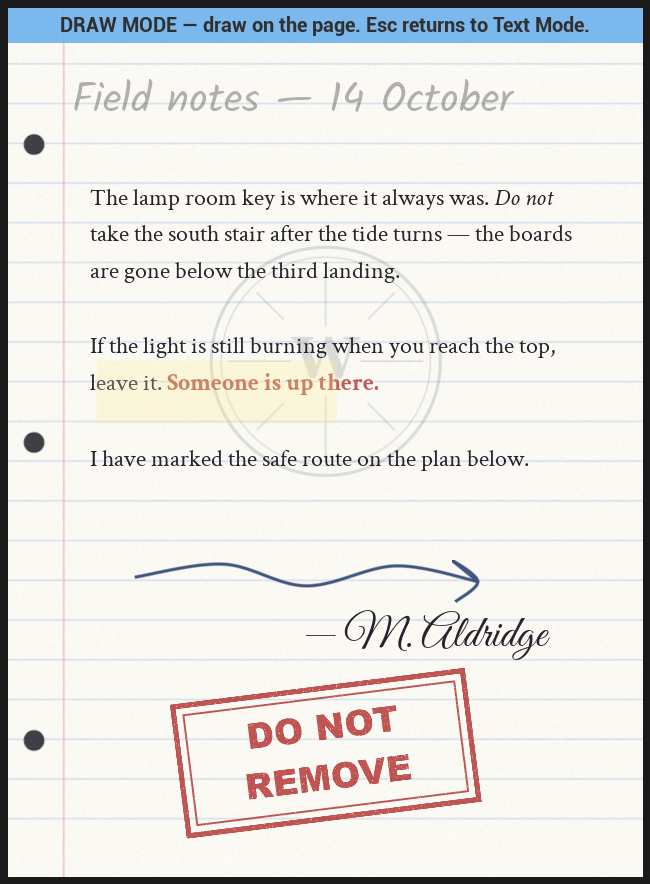 Click **Draw** in the toolbar's **Mode** group, or pick a tool in Drawing Tools —
that arms Draw mode by itself. The banner across the page reads *DRAW MODE — draw on the
page. Esc returns to Text Mode.*, and the cursor becomes a crosshair with a ring at the
current brush size.
Click **+ Drawing** in the Layers panel, or select an existing Drawing layer's row. You
can skip this: **drawing on the page with no drawing layer selected makes one**, inserted
in front of the current selection, and the new layer plus the stroke are a single undo
step. Entering Draw mode when nothing suitable is selected also picks up the frontmost
usable drawing layer for you.
Set them before you draw. A stroke is stamped from the palette at mouse-down, so changing
the palette mid-stroke never re-styles the line in progress.
Press, drag, release. You see the real mark as you drag — the live stroke goes through the
same renderer the bake uses, so the line you drag is the line that comes out of the oven.
Nothing is written to the document until you let go, which is what makes one stroke one
undo step ("Draw Stroke"). A click with no drag is still a mark: it draws a dot.
Click **Erase** and sweep over the ink. See below.
**Ctrl+Z**, through the normal editor undo stack. One stroke is one step; one eraser sweep
is one step, however much it took out. An eraser sweep that touched nothing leaves no undo
step at all.
**Esc**, or click **Text** in the Mode group.
Strokes land on the side of the sheet being edited. Flip the sheet with the **Front** /
**Back** toggle under the page list and Draw mode works the same on the back — a map
sketched on the back of a letter really is on the back, and drawing the first mark on an
untouched back is one of the ways a back [becomes authored](/plugins/inkwell/authoring/layers#the-two-sides-of-a-sheet).
## The eraser
The eraser **rubs out the ink under the cursor**, not the stroke that ink belongs to. This
matters more than it sounds:
* A stroke erased **through the middle becomes two strokes**, each keeping the original's
brush, color, width, and opacity. It is the same mark with a bite out of it, not a new one.
* A stroke erased at one end comes back shorter. A stroke erased everywhere goes away.
* Untouched stretches come back with exactly the points they were authored with — the eraser
does not resample ink it never reached.
* **One sweep is one undo step.** The transaction opens on the first real cut and every later
cut in the same sweep joins it.
The eraser's reach is half the **Size px** value (with a floor of 3 page pixels), plus half
the width of whatever stroke it is testing — so a fat crayon line is bitten when the eraser
reaches its edge, not its center line. Erasing works along the whole path the cursor
travelled between mouse events, so a fast sweep does not leave untouched ink between bites.
The eraser never invents a layer. It works on the selected Drawing layer if there is one,
otherwise on the frontmost visible, unlocked Drawing layer — which is also the one whose
strokes are on top of the cursor.
A **hidden** or **locked** Drawing layer is neither a stroke target nor an erase target.
Drawing with one selected creates a *new* layer instead of adding to it, and the eraser
skips it entirely. If your marks keep landing on a fresh layer, check the eye and the
padlock on the row you meant to draw into.
To wipe a layer completely, select it and use **Clear Strokes** in the layer properties —
one undo step, and it tells you the stroke count above the button.
## The stroke data model
Useful if you generate marks from Blueprint or from C++ — a signature stamped at runtime, a
crossed-out line revealed by a quest, a scribble whose position depends on save data.
### `FInkStroke` — one continuous mark
| Property | Type | Default | What it does |
| --------- | ------------------------- | ------------------------- | -------------------------------------------------------------------------------------------------------------------------------------------------------------- |
| `Brush` | `EInkBrushType` | `Pen` | Which of the five brushes paints it. |
| `Color` | `FLinearColor` | `(0.02, 0.017, 0.025, 1)` | The ink. Alpha counts. |
| `WidthPx` | `float` | `6.0` | Width in page pixels, before pressure. Never goes below 0.1; a details-panel slider on the struct offers 1–80, while the Page Editor's **Size px** runs 1–120. |
| `Opacity` | `float` | `1.0` | 0–1, multiplied into the brush's own transparency. |
| `Points` | `Array` | empty | The polyline, in order. |
### `FInkStrokePoint` — one sample along it
| Property | Type | Default | What it does |
| ---------- | ----------- | -------- | ------------------------------------------------------------------------------------ |
| `Position` | `FVector2f` | `(0, 0)` | **Normalized page space**: `(0,0)` is the page's top-left, `(1,1)` its bottom-right. |
| `Pressure` | `float` | `1.0` | 0–1. Scales width, and — for Pencil and Crayon — opacity as well. |
Normalized coordinates are why strokes survive everything: the same points bake at full page
resolution, bake clamped down on a huge document, and preview at whatever size the editor
pane has room for. `WidthPx` is the one value that is not normalized, so it is scaled by the
widget's real width over the document's **Page Size Pixels** X when it is painted.
Pressure comes from touch input only. Slate reports touch force from 1.0 for an ordinary
press up to 10 for a hard one, which Inkwell clamps into the 0.05–1 range `Pressure` uses; a
mouse has no pressure at all and every point it produces gets a flat 1.0. Strokes you build
in Blueprint can vary it freely — tapering the last few points is what makes a generated
mark look drawn rather than plotted.
The editor drops points that are barely apart (the threshold rides on the stroke width:
half of it, clamped to 1–24 page pixels) and caps a single stroke at 4096 points. Generated
strokes are not held to that, but a stroke with hundreds of points per centimeter is bytes
in the asset for nothing — the renderer resamples the curve anyway.
### Recipe: add a stroke from Blueprint
1. Build the points: for each sample, **Make Ink Stroke Point** with a normalized
**Position** and a **Pressure**, into an array.
2. **Make Ink Stroke** — set **Brush**, **Color**, **Width Px**, **Opacity**, and the
**Points** array.
3. **Make Ink Drawing** — set its **Strokes** array (existing strokes first; the list is
drawn oldest first).
4. **Make Ink Page Layer** — **Type** = `Drawing`, **Name** = something readable, and the
**Drawing** member from step 3.
5. **Add Page Layer** (`PageIndex`, the layer) to put it at the front of the page, or
**Move Page Layer** afterwards to drop it behind the writing. The **Side** pin defaults
to `Front`; pass `Back` to scribble on the back of the sheet instead.
6. **Refresh** on any **Ink Page Display** showing that page. (**Add Page Layer** bumps the
document's content revision, so cached bakes are already invalidated.)
To add to an existing Drawing layer instead, **Get Page Layers**, edit the copy's `Drawing.Strokes`,
and write the whole array back with **Set Page Layers** — the getter hands you a copy, so
nothing changes until you do.
## Next
Where strokes live, and how to stack a highlight under the words.
The stock the ink sits on — textures, generated sheets, or your own materials.
Modes, the toolbar, and the rest of the window.
How strokes, text, and images become one baked ink texture.
Click **Draw** in the toolbar's **Mode** group, or pick a tool in Drawing Tools —
that arms Draw mode by itself. The banner across the page reads *DRAW MODE — draw on the
page. Esc returns to Text Mode.*, and the cursor becomes a crosshair with a ring at the
current brush size.
Click **+ Drawing** in the Layers panel, or select an existing Drawing layer's row. You
can skip this: **drawing on the page with no drawing layer selected makes one**, inserted
in front of the current selection, and the new layer plus the stroke are a single undo
step. Entering Draw mode when nothing suitable is selected also picks up the frontmost
usable drawing layer for you.
Set them before you draw. A stroke is stamped from the palette at mouse-down, so changing
the palette mid-stroke never re-styles the line in progress.
Press, drag, release. You see the real mark as you drag — the live stroke goes through the
same renderer the bake uses, so the line you drag is the line that comes out of the oven.
Nothing is written to the document until you let go, which is what makes one stroke one
undo step ("Draw Stroke"). A click with no drag is still a mark: it draws a dot.
Click **Erase** and sweep over the ink. See below.
**Ctrl+Z**, through the normal editor undo stack. One stroke is one step; one eraser sweep
is one step, however much it took out. An eraser sweep that touched nothing leaves no undo
step at all.
**Esc**, or click **Text** in the Mode group.
Strokes land on the side of the sheet being edited. Flip the sheet with the **Front** /
**Back** toggle under the page list and Draw mode works the same on the back — a map
sketched on the back of a letter really is on the back, and drawing the first mark on an
untouched back is one of the ways a back [becomes authored](/plugins/inkwell/authoring/layers#the-two-sides-of-a-sheet).
## The eraser
The eraser **rubs out the ink under the cursor**, not the stroke that ink belongs to. This
matters more than it sounds:
* A stroke erased **through the middle becomes two strokes**, each keeping the original's
brush, color, width, and opacity. It is the same mark with a bite out of it, not a new one.
* A stroke erased at one end comes back shorter. A stroke erased everywhere goes away.
* Untouched stretches come back with exactly the points they were authored with — the eraser
does not resample ink it never reached.
* **One sweep is one undo step.** The transaction opens on the first real cut and every later
cut in the same sweep joins it.
The eraser's reach is half the **Size px** value (with a floor of 3 page pixels), plus half
the width of whatever stroke it is testing — so a fat crayon line is bitten when the eraser
reaches its edge, not its center line. Erasing works along the whole path the cursor
travelled between mouse events, so a fast sweep does not leave untouched ink between bites.
The eraser never invents a layer. It works on the selected Drawing layer if there is one,
otherwise on the frontmost visible, unlocked Drawing layer — which is also the one whose
strokes are on top of the cursor.
A **hidden** or **locked** Drawing layer is neither a stroke target nor an erase target.
Drawing with one selected creates a *new* layer instead of adding to it, and the eraser
skips it entirely. If your marks keep landing on a fresh layer, check the eye and the
padlock on the row you meant to draw into.
To wipe a layer completely, select it and use **Clear Strokes** in the layer properties —
one undo step, and it tells you the stroke count above the button.
## The stroke data model
Useful if you generate marks from Blueprint or from C++ — a signature stamped at runtime, a
crossed-out line revealed by a quest, a scribble whose position depends on save data.
### `FInkStroke` — one continuous mark
| Property | Type | Default | What it does |
| --------- | ------------------------- | ------------------------- | -------------------------------------------------------------------------------------------------------------------------------------------------------------- |
| `Brush` | `EInkBrushType` | `Pen` | Which of the five brushes paints it. |
| `Color` | `FLinearColor` | `(0.02, 0.017, 0.025, 1)` | The ink. Alpha counts. |
| `WidthPx` | `float` | `6.0` | Width in page pixels, before pressure. Never goes below 0.1; a details-panel slider on the struct offers 1–80, while the Page Editor's **Size px** runs 1–120. |
| `Opacity` | `float` | `1.0` | 0–1, multiplied into the brush's own transparency. |
| `Points` | `Array` | empty | The polyline, in order. |
### `FInkStrokePoint` — one sample along it
| Property | Type | Default | What it does |
| ---------- | ----------- | -------- | ------------------------------------------------------------------------------------ |
| `Position` | `FVector2f` | `(0, 0)` | **Normalized page space**: `(0,0)` is the page's top-left, `(1,1)` its bottom-right. |
| `Pressure` | `float` | `1.0` | 0–1. Scales width, and — for Pencil and Crayon — opacity as well. |
Normalized coordinates are why strokes survive everything: the same points bake at full page
resolution, bake clamped down on a huge document, and preview at whatever size the editor
pane has room for. `WidthPx` is the one value that is not normalized, so it is scaled by the
widget's real width over the document's **Page Size Pixels** X when it is painted.
Pressure comes from touch input only. Slate reports touch force from 1.0 for an ordinary
press up to 10 for a hard one, which Inkwell clamps into the 0.05–1 range `Pressure` uses; a
mouse has no pressure at all and every point it produces gets a flat 1.0. Strokes you build
in Blueprint can vary it freely — tapering the last few points is what makes a generated
mark look drawn rather than plotted.
The editor drops points that are barely apart (the threshold rides on the stroke width:
half of it, clamped to 1–24 page pixels) and caps a single stroke at 4096 points. Generated
strokes are not held to that, but a stroke with hundreds of points per centimeter is bytes
in the asset for nothing — the renderer resamples the curve anyway.
### Recipe: add a stroke from Blueprint
1. Build the points: for each sample, **Make Ink Stroke Point** with a normalized
**Position** and a **Pressure**, into an array.
2. **Make Ink Stroke** — set **Brush**, **Color**, **Width Px**, **Opacity**, and the
**Points** array.
3. **Make Ink Drawing** — set its **Strokes** array (existing strokes first; the list is
drawn oldest first).
4. **Make Ink Page Layer** — **Type** = `Drawing`, **Name** = something readable, and the
**Drawing** member from step 3.
5. **Add Page Layer** (`PageIndex`, the layer) to put it at the front of the page, or
**Move Page Layer** afterwards to drop it behind the writing. The **Side** pin defaults
to `Front`; pass `Back` to scribble on the back of the sheet instead.
6. **Refresh** on any **Ink Page Display** showing that page. (**Add Page Layer** bumps the
document's content revision, so cached bakes are already invalidated.)
To add to an existing Drawing layer instead, **Get Page Layers**, edit the copy's `Drawing.Strokes`,
and write the whole array back with **Set Page Layers** — the getter hands you a copy, so
nothing changes until you do.
## Next
Where strokes live, and how to stack a highlight under the words.
The stock the ink sits on — textures, generated sheets, or your own materials.
Modes, the toolbar, and the rest of the window.
How strokes, text, and images become one baked ink texture.